
Fix BuiltLauncher problems
Forgotten admin PIN, a register that keeps closing BuiltPOS, a locked launcher, tiles that won't open, and auto sign-in that stopped working.
I forgot the admin PIN#
Support can reset it with a one-time code. You don't need internet on the register.
- Tap any tile that needs the admin PIN (for example Admin Settings).
- On the keypad, press and hold the title "Admin PIN" for 3 seconds.
- Support unlock opens. It shows a Machine ID and a Request code.
- Call BuiltPOS support and read both lines to them.
- Type the code they give you into Code from support and tap Unlock.
- If support's code is for a new admin PIN, the New admin PIN box opens. Type a new PIN twice and tap Save.
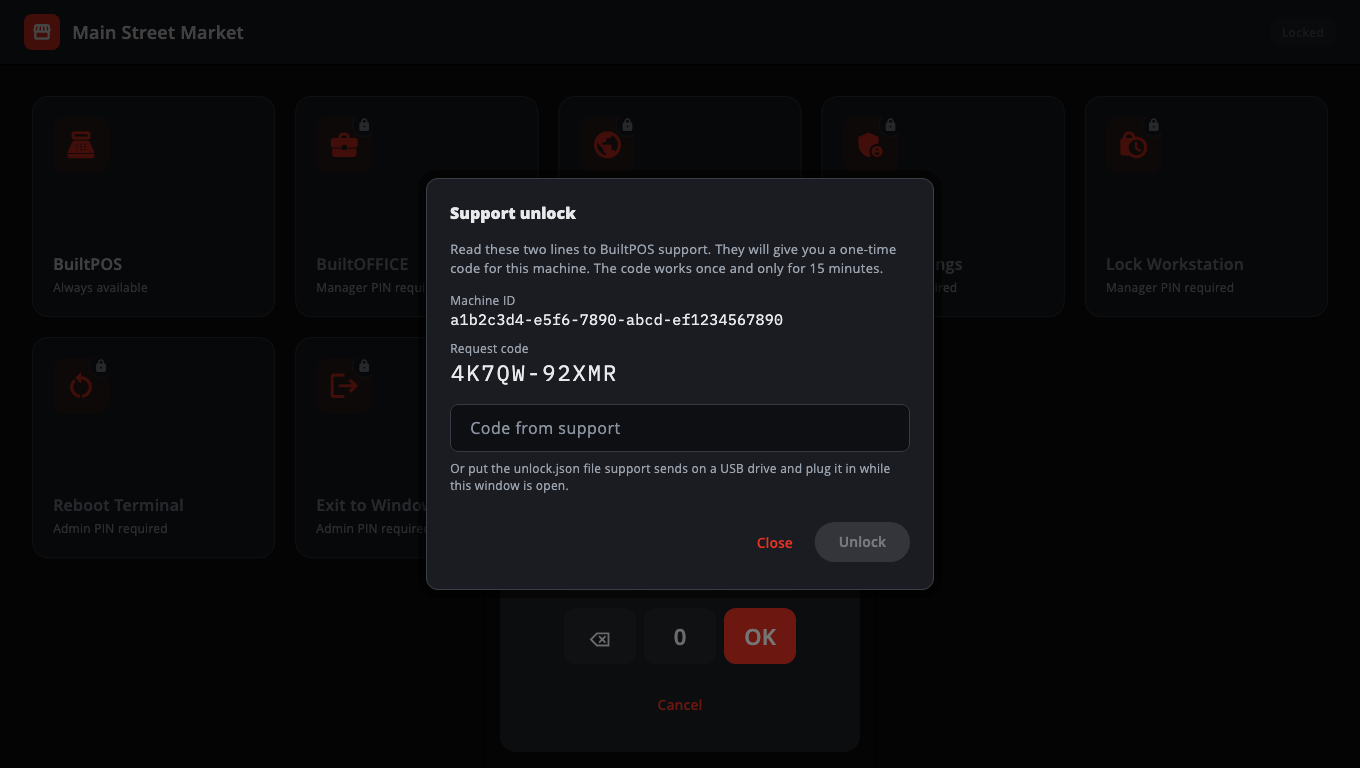
- The code works once, only on this register, and only for 15 minutes.
- Support may instead send an
unlock.jsonfile. Put it on a USB drive and plug it in while Support unlock is open. - Depending on what you need, support's code can also reset the launcher setup to defaults, or exit to Windows.
- "The code has expired" — ask for a new one. "This computer's clock is more than a day behind" — fix the Windows date and time first.
"BuiltPOS keeps closing"#
BuiltPOS closed five times within a few minutes, so BuiltLauncher stopped reopening it. Your sales and data are not affected.
The screen uses the name of your primary app. If the register's primary app is something else (for example BuiltKDS), it says BuiltKDS keeps closing instead; the steps are the same.
- Tap Start in safe mode first. BuiltPOS opens with extras switched off so you can keep selling.
- When the cause is fixed, tap Try again to start BuiltPOS normally.
- Other buttons:
- Repair (admin) — retry the last update, roll back to the previous version, or restore a backup (only on a computer that runs the store server). Needs the admin PIN.
- Show log folder — shows where the logs are, with a Copy button, for support.
- Continue to launcher (admin PIN) — leaves BuiltPOS stopped so an admin can fix the primary app's path in Admin Settings → Whitelisted Apps. A wrong path is a common cause.
"The last update did not finish cleanly"#
The store service reported a problem after an update. You can keep using the register: tap Continue to the launcher. An administrator can tap Repair (admin) to retry the update or roll back. This screen only comes back if a new problem is reported.
The launcher shows a red lock and "Launcher locked"#
The headline may say Admin PIN store is missing, Admin PIN store failed verification or Launcher configuration failed verification. This register was set up before, so BuiltLauncher refuses to start a fresh setup.
- If you see Enter admin PIN, tap it and enter the admin PIN. The damaged settings are cleared and you add your apps again.
- For support, tap Details under the message to see the Reason code.
- Otherwise, hold the red lock icon for 3 seconds to open Support unlock (steps above), or sign in to Windows as an administrator and start BuiltLauncher from there to see Reset admin PIN.
A tile won't open#
- "Could not launch …" — the program path is wrong or the program was removed. Fix it in Admin Settings → Whitelisted Apps.
- "… is outside its scheduled hours" — the tile has Restrict to hours on.
- "… has hit its daily limit" — the tile's Daily launch cap was reached today.
The register no longer signs in by itself#
Admin Settings shows "Auto sign-in is off — the till won't open by itself after a restart". Run the BuiltPOS Suite installer again, choose Update the existing installation (keep current settings), type the kiosk account password on the Kiosk Auto-Login page, and restart the computer.
If you used Exit to Windows, this is expected until the next restart.
Other messages#
- "Could not open the file browser. Type the path instead." — type the full program path into the path box.
- "Unlocked, but the PIN attempt counter could not be saved." — the disk may be full. Free some space; you can keep working.
- "Could not lock the workstation — locking may be switched off on this terminal" — the kiosk lock-down turns Windows locking off. Use Lock at the top of the launcher (or Lock Launcher in Admin Settings) instead.
Still stuck? Contact support with the Machine ID from the Support unlock box.
Was this helpful?
Thanks for letting us know.
Sorry it did not help. Tell us what was missing: open Help & Support in the app and choose Report a problem, or email support@builtsofthub.com.