
Connect BuiltSIGN to BuiltCRM
Paste a BuiltSIGN API token into BuiltCRM so deals can send contracts for signature.
Only an owner or admin of the BuiltCRM workspace can connect BuiltSIGN. Each workspace uses its own BuiltSIGN account.
- In BuiltSIGN, create an API token and copy it.
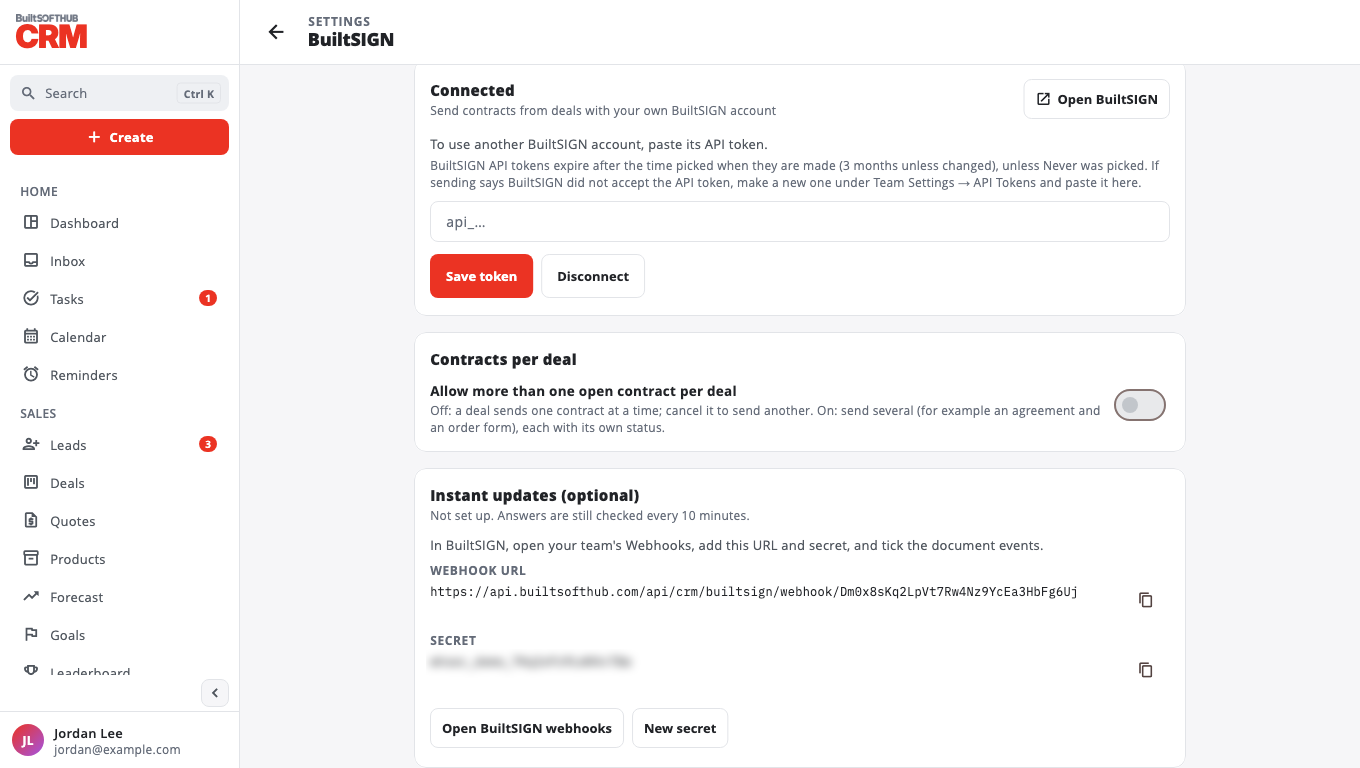
- In BuiltCRM, open Settings and choose BuiltSIGN (Contracts on deals).
- Paste the token and choose Save token. BuiltCRM checks it first, then shows Connected.
Deals now show Send for signature. See Send a contract from a deal.
Contracts per deal#
By default a deal sends one contract at a time; cancel it to send another. Turn on Allow more than one open contract per deal to send several (for example an agreement and an order form), each with its own status.
Instant updates (optional)#
Without it, BuiltCRM checks BuiltSIGN for answers every 10 minutes.
- On the Instant updates (optional) card, copy the Webhook URL and the secret.
- In BuiltSIGN open Team Settings, Webhooks, Create Webhook.
- Paste the URL into Webhook URL and the secret into Secret.
- Under Triggers, tick the document events (completed, rejected, cancelled, opened, recipient completed, recipient expired). Make sure it is Enabled and save.
When it works the card says Working: the last answer arrived at once. If you choose New secret, the old one stops working at once — paste the new one into BuiltSIGN.
Disconnect#
Choose Disconnect. Deals stop offering Send for signature. Requests already sent keep their answers.
Was this helpful?
Thanks for letting us know.
Sorry it did not help. Tell us what was missing: open Help & Support in the app and choose Report a problem, or email support@builtsofthub.com.