
Send a contract from a deal in BuiltCRM
Send a PDF or a BuiltSIGN template to the deal's contact and see the answer on the deal.
First connect BuiltSIGN to BuiltCRM.
- Open the deal.
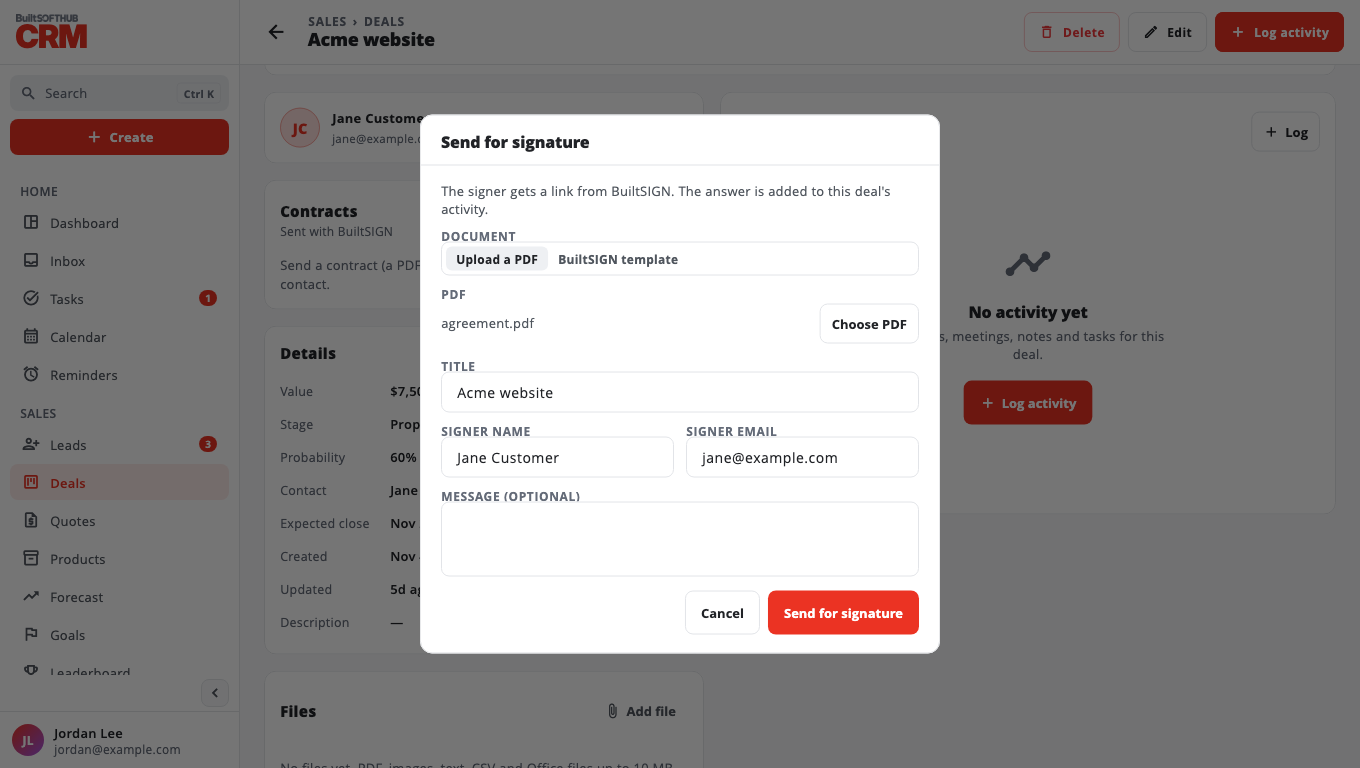
- In the Contracts card, choose Send for signature.
- Under Document, pick:
- Upload a PDF — choose Choose PDF (10 MB or smaller). BuiltSIGN puts a signature and date field on the last page. Uploading works in BuiltCRM in a browser.
- BuiltSIGN template — pick one under Template.
- Check Title, Signer name and Signer email. They start from the deal's contact.
- Optional: add a Message (optional).
- Choose Send for signature.
Follow it#
The Contracts card shows each contract with its status: Waiting for signature, Signed, Declined, Cancelled or Expired. Every change is also added to the deal's activity.
- Check now — get the latest answer.
- Remind — while it is waiting, email the signer a reminder. You can send one reminder a day; until then the button shows Reminded. You need permission to edit deals.
- Download signed copy — once it is Signed, save the signed PDF (named after the contract, ending
-signed.pdf). You need permission to view deals. - Open in BuiltSIGN — see the document there.
- Cancel request — the signer's link stops working. You can send again.
- Send another — only when the workspace allows more than one open contract per deal.
A contract that is not answered within 90 days stops being checked.
Was this helpful?
Thanks for letting us know.
Sorry it did not help. Tell us what was missing: open Help & Support in the app and choose Report a problem, or email support@builtsofthub.com.