
Send a quote or invoice for signature from BuiltINVOICE
Send a quote so the customer signs to accept it, or an invoice so they acknowledge it, and follow its status.
First connect BuiltSIGN to BuiltINVOICE.
Send it#
- Open the quote (draft, sent or viewed) or the invoice.
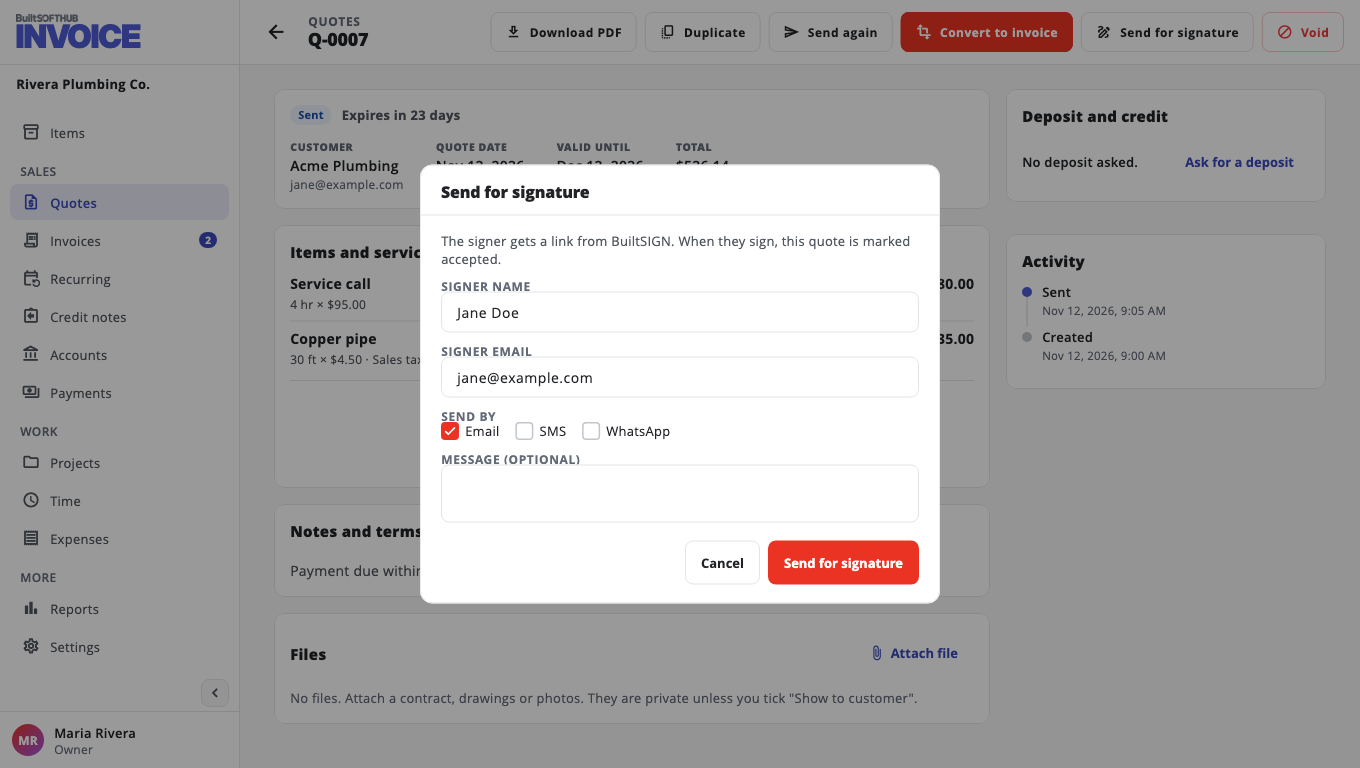
- Choose Send for signature.
- Check Signer name and Signer email. They start from the customer.
- Under Send by, pick Email, SMS and/or WhatsApp. SMS and WhatsApp need Signer phone in international format, for example +14155550123.
- Optional: add a Message (optional).
- Choose Send for signature.
A draft quote is numbered and issued only after BuiltSIGN has it. If sending fails, the quote stays a draft and nothing counts against your plan.
What happens when they answer#
- Quote signed: the quote is marked accepted, with the signer's name.
- Invoice signed: shows Acknowledged. This records who acknowledged it and when. It does not change what is owed.
- Declined: the quote is marked declined, with the reason if they gave one.
The Signature card#
On the document, the Signature card shows the status: Waiting for signature, Signed (or Acknowledged), Declined, Cancelled or Expired. From there you can:
- Check now — ask BuiltSIGN for the latest answer.
- Send a reminder — at most once every 24 hours. This also renews an expired signing link.
- Cancel request — the signer's link stops working.
- Open in BuiltSIGN — see the document there.
- Download signed copy and Download certificate — after signing.
A request that is not answered within 60 days stops being checked and shows Expired.
Was this helpful?
Thanks for letting us know.
Sorry it did not help. Tell us what was missing: open Help & Support in the app and choose Report a problem, or email support@builtsofthub.com.