
Verify your email
New accounts confirm their email address before signing in. The link works for 24 hours.
When you create a new account, we send a link to your email. You confirm the address by opening that link. This keeps other people from signing up with your email.
Steps#
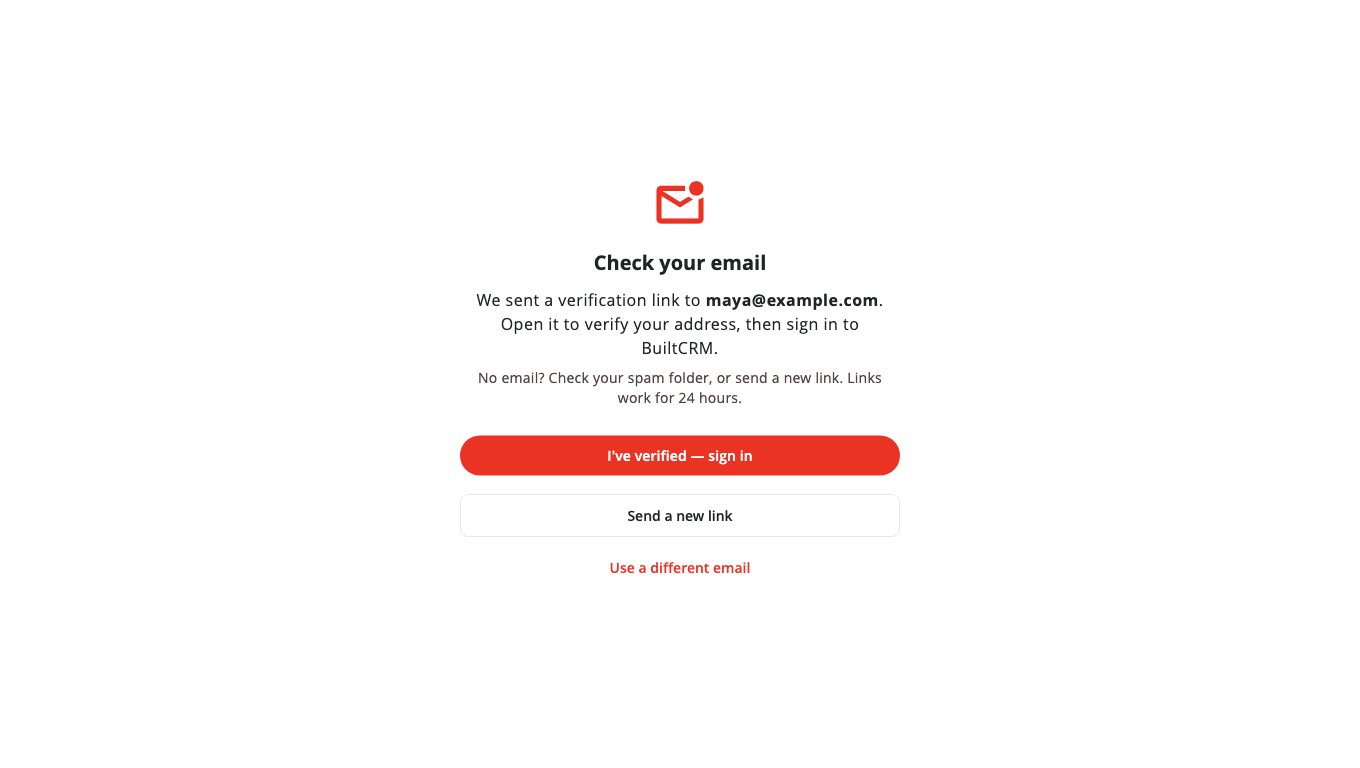
- After you choose Create account, the app shows Check your email with the address we sent the link to.
- Open the email and choose the verification link. A page confirms your email is verified.
- Go back to the app and choose I've verified — sign in.
No email?#
- Look in your spam or junk folder.
- Choose Send a new link. You can ask again after a short wait. Each new link replaces the old one.
- Typed the wrong address? Choose Use a different email and sign up again.
Links work for 24 hours. After that, send a new link.
Using an older version of an app#
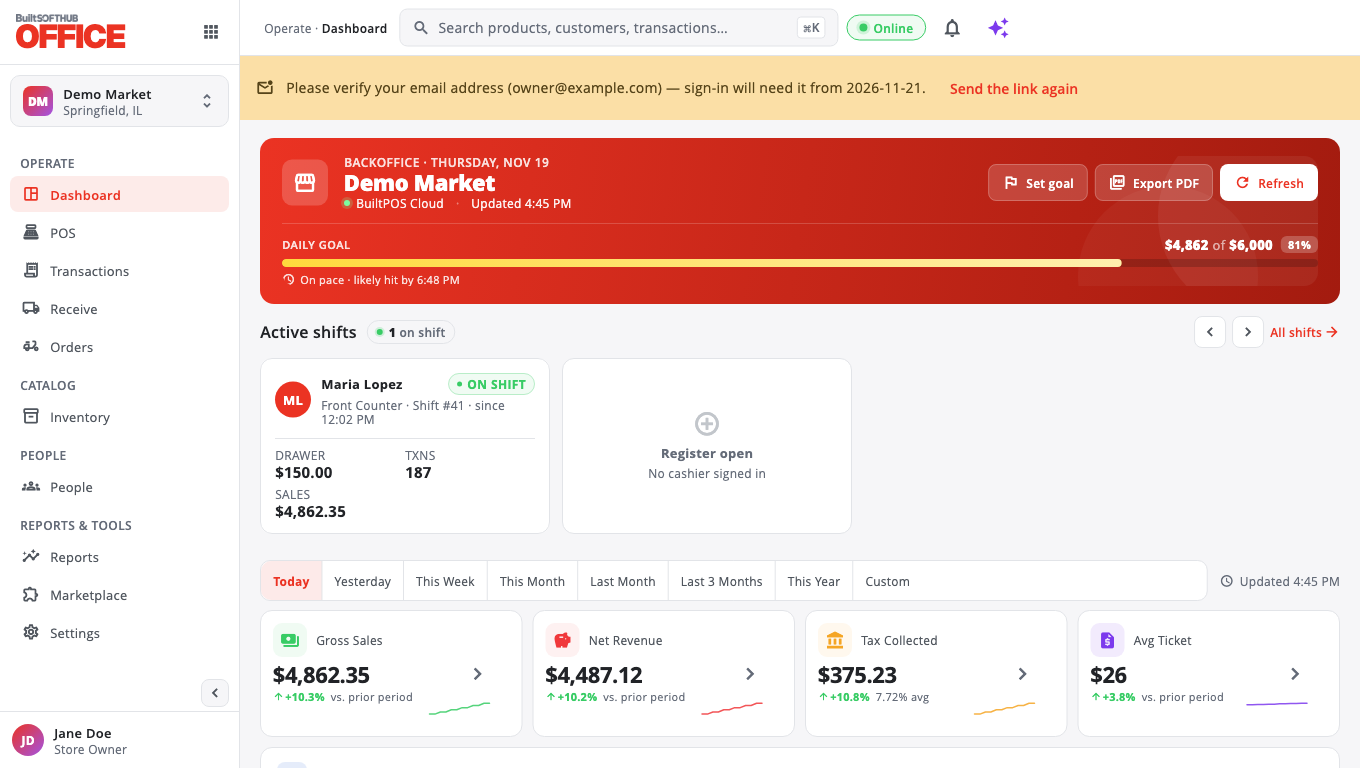
Some older app versions (for example a till that has not updated yet) cannot show the Check your email screen. They let you sign in for 48 hours after you sign up. You will see a banner: Please verify your email address with the date sign-in will need it. Choose Send the link again if you need a new link. After 48 hours, sign-in stops until you verify.
Who does not need to verify#
- Accounts that existed before email verification was turned on.
- People added by an owner or manager, or who joined through an invite link.
Related#
Was this helpful?
Thanks for letting us know.
Sorry it did not help. Tell us what was missing: open Help & Support in the app and choose Report a problem, or email support@builtsofthub.com.