
Templates, bulk send and the signatures summary in BuiltINVOICE
Use a BuiltSIGN template instead of the quote PDF, send up to 20 quotes at once, and see all signature requests in one place.
First connect BuiltSIGN to BuiltINVOICE.
Use a BuiltSIGN template#
If your BuiltSIGN team has templates, the Send for signature dialog shows Document to sign:
- This quote as a PDF (the default) — with a signature page at the end.
- A template — sent by email only.
Send several quotes at once#
- Open Quotes and choose Send several for signature.
- Tick the quotes to send (draft, sent and viewed quotes are listed), up to 20 at a time. Choose first 20 picks them for you.
- Pick the document (PDF or a template) and Send by (Email, SMS and WhatsApp; a template goes by email only). WhatsApp goes to the customer's WhatsApp number, or their phone if there is none.
- Optional: add a Message (optional).
- Choose Send (the button shows how many).
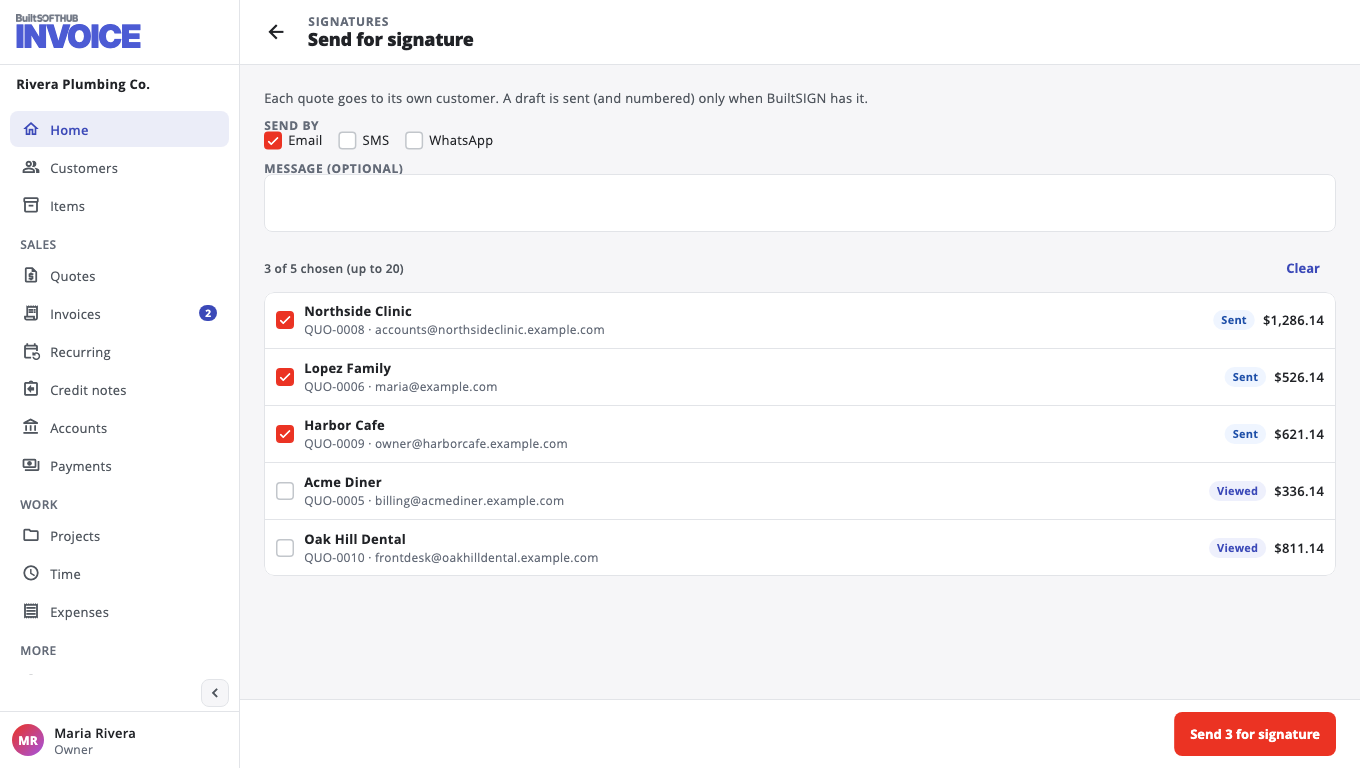
Each quote goes to its own customer. A draft is numbered only when BuiltSIGN has it. The result list shows Sent to … or why a quote was not sent (for example no email or phone on file, or Not sent: no WhatsApp number.). It is safe to run again: a quote already waiting is not sent twice.
The signatures summary#
The home screen shows a Signatures card with three counts. Open it to see the list behind each:
- Waiting — not signed yet.
- Signed this month — since the 1st.
- Declined or expired — in the last 30 days.
Was this helpful?
Thanks for letting us know.
Sorry it did not help. Tell us what was missing: open Help & Support in the app and choose Report a problem, or email support@builtsofthub.com.