
Install BuiltSync and claim your store
Install the BuiltSync agent on the store computer, open its dashboard, and paste your claim token to link it to your store.
Before you start, get your claim token from BuiltPOS support or your reseller. It looks like BSYNC-store-… and can be used once.
Install#
- On the store computer, sign in to Windows with an administrator account.
- Download the BuiltSync installer for Windows from the Downloads page on our website.
- Run it and approve the Windows prompt.
- Click through the installer. On the last page leave Open BuiltSync dashboard ticked and click Finish. (Open BuiltSync launcher opens the small start/stop window as well.)
BuiltSync installs as a Windows service called BuiltSync, so it starts with Windows even when nobody is signed in. The installer also puts two shortcuts on the desktop: BuiltSync (start/stop window) and BuiltSync Dashboard.
Open the dashboard#
The dashboard is a web page that only works on this computer: http://localhost:9847. Open it with the BuiltSync Dashboard shortcut, or type the address into a browser on the store computer.
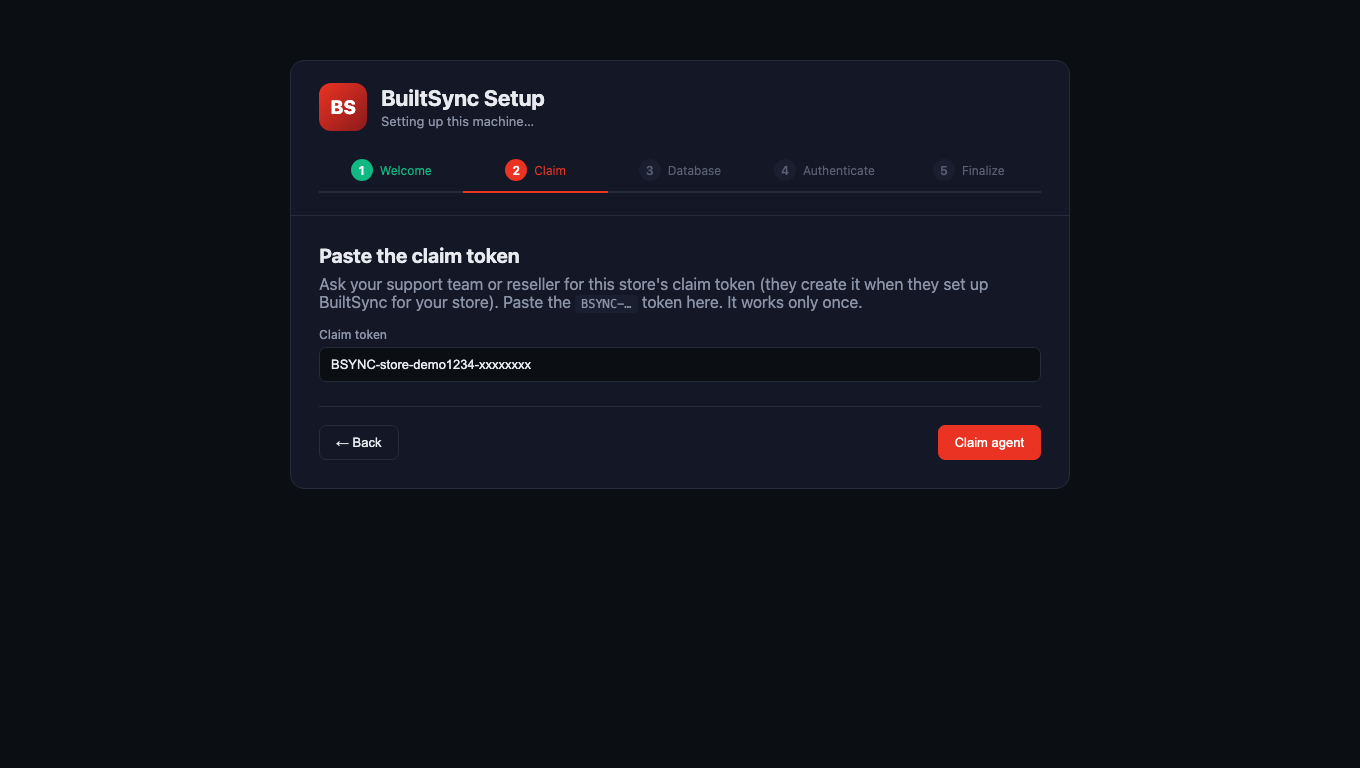
The first time, it shows BuiltSync Setup with five steps: Welcome, Claim, Database, Authenticate, Finalize.
Claim the agent#
- On Welcome, check the computer name and that Administrator shows Yes, then click Get started →.
- On Paste the claim token, paste your token into Claim token.
- Click Claim agent.
- You'll see "Agent claimed — …" and move on to the Database step.
Now connect your database: Connect your SQL Server.
Good to know#
- The token must start with
BSYNC-. "Invalid or already claimed token" means it was mistyped or already used — ask for a new one. - BuiltPOS staff and resellers create the token for your store. The setup page tells you to ask them for it.
- The BuiltSync desktop shortcut opens a small window with Start Agent, Stop Agent, Open Dashboard and Open Setup (Dashboard). There is also a tray icon with Open Dashboard, Restart Agent and Stop Agent.
- The dashboard can't be opened from other computers on the network — only on the store computer itself.
Was this helpful?
Thanks for letting us know.
Sorry it did not help. Tell us what was missing: open Help & Support in the app and choose Report a problem, or email support@builtsofthub.com.