
Send your first invoice
Create an invoice, check the PDF and send it to your customer.
- On Home, choose New invoice.
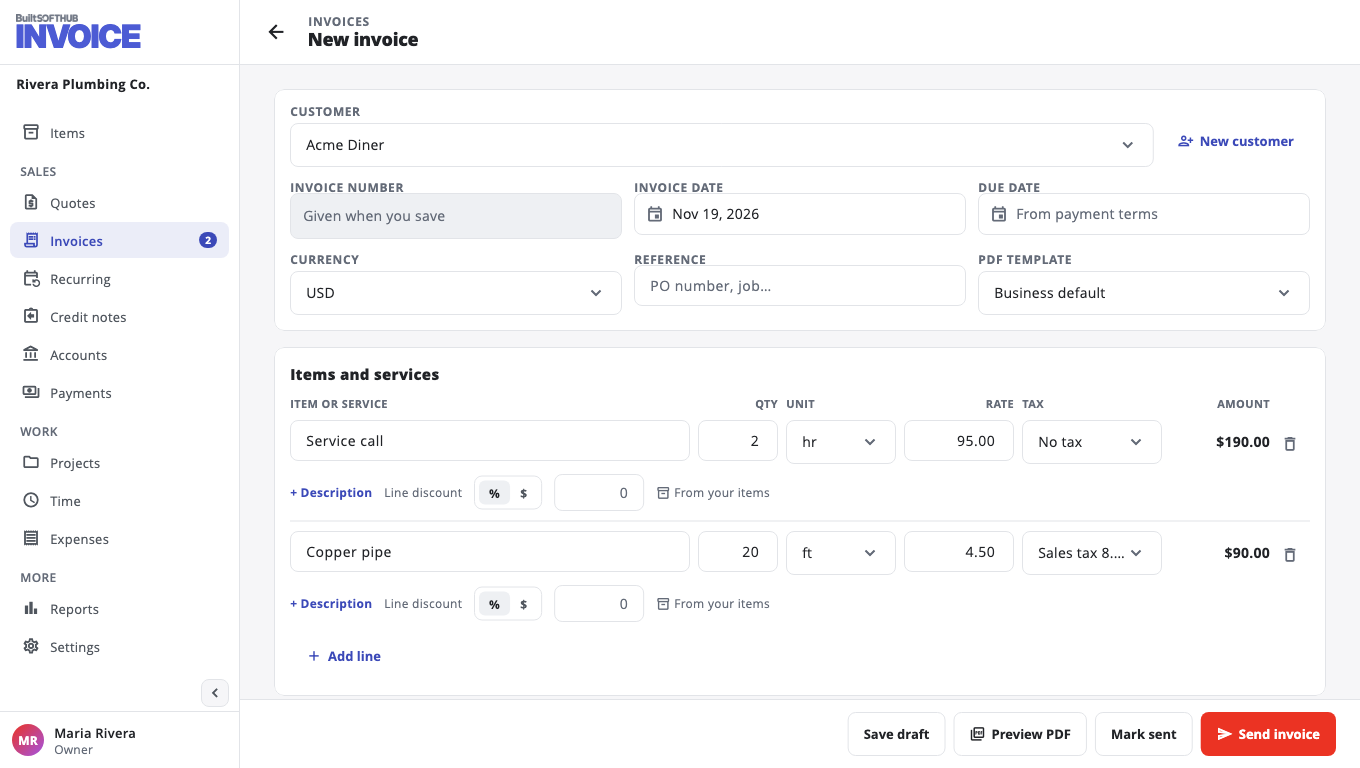
- Under Customer, choose Choose a customer. Pick one, or choose New customer to add one on the spot.
- Under Items and services, start typing in the first line. Pick a saved item, or type a new one.
- Fill in QTY, RATE and TAX for the line. Choose Add line for more.
- Add Notes to the customer or Terms if you like.
- Choose Preview PDF to see what your customer will get.
- Choose Send invoice.
- Tick how to send it (Email (with the PDF attached), SMS (with a link) or WhatsApp (with a link)), add an optional Message, and choose Send.
Your customer gets the invoice with a link to its own page, where they can see it, download the PDF and pay.
The invoice gets its number when you send it, so a draft you delete never leaves a gap in your numbers.
Not ready to send? Choose Save draft and come back later. Already gave the customer a paper copy? Choose Mark sent.
Next: Set up ways to get paid.
Was this helpful?
Thanks for letting us know.
Sorry it did not help. Tell us what was missing: open Help & Support in the app and choose Report a problem, or email support@builtsofthub.com.