
Pair the kitchen display
Link a BuiltKDS screen to your store with a 6-digit code, and optionally connect it to a store hub on your register so tickets flow even without internet.
Most kitchens pair with a 6-digit code. That works over the internet. If you also turn on a store hub on one register, tickets travel over your shop network too — faster, and they keep coming when the internet is down.
Pair with a code (recommended)#
1. Make a code — on a BuiltPOS register or in BuiltOFFICE:
- Register: sign in as an owner or manager, open Store Management → Pair Device, tap KDS, then Generate code.
- BuiltOFFICE: open Terminals → Pair Terminal, type a Terminal name (for example "Grill screen"), set Role to Kitchen Display (KDS), pick the Platform, keep 6-digit code and tap Pair.
2. Type it on the kitchen screen
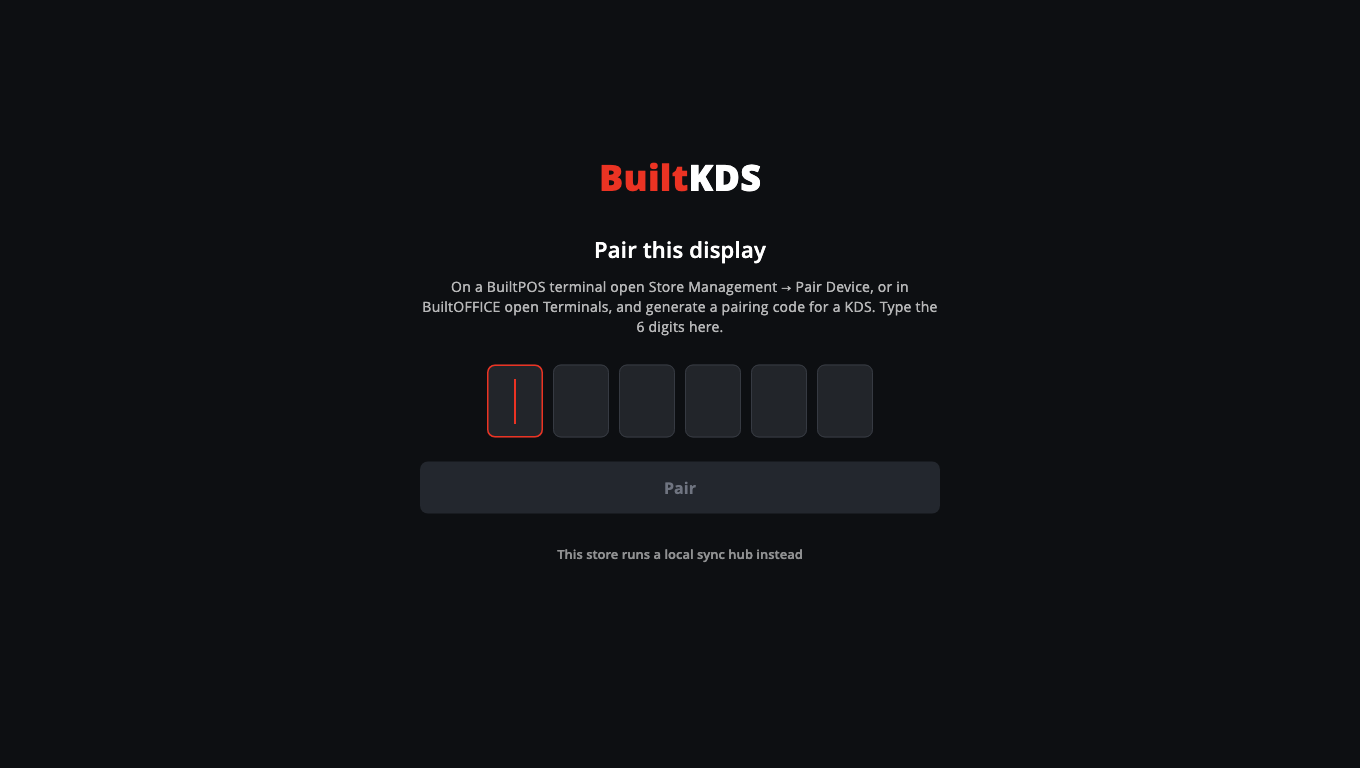
- Open BuiltKDS. On Pair this display, type the 6 digits.
- Tap Pair. The kitchen board opens.
Add a store hub (optional, recommended for restaurants)#
Do this once, on the register that is always on (usually the main till).
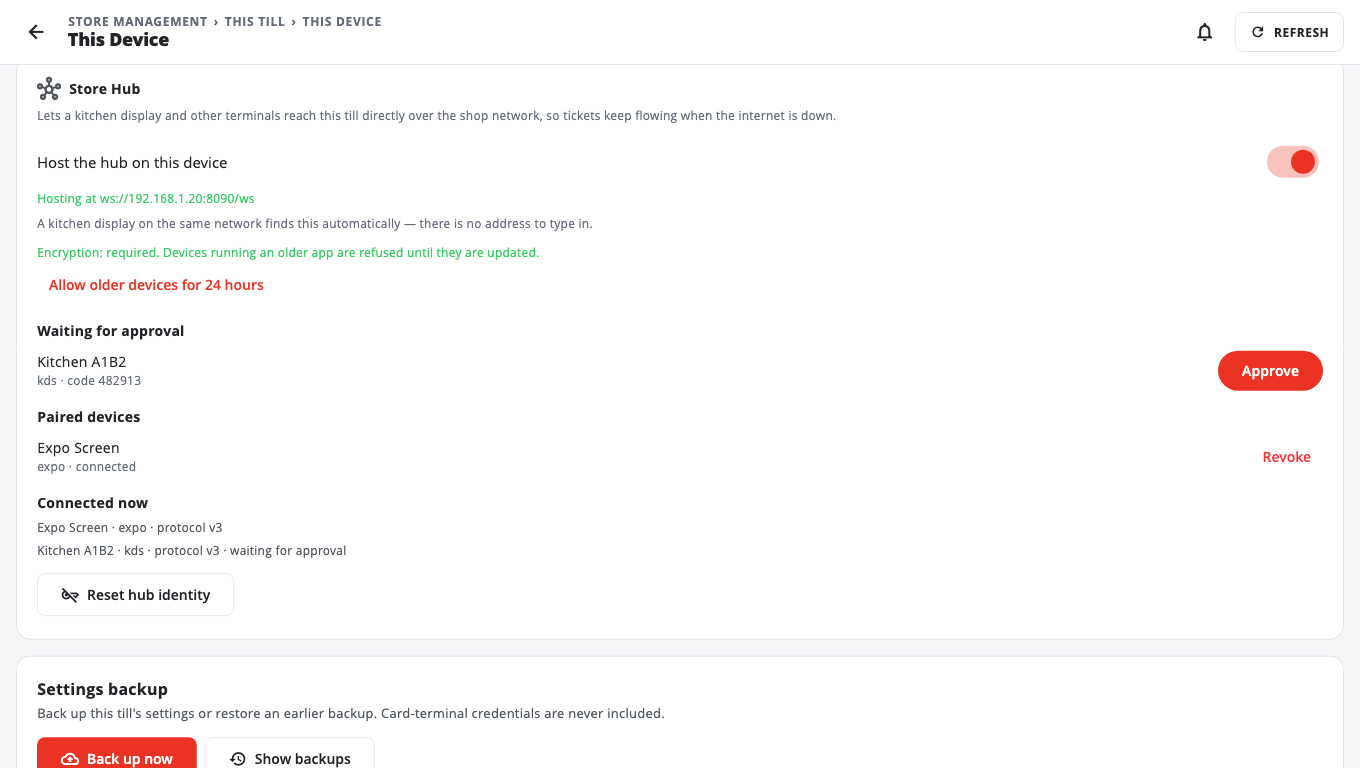
- On that register, open Store Management → This Till → This Device.
- In Store Hub, turn on Host the hub on this device.
- The status should read Hosting at ….
Kitchen displays paired with a code find the hub on their own. You don't need to type an address.
Pair to a hub by address (no internet pairing)#
Use this only if your store runs without cloud pairing.
- On Pair this display, tap This store runs a local sync hub instead.
- Under Connect to your store hub, type the Hub URL your installer gave you and tap Continue.
- The screen shows Waiting for approval and a PAIR CODE.
- On the register that hosts the hub, open Store Management → This Till → This Device. In Store Hub, find the display under Waiting for approval, check the code matches, and tap Approve.
Good to know#
- A code expires after 15 minutes. Make a new one if it does.
- Only one register should host the hub. If two try, the status says so — tap Make this till the hub on the one you want.
- If the hub register has no network address, the status warns that a kitchen display can't find it. Check its network cable or Wi-Fi.
- To move a display to another store, unpair it first: Settings → Connection → Unpair this device (manager PIN).
- Right after pairing, a standalone screen asks you to Set an Admin PIN for this screen. Write it down: it protects Exit, Disconnect and Unpair. Change it later in Settings → Change PIN (see BuiltKDS questions and answers).
- See also Restaurant tables and kitchen.
Was this helpful?
Thanks for letting us know.
Sorry it did not help. Tell us what was missing: open Help & Support in the app and choose Report a problem, or email support@builtsofthub.com.