
Set up BuiltKDS
What the BuiltKDS kitchen display does, what you need, and how to install it on an Android tablet or a Windows PC.
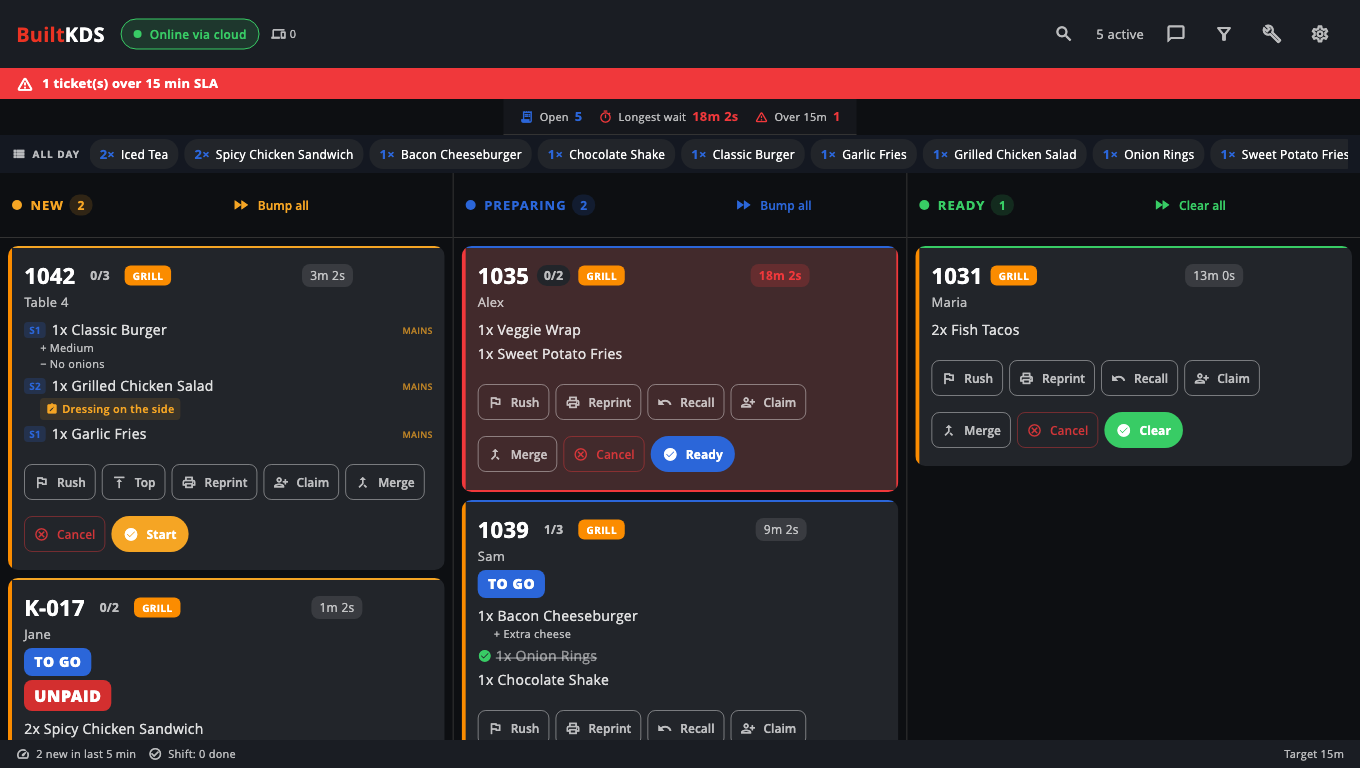
BuiltKDS shows kitchen tickets on a screen instead of (or as well as) paper. Orders arrive from your BuiltPOS registers, restaurant tables, BuiltKIOSK and online orders. Cooks tap tickets to start them, mark them ready and clear them.
What you need#
- A BuiltPOS store that sends orders to the kitchen (restaurant or counter-service setup).
- The Kitchen Display System add-on on your store (BuiltOFFICE → Marketplace). See Plans and billing.
- A screen in the kitchen: an Android tablet or wall display (Android 8.0 or newer), or a Windows 10/11 PC with a monitor.
- A network connection: internet, and ideally the same shop network as your registers.
Install on Android#
- On the tablet, open the Downloads page on pos.builtsofthub.com. Ask your BuiltPOS contact for the download password.
- Under BuiltKDS, download the Android APK and install it.
- Open BuiltKDS. You see Pair this display.
Install on Windows#
- Download the BuiltPOS Suite from the Downloads page and run it.
- Choose Custom and tick BuiltKDS (kitchen display) (it is also included in All apps).
- Open BuiltKDS from the desktop shortcut.
Then#
- Pair the display with your store. See Pair the kitchen display.
- Open Settings (gear icon on the board) and pick this screen's station under Station filter (this device) if you have more than one kitchen screen. See Stations and routing.
- Send a test order from a register and check it appears.
Good to know#
- Without a store hub, tickets come over the internet. Turn on a store hub on one register so tickets keep flowing when the internet is down — see Pair the kitchen display.
- On Windows, press F11 for full screen. Closing the window asks Close the kitchen display? so it isn't closed by accident.
- A BuiltPOS register can also show the board: Store Management → Kitchen Display ("Open KDS on this screen").
- To keep a tablet on BuiltKDS all day, use Android's screen pinning or your device-management tool.
- Updates on Windows: see Update BuiltKDS.
Was this helpful?
Thanks for letting us know.
Sorry it did not help. Tell us what was missing: open Help & Support in the app and choose Report a problem, or email support@builtsofthub.com.