
Tables, tabs and sending orders to the kitchen
Turn on Restaurant mode, set up tables, seat guests, send items to the kitchen and close or split a tab.
Turn on Restaurant mode#
- Open Store Management → Store → Store Settings.
- Under POS Mode, choose Restaurant.
- Tap Save.
Restaurant mode adds the floor plan, kitchen sending and the kitchen slip tab in the Receipt List.
Set up your tables#
- Tap Floor Plan on the left panel (or under More). With no tables yet, tap Add Tables. You can also open Store Management → Tables.
- Tap the + button to add a table. Enter the Table number, an optional Name, the Section (for example Dining, Patio, Bar) and Seats. Tap Save Table.
- Tap Edit Layout and drag the tables to match your room. Tap Done when finished.
Seat guests and take the order#
- On the Floor Plan, tap an open table.
- Set the number of Guests and tap Seat & Open Tab.
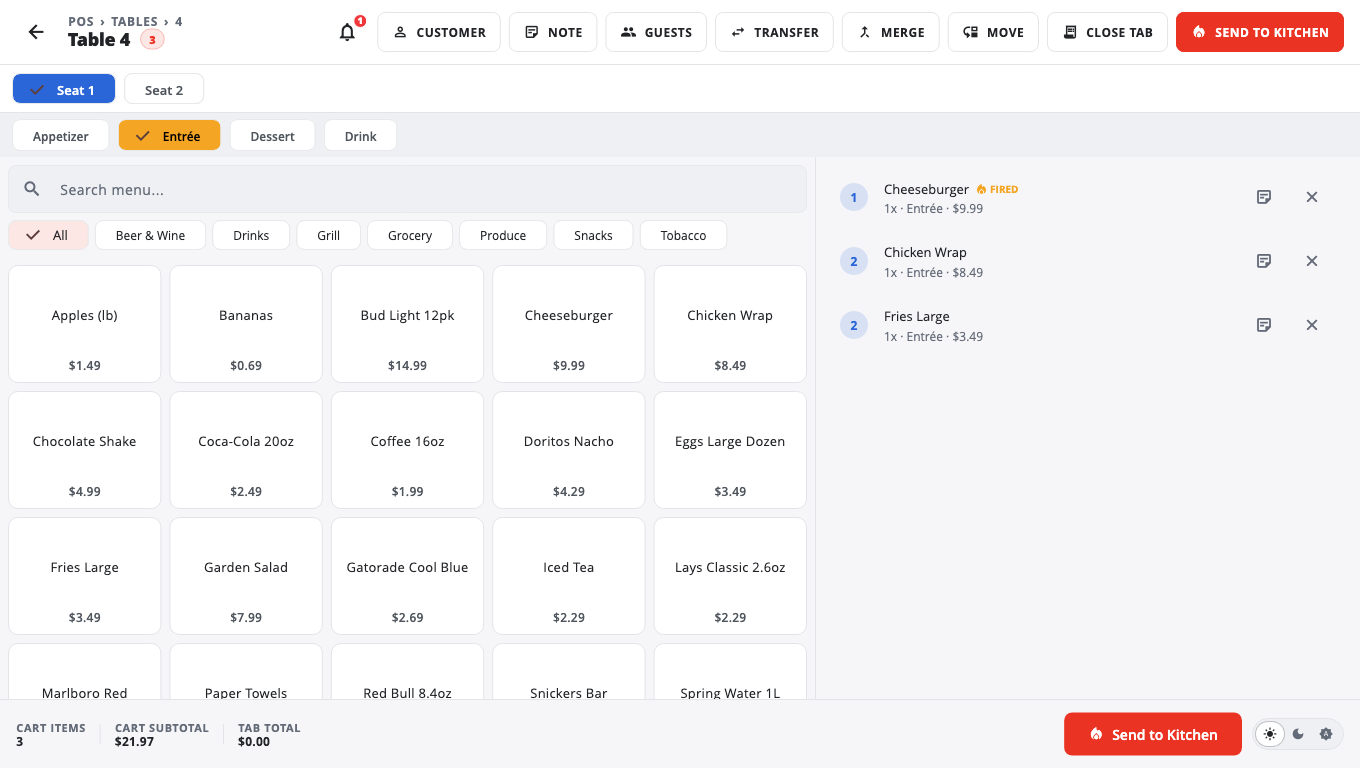
- Add items from the menu (use Search menu... to find one). Use the Seat buttons to put items on a guest's seat.
- Tap Send to Kitchen. Items that were sent show FIRED.
- Add more items later and tap Send to Kitchen again. Only the new items go.
Tables show their state on the floor plan: Open, Seated, Ordered, Eating, Check and Paid.
Change the table#
The bar at the top of the table order screen has:
- Guests — change the guest count.
- Transfer — move the whole tab to another table.
- Merge — bring another table's check into this one.
- Move — move chosen items to another table.
Close the tab and take payment#
- Tap Close Tab.
- Choose Single Bill, Split by Seat or Split Evenly.
- Take payment as usual. See Split payments.
Counter orders (no table)#
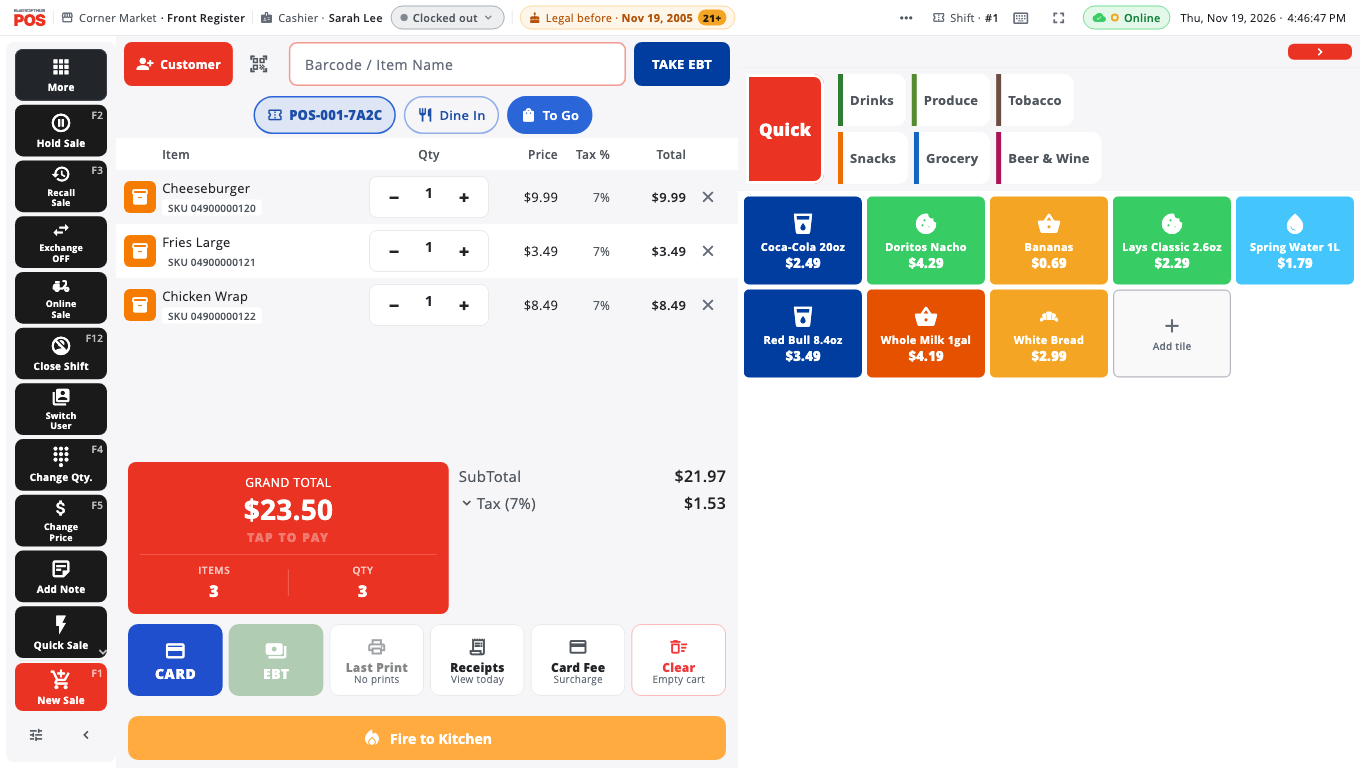
- Ring the items on the sale screen as usual. Pick Dine In or To Go if your till shows the choice.
- Tap Fire to Kitchen to send them now, or just take payment: in Restaurant mode any items not yet sent go to the kitchen when the sale is paid.
Good to know#
- Not sent to the kitchen. If no printer or kitchen screen took the order, the till tells you and the items stay unfired. Tap Retry. If you see Kitchen NOT notified, the order will not reach the kitchen by itself: write it down and take it to the kitchen.
- Training mode never sends tickets to the kitchen.
- Removing an item that was already sent asks Remove fired item? first.
- Where tickets go (which printer, which kitchen screen) is set per station. See Kitchen stations and printers and Kitchen printers.
- To reprint a kitchen ticket, open Receipts → Kitchen slip. See Print and reprint receipts.
Related#
Was this helpful?
Thanks for letting us know.
Sorry it did not help. Tell us what was missing: open Help & Support in the app and choose Report a problem, or email support@builtsofthub.com.