
Work the kitchen board
How tickets move across the board, what the colours and labels mean, and the everyday controls cooks use.
The board has three columns: New, Preparing and Ready. Each ticket shows the order number, the time it has waited, the items with their options and notes, and labels like dine in or to go.
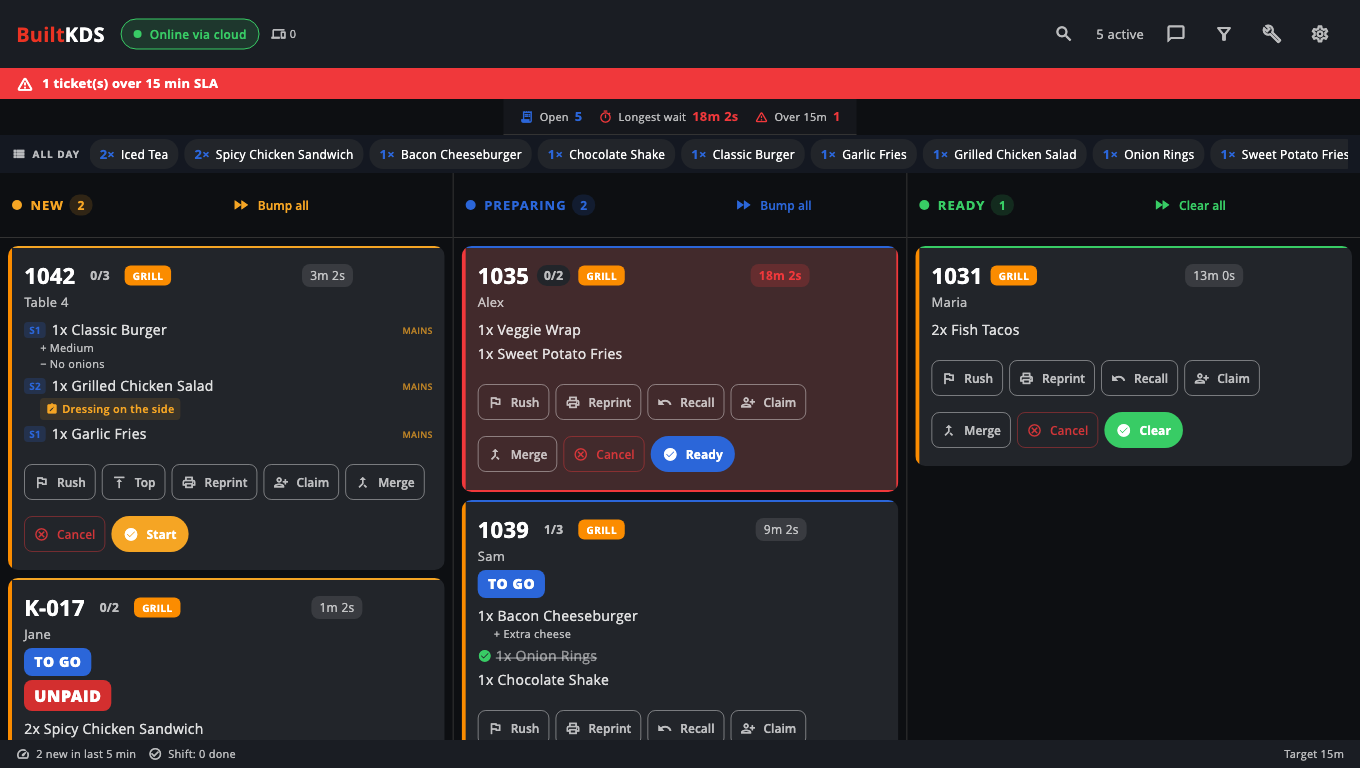
Move a ticket along#
- A new order appears in New (with a chime).
- Tap Start on the ticket. It moves to Preparing.
- When the food is ready, tap Ready. It moves to Ready.
- When the customer or server takes it, tap Clear. The ticket leaves the board.
Made a mistake? Tap UNDO at the bottom of the screen straight after. See Bump, recall and undo.
Mark single items done#
- Tap an item line to strike it through when that item is made. Tap again to un-strike.
- Press and hold an item to mark it 86 (out of stock). Confirm, and the item stops selling on every register and kiosk until someone turns it back on in BuiltOFFICE.
Labels you may see#
- UNPAID — a kiosk order the customer will pay for at the register.
- CHANGED — the register changed this order after it was sent. Removed items are marked so you don't make them.
- ALLERGEN — an item on the ticket contains an allergen. Each item shows which one.
- Hold — waiting on … or Fires in … — the ticket is held for a course or a set time. Tap Fire now to start it early.
- Over …m — the ticket is past your target time.
Other controls#
- Search — find an order by number or customer name (or press S on a keyboard).
- Tools menu — Message front of house, Recall all ready, Pause station, Prep time averages, Switch to pickup display and more.
- Ticket menu — Reprint, Recall, Claim, Merge, Cancel. Cancel only removes the ticket from the board; void the sale on the register if the guest was charged.
Keyboard and bump bars#
| Key | What it does |
|---|---|
| 1, 2, 3 (or numpad) | Pick the New, Preparing or Ready column |
| Up / Down arrows (numpad 8 / 5) | Move between tickets |
| Enter | Bump the selected ticket |
| U | Undo the last bump |
| R (numpad .) | Recall the last ticket bumped to Ready |
| S | Search |
Good to know#
- New screens use the ticket's Start / Ready / Clear button to bump. To bump by tapping anywhere on a ticket, turn on Tap a ticket to bump it in Settings.
- Settings → Repeat new-ticket alert keeps chiming until someone touches the board (off by default).
- Settings → Light theme and Font size change how the board looks on this screen. For more looks, see Kitchen display designs.
- Training mode in Settings adds three practice tickets that never go anywhere.
Was this helpful?
Thanks for letting us know.
Sorry it did not help. Tell us what was missing: open Help & Support in the app and choose Report a problem, or email support@builtsofthub.com.