
Fix BuiltKDS problems
What the connection labels mean, and what to do when tickets don't arrive, the screen says "Not receiving orders", pairing fails, or bumps don't show elsewhere.
On this page
- Start with the Connection panel
- What the status label means
- Tickets don't arrive at all
- Tickets stop when the internet goes down
- "Kitchen hub identity changed" or "Store hub needs update"
- Pairing fails
- Bumps don't show on other screens or the pickup TV
- I forgot the KDS PIN
- The Windows kitchen display won't close
Start with the Connection panel#
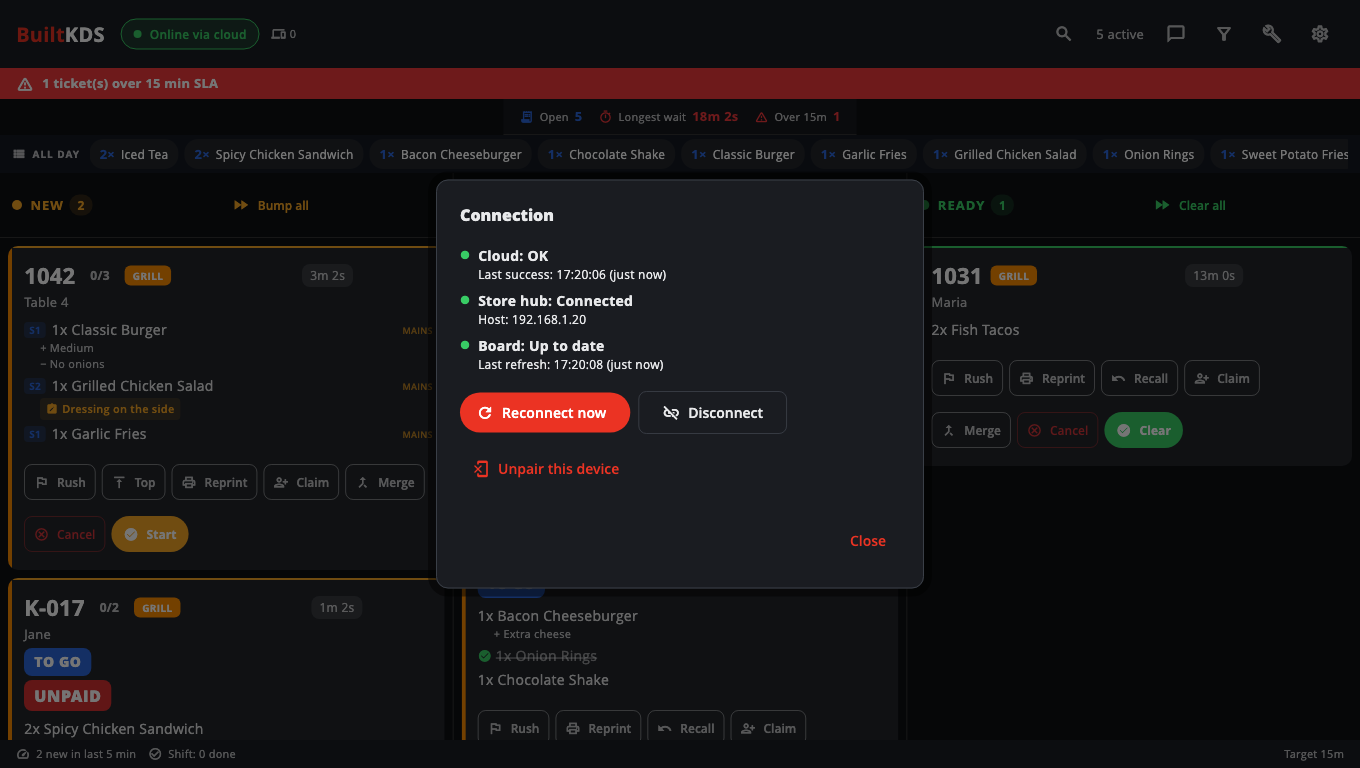
Most problems show up here. Open Settings → Connection (or tap the red strip at the top of the board). It shows three things:
- Cloud — orders arriving over the internet.
- Store hub — orders arriving from your register over the shop network.
- Board — whether this screen is refreshing (Up to date or Refresh failing).
Buttons: Reconnect now (safe any time), Disconnect and Unpair this device (both need the PIN).
What the status label means#
| Label | Meaning | What to do |
|---|---|---|
| Online | Connected to the store hub. | Nothing. |
| Online via cloud | No register is hosting a store hub; orders come over the internet. | Fine. For faster tickets that also work without internet, turn on the hub (see below). |
| Offline | The store hub can't be reached. Orders may still come from the cloud, a little slower. | Check the register that hosts the hub is on and connected. |
| Awaiting approval | The hub register hasn't approved this screen. | On that register: Store Management → This Till → This Device → Store Hub → Approve. |
| Disconnected | Someone pressed Disconnect. No new orders will appear. | Open Connection and tap Reconnect now. |
| Not receiving orders | No answer from the cloud for a while. | Check this screen's internet, then tap Reconnect now. |
| Screen error | This screen couldn't refresh from its own storage. | Tap Reconnect now. If it keeps happening, restart BuiltKDS. |
Tickets don't arrive at all#
- Send a test order from a register, or from a kiosk (Send test order to KDS).
- Check Settings → Station filter (this device). If a station is picked, this screen only shows that station's items. Try All stations.
- Check Source filter — POS counter, Tables, Kiosk and Online (delivery) should be ticked for the kinds of order you expect.
- Kiosk and online orders have no station. If this screen filters by station, turn on Also show kiosk and online orders (on one screen only).
- Check the item's station in BuiltOFFICE (Printers & Kitchen). See Stations and routing.
- Check the register is set to send tickets to the kitchen screen. See Restaurant tables and kitchen.
Tickets stop when the internet goes down#
Turn on a store hub: on your main register, Store Management → This Till → This Device → Store Hub → Host the hub on this device. Paired kitchen screens find it on their own.
"Kitchen hub identity changed" or "Store hub needs update"#
- Store hub needs update — the register hosting the hub runs an older BuiltPOS. Update that register. Tickets still arrive meanwhile.
- Kitchen hub identity changed — a different register is now the hub, or the hub was reset. If that is expected, tap Trust new hub and enter the PIN.
- App update required — update this kitchen display. See Update BuiltKDS.
Pairing fails#
- The code expired (15 minutes) or was used already. Make a new one.
- Make sure the code was made for a KDS (register) or Kitchen Display (KDS) (BuiltOFFICE).
- Unable to pair on the hub lane: check the Hub URL, then Try again, or tap Change URL (re-pair).
- Your plan may have no free device slots. Revoke an old device in BuiltOFFICE Terminals or upgrade.
Bumps don't show on other screens or the pickup TV#
Both screens must be connected (check the Connection panel on each). Tap Reconnect now on the screen that is behind.
I forgot the KDS PIN#
A screen that was paired before BuiltKDS asked for a PIN at pairing, and never had it changed, still uses 1234. Change it under Settings → Change PIN (you need the current PIN). If you no longer know the current PIN, contact support.
The Windows kitchen display won't close#
That is on purpose: closing asks Close the kitchen display? first. Confirm to close. Press Esc to leave full screen.
Was this helpful?
Thanks for letting us know.
Sorry it did not help. Tell us what was missing: open Help & Support in the app and choose Report a problem, or email support@builtsofthub.com.