
Stations and routing
Send each item to the right kitchen station, choose screen, printer or both for each station, and set which station a kitchen display shows.
A station is a part of your kitchen — Grill, Fryer, Bar, Kitchen. Each item goes to one station. Each station can use a kitchen screen, a kitchen printer, or both.
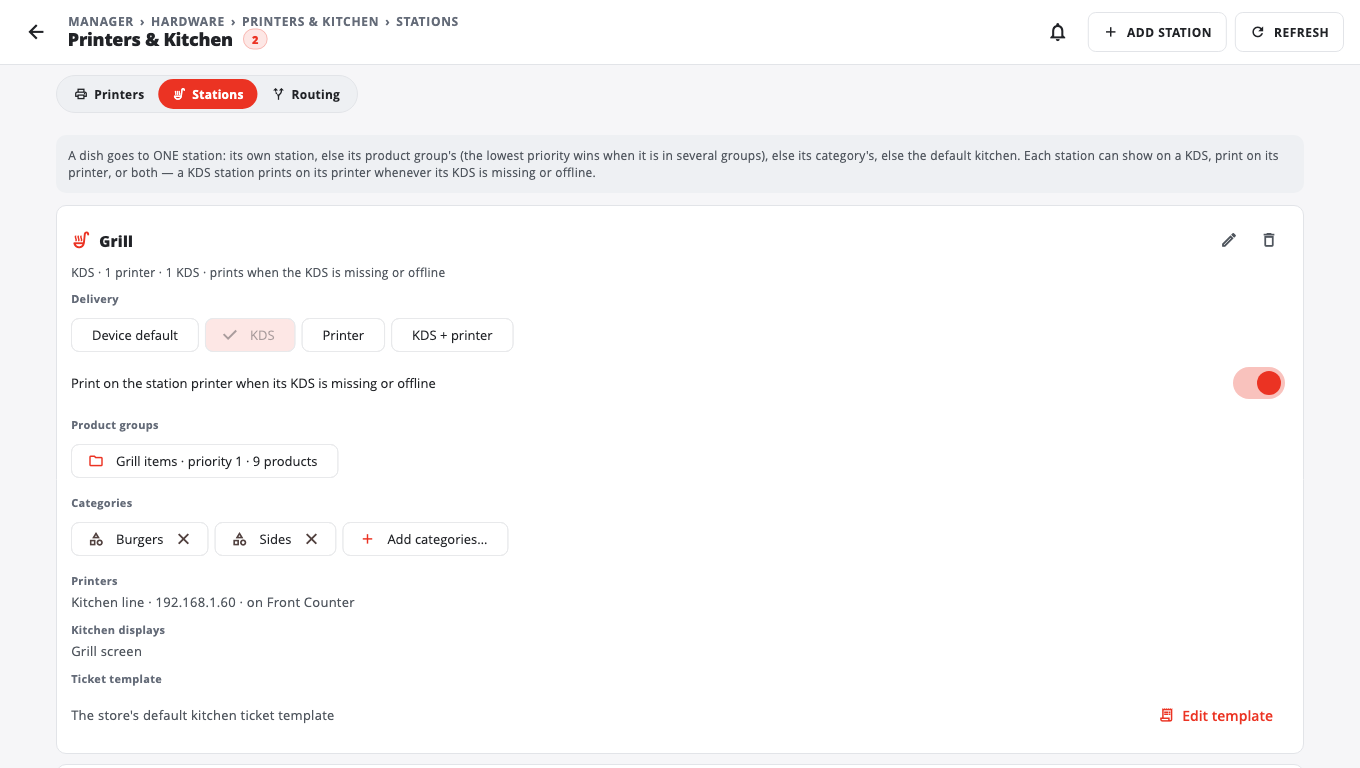
1. Create stations and choose how they get tickets (BuiltOFFICE)#
- In BuiltOFFICE, open Printers & Kitchen and choose the Stations tab.
- Tap Add station, type the Station name and save.
- Under Delivery, choose (Device default leaves it to each register's own setting):
- KDS — the kitchen screen only. Print on the station printer when its KDS is missing or offline is on by default, so tickets still print if the screen is down.
- Printer — paper on the station's printer every time.
- KDS + printer — both.
- Tap Add categories… to send whole categories to this station.
Full details: Kitchen stations and printers.
2. Decide where each item goes#
An item goes to the first of these that is set:
- the product's own Kitchen station / printer (on the product's Kitchen tab);
- its product group's station (the group with the lowest priority number wins if a product is in several groups);
- its category's station.
Items with no station show under General.
3. Pick the station on each kitchen screen#
- On the kitchen display, open Settings (gear icon).
- Under Station filter (this device), tap the stations this screen should show. All stations shows everything.
- If you filter by station, decide about Also show kiosk and online orders. Kiosk and online orders have no station, so turn this on for one screen only, or the same food shows on two screens.
- (Optional) Under View mode, choose Stations to see one column per station instead of Kanban.
Order sources#
Source filter (the filter button in the board header, or in Tools on a narrow screen) chooses which kinds of order this screen shows: POS counter, Tables, Kiosk and Online (delivery). Each screen can have its own filter.
Good to know#
- Balance tickets across screens (Settings) shares new tickets between several screens on the same station.
- Pause station (Tools) dims new tickets and mutes the sound, for example when a station is closed.
- Each register also has its own kitchen-ticket settings. See Restaurant tables and kitchen.
Was this helpful?
Thanks for letting us know.
Sorry it did not help. Tell us what was missing: open Help & Support in the app and choose Report a problem, or email support@builtsofthub.com.