
Update BuiltKDS
How a kitchen display gets a new version — in-app on Windows (now or tonight), and by installing the new APK on Android.
On this page
On Windows#
BuiltKDS checks for a new version a couple of minutes after it starts, then every few hours. When one is ready, a small Update available pill appears in the bottom-left corner. It never covers a ticket and never opens by itself.
- When the kitchen is quiet, tap the Update available pill.
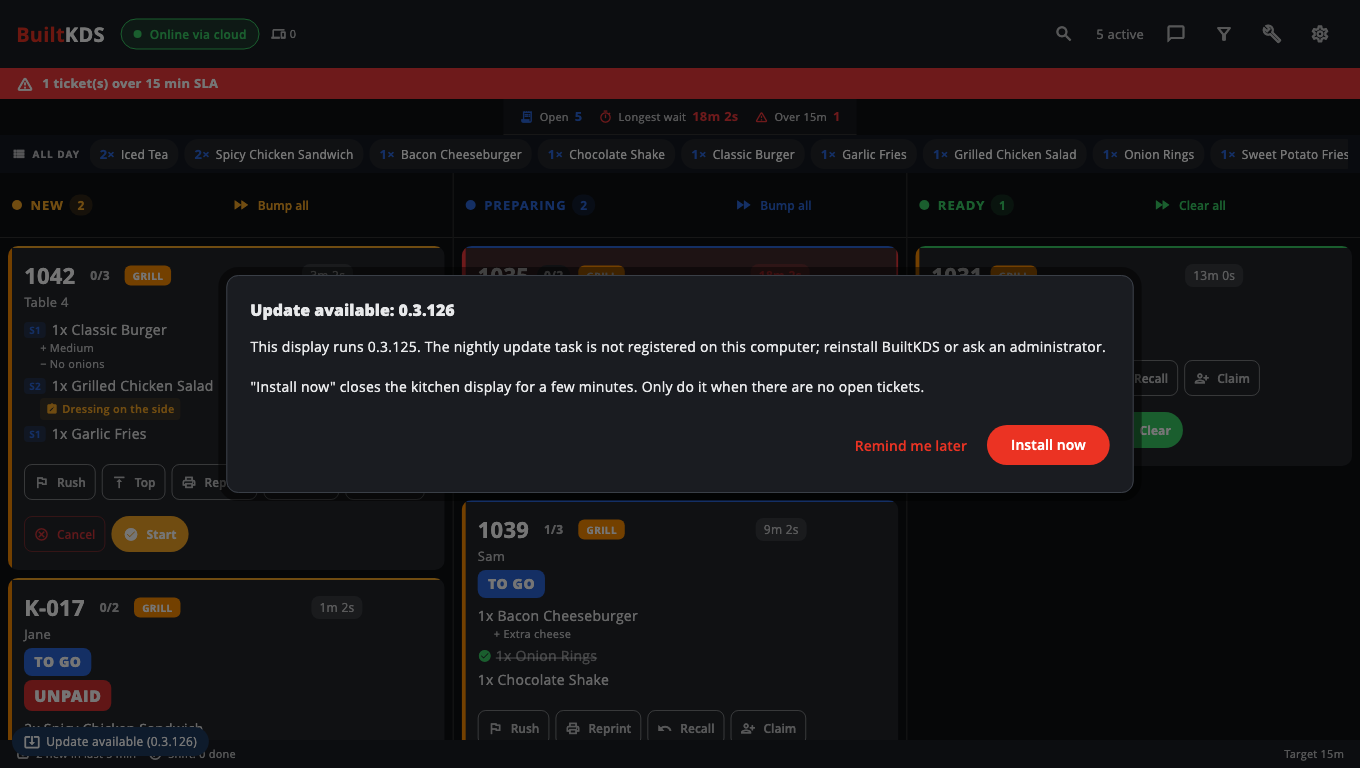
- The dialog shows the version on this screen and the new one. Choose:
- Update tonight — the nightly update task installs it overnight. Nothing else to do.
- Install now — downloads and installs now. The kitchen display closes for a few minutes, so only do this with no open tickets.
- Remind me later — hides the pill for now.
- If you chose Install now, watch the progress (Downloading BuiltKDS …).
- When Windows asks for permission, approve it (Approve the Windows prompt to install the update.). You may need an administrator.
- The kitchen display closes, installs and opens again.
On Android#
- Download the latest BuiltKDS APK from the Downloads page on pos.builtsofthub.com.
- Install it over the old app. Pairing and settings are kept.
If the store needs a newer version, the app shows an Update Required screen until you install it.
Good to know#
- Update tonight only appears when the nightly update task is set up on this PC. If the dialog says the task is not registered, reinstall BuiltKDS (or the BuiltPOS Suite) or ask an administrator.
- If an install did not finish, the next update dialog says so. Try again, or use Update tonight.
- Cancel during the download stops the update — Update cancelled. Nothing was changed.
- BuiltPOS registers update separately. See Update BuiltPOS.
Was this helpful?
Thanks for letting us know.
Sorry it did not help. Tell us what was missing: open Help & Support in the app and choose Report a problem, or email support@builtsofthub.com.