
Set up your scanner
Choose camera, hardware trigger (Zebra) or a USB/Bluetooth scanner for each device.
On this page
Each device picks its own way to scan. A Zebra handheld can use its trigger while the phone at the counter uses its camera, on the same store.
- Go to Settings › Scanner Preferences.
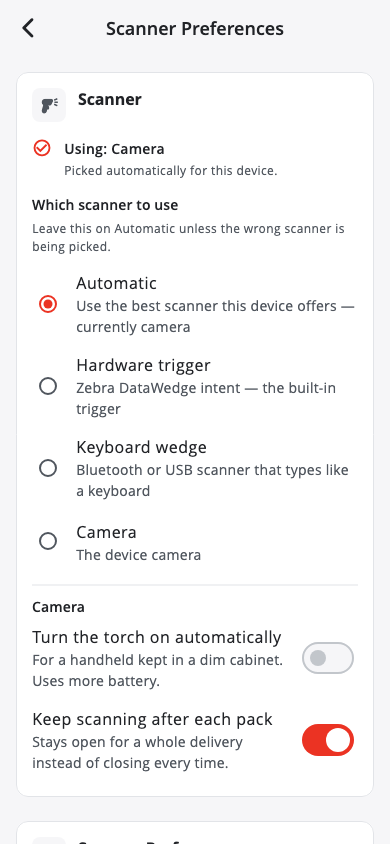
- Under Which scanner to use, leave Automatic unless the wrong scanner is being picked. The other choices are Hardware trigger (Zebra), Keyboard wedge (a Bluetooth or USB scanner that types like a keyboard) and Camera.
- Tap Open scanner test and scan any ticket. You should see the game, pack and ticket number appear.
In a web browser, scan with a USB or Bluetooth scanner that types into the page, or use the camera.
Zebra handheld (TC56)#
- In Settings › Scanner Preferences, turn on Use hardware scanner.
- In the Zebra's DataWedge app, turn on Keystroke output for BuiltLTS and add an Enter (carriage return) suffix.
- Test it with Open scanner test.
Handy options#
- Turn the torch on automatically — for a handheld kept in a dim cabinet. Uses more battery.
- Keep scanning after each pack — the scanner stays open for a whole delivery.
If you scan with a Bluetooth scanner and the app asks "Turn on scanner mode so scans are captured?", tap Turn on.
Trouble? See Scanner is not reading tickets.
Next: Set up your boxes
Was this helpful?
Thanks for letting us know.
Sorry it did not help. Tell us what was missing: open Help & Support in the app and choose Report a problem, or email support@builtsofthub.com.