
Create your account and store
Sign up, verify your email and create your first store with the right lottery state.
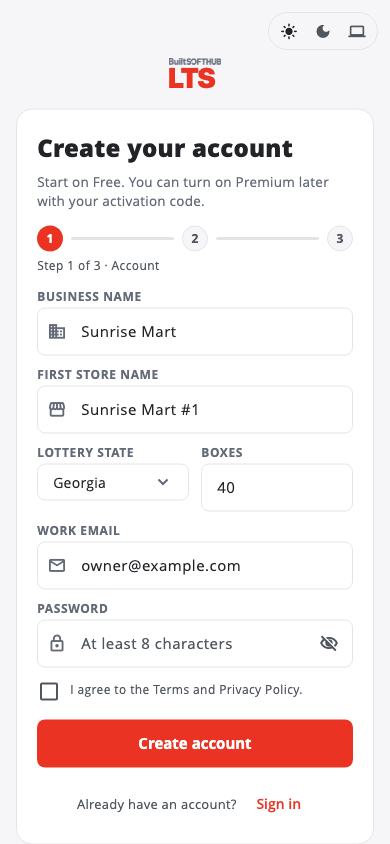
Sign-up has three steps: Account, Verify email, First store.
- Open BuiltLTS and tap Create an account.
- Enter your Business name and First store name.
- Pick your Lottery state and enter how many Boxes your ticket wall has.
- Enter your Work email and a Password (at least 8 characters, with a number).
- Tick I agree to the Terms and Privacy Policy. and tap Create account.
- Open the email we send you and tap the link. Back in the app, tap I've verified, continue. Nothing arrived? Tap Resend verification email.
- If the app asks for your store details (address, city, lottery state), fill them in and tap Create store.
Why the state matters#
Your Lottery state chooses the barcode format the app reads and the Master List of scratcher games and prices for your state lottery. If you pick the wrong one, scans will split into the wrong game, pack and ticket numbers. You can change it later in Settings › Lottery Settings.
Already use another BuiltSOFTHUB app?#
Sign in with the same email you use for BuiltOFFICE or BuiltPOS. See Sign in once across apps.
New accounts start on Free#
You start on BuiltLTS Free. You can turn on Premium later — see Upgrade to Premium.
Related: Verify your email · Create an account
Next: Set up your scanner
Was this helpful?
Thanks for letting us know.
Sorry it did not help. Tell us what was missing: open Help & Support in the app and choose Report a problem, or email support@builtsofthub.com.