
Set up web ordering
Turn on Web Ordering, check your storefront settings, choose your products and start taking orders.
You need to be the store owner or an admin for steps 1 and 4. Managers can look at the settings but not change them.
- In BuiltOFFICE, open Marketplace and turn on Web Ordering for your store.
- Go to commerce.builtsofthub.com/app and sign in with your BuiltSOFTHUB account. See Sign in and choose a store.
- Open Overview. The Web ordering card says Taking orders or Not taking orders, and why.
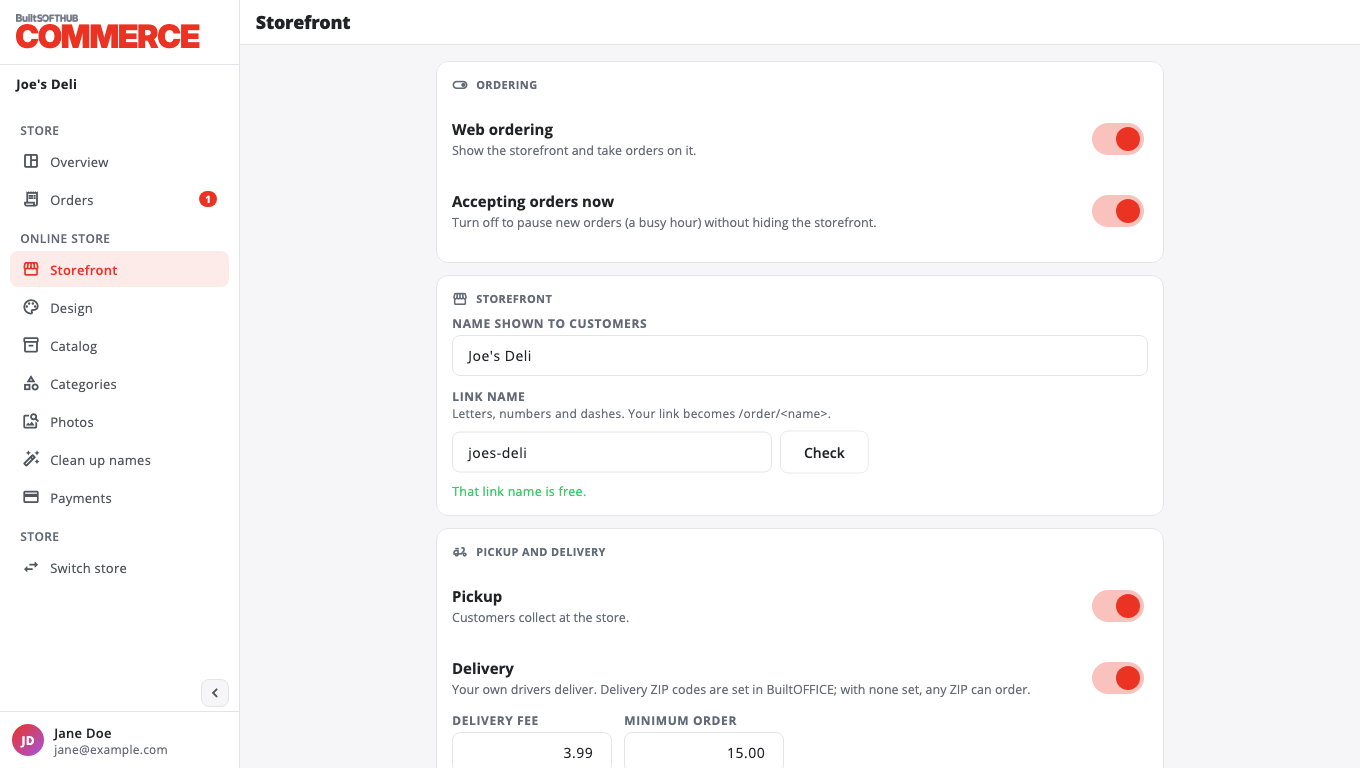
- Open Storefront and check:
- Web ordering is on.
- Accepting orders now is on.
- Pickup, Delivery, or both are on.
- Name shown to customers and Link name read the way you want.
- Press Save.
- Open Catalog and make sure the products you want to sell have Online turned on. See Show or hide products online.
- Optional: pick a look on Design, add photos on Photos, and tidy names on Clean up names.
- Back on Overview, press Open under Storefront link to see your store as a customer does.
When the page shows Taking orders, you are live. Share your store link with customers.
Was this helpful?
Thanks for letting us know.
Sorry it did not help. Tell us what was missing: open Help & Support in the app and choose Report a problem, or email support@builtsofthub.com.