
Share your store link and QR code
Copy your storefront link, show the QR code and print a QR poster for the counter.
Copy the link#
- Open Overview.
- Under Storefront link, press Copy link. You see Link copied.
- Paste it into your website, Google business profile, social posts or texts.
Press Open to check the page first.
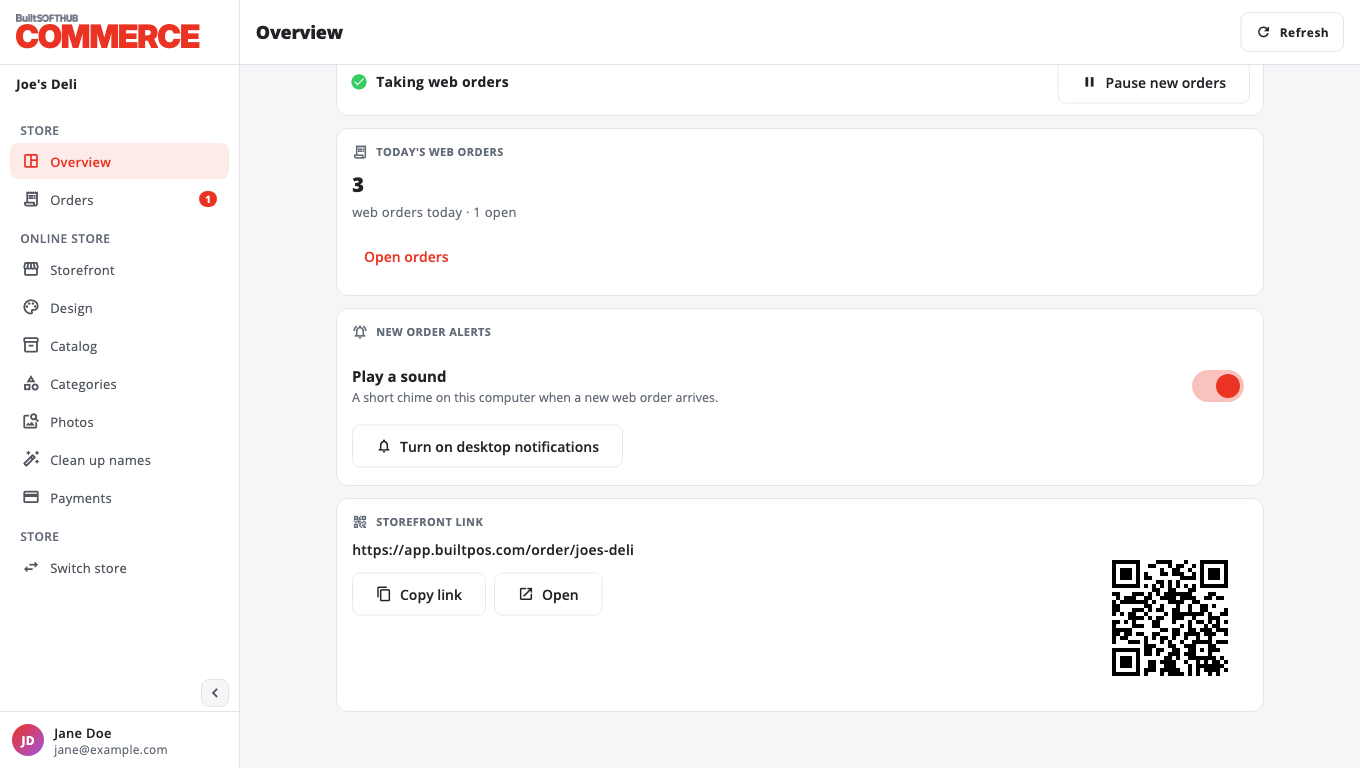
Use the QR code#
The QR code next to the link opens the same page. Customers scan it with their phone camera.
Print a QR poster#
The printable poster is made in BuiltOFFICE:
- In BuiltOFFICE, open the BuiltCommerce card.
- Press Print QR poster.
- Print it, or save the PDF.
Make the link easier to read#
On Storefront, set a Link name (letters, numbers and dashes), press Check, then Save. Your link becomes /order/<name>. If you change the link name later, update anything you printed with the old one.
Tip: the link shows "unavailable" while web ordering is off, so it is safe to print before you go live.
Was this helpful?
Thanks for letting us know.
Sorry it did not help. Tell us what was missing: open Help & Support in the app and choose Report a problem, or email support@builtsofthub.com.