
Choose a storefront design
Pick a template, your brand colour, a tagline and how the menu is laid out.
Only the store owner or an admin can change the design.
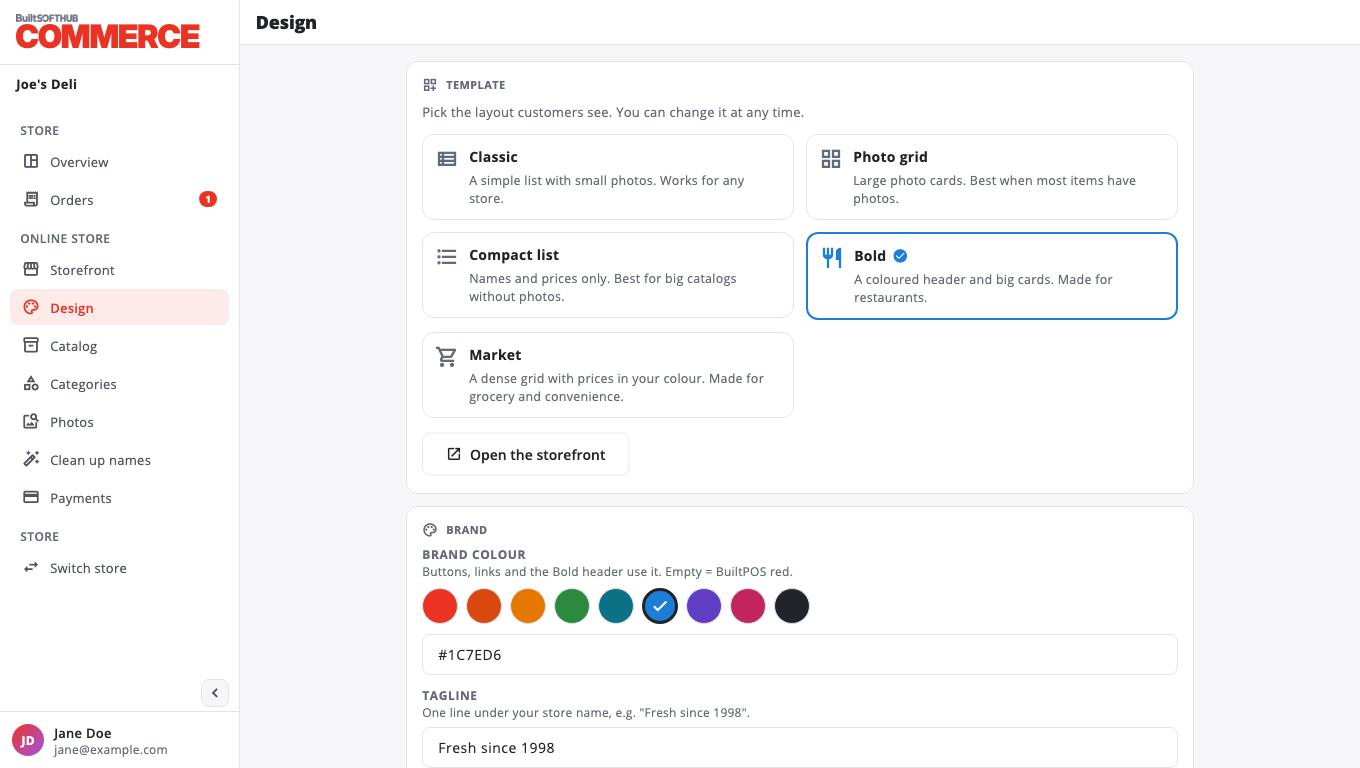
- Open Design.
- Under Template, pick one:
- Classic: a simple list with small photos. Works for any store.
- Photo grid: large photo cards. Best when most items have photos.
- Compact list: names and prices only. Best for big catalogs without photos.
- Bold: a coloured header and big cards. Made for restaurants.
- Market: a dense grid with prices in your colour. Made for grocery and convenience.
- Under Brand, choose a Brand colour swatch or type one as
#RRGGBB. Leave it empty for BuiltPOS red. - Optional: add a Tagline (one line under your name), an Announcement (a banner at the top of the menu) and About your store (shown on your order page and store info page).
- Under Menu layout, choose:
- Search box: lets customers search the menu.
- Show photos, Show descriptions.
- Featured items first: products marked Featured in your catalog come first.
- Order inside each category: as in the catalog, by name, or by price.
- Press Save. You see Design saved. The storefront shows it now.
- Press Open the storefront to check it.
Stock display is on the same page. See Show stock on your storefront.
Was this helpful?
Thanks for letting us know.
Sorry it did not help. Tell us what was missing: open Help & Support in the app and choose Report a problem, or email support@builtsofthub.com.