
Open admin settings, exit or unpair a kiosk
How staff get past the customer screen with a PIN — on the BuiltKIOSK app and on a BuiltPOS register running kiosk mode.
Customers never see a way out of the kiosk. Staff use a hidden gesture and a PIN. How it works depends on which kiosk you run.
BuiltKIOSK app (tablet)#
- Go to the start screen (Tap to start). If a customer left an order, wait for the idle timer or tap Start over.
- Press and hold anywhere on the start screen.
- Enter the admin PIN under Admin Access. A new kiosk uses 0000 until you change it.
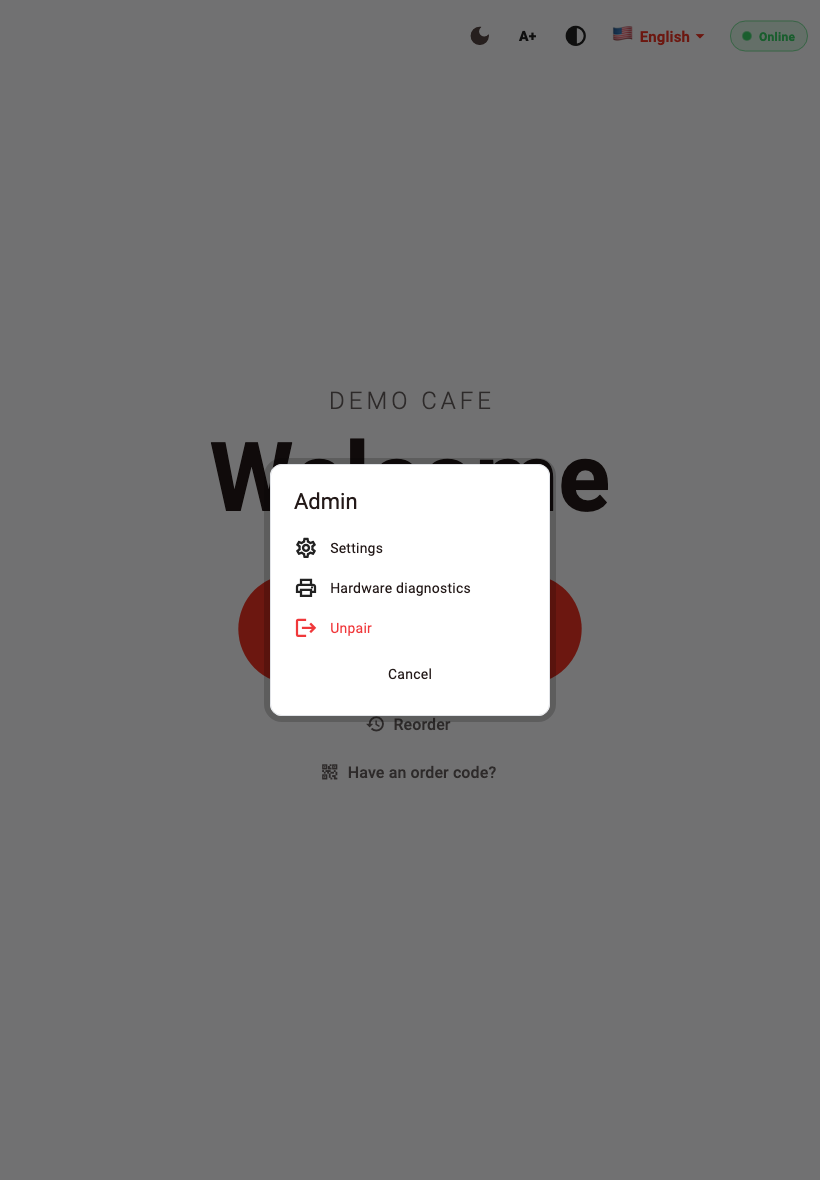
- The Admin menu opens:
- Settings — printer, payment mode, PIN and all kiosk options.
- Hardware diagnostics — check the printer and connection.
- Unpair — removes the kiosk from your store. You need a new pairing code to use it again.
- Cancel — back to the start screen.
Change the admin PIN#
- Open Settings as above.
- Under Security, tap Change admin PIN.
- Type a new PIN (4–6 digits) and tap Save. A short or easy PIN gets a warning — 6 digits is best.
Leave the app#
BuiltKIOSK has no "exit" button — it hides the Android system bars on purpose. To get to the tablet's home screen, swipe in from the edge of the screen to show the system buttons. If you have locked the tablet with screen pinning or device management, unlock it there.
Kiosk mode on a BuiltPOS register#
- Tap the top-left corner of the kiosk screen 8 times quickly (within about 3 seconds).
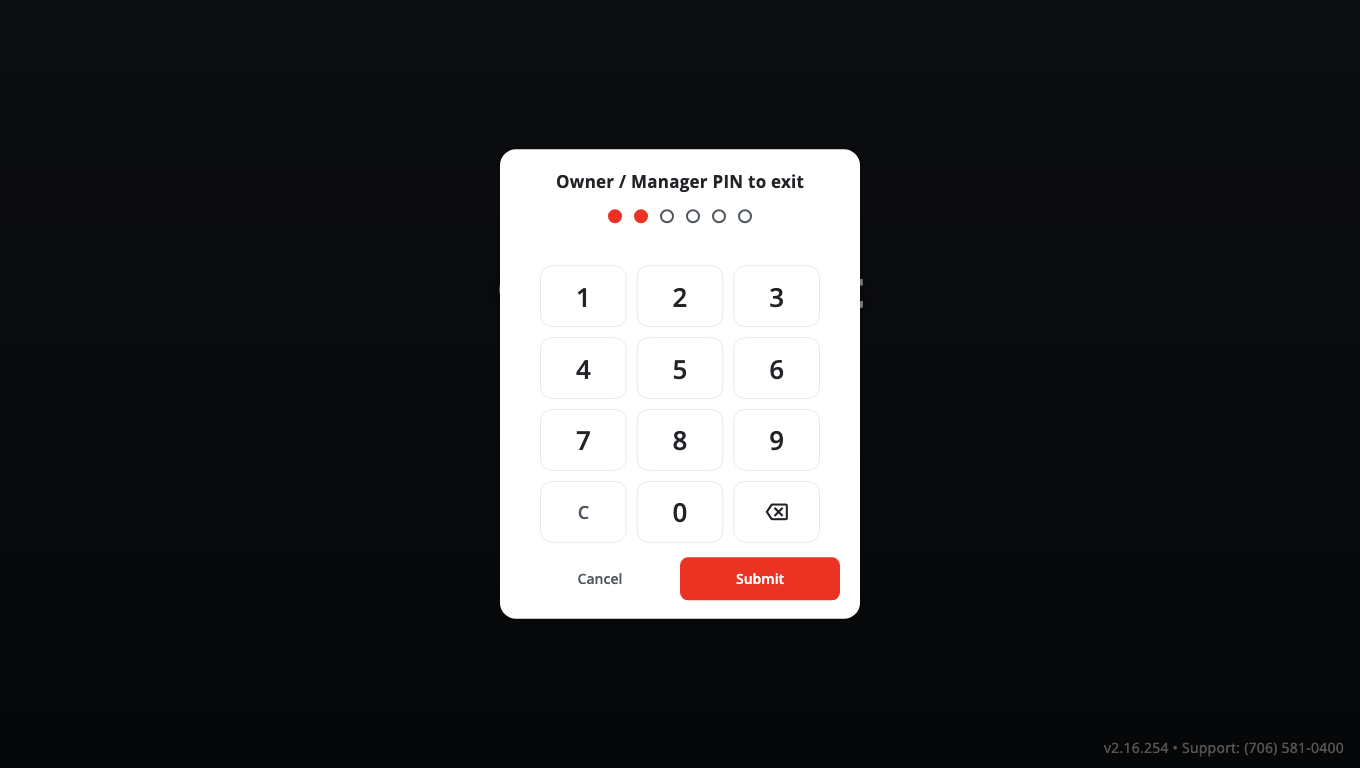
- Under Owner / Manager PIN to exit, enter an owner, admin or manager PIN and tap Submit.
- The register goes back to the sale screen.
To start kiosk mode again: Store Management → Kiosk Mode, choose Retail or Food Service, then tap Launch Kiosk Mode.
Good to know#
- Kiosk Settings will not open while the PIN is still 0000 — you are asked to Set an admin PIN first.
- To cancel an order a customer just placed, press and hold the order number on the kiosk's thank-you screen and enter the admin PIN (Cancel order — admin PIN). An order the kitchen has already moved on can't be cancelled from the kiosk.
- Owners can unpair a kiosk remotely in BuiltOFFICE: Terminals → the kiosk's menu → Revoke.
- Forgot the kiosk admin PIN? Contact support.
Was this helpful?
Thanks for letting us know.
Sorry it did not help. Tell us what was missing: open Help & Support in the app and choose Report a problem, or email support@builtsofthub.com.