
Kiosk payments (card or pay at counter)
Choose how customers pay at the kiosk, connect a card terminal, and what the customer sees when a card is approved or declined.
Each kiosk has a Payment mode. New kiosks start in Pay at counter.
| Payment mode | What happens |
|---|---|
| Pay at counter | No money is taken at the kiosk. It prints a receipt with a barcode. The order goes to the kitchen right away, marked UNPAID, and the customer pays at the register. See Pay at counter. |
| Card terminal | The customer pays on a card terminal next to the kiosk before the order is placed. |
Connect a card terminal#
- On the kiosk, press and hold the start screen and enter your admin PIN. Tap Settings.
- Under Card terminal, tap Configure card terminal.
- Pick the Brand: Clover Pay Display (LAN), PAX BroadPOS (TCP) or Worldpay (triPOS Cloud / Direct).
- Fill in the connection details. For Clover: Device IP, Port, Access token, Device serial and Merchant ID. For Worldpay, pick Cloud or Direct (LAN) under triPOS mode and enter your Express credentials.
- Turn Show tip prompt on device on if the terminal should ask for the tip.
- Tap Test connection. Wait for Connection OK.
- Tap Save terminal.
- Back in Kiosk Settings, under Payment mode, tap Card terminal.
What the customer sees#
- They review the order and tap Place Order.
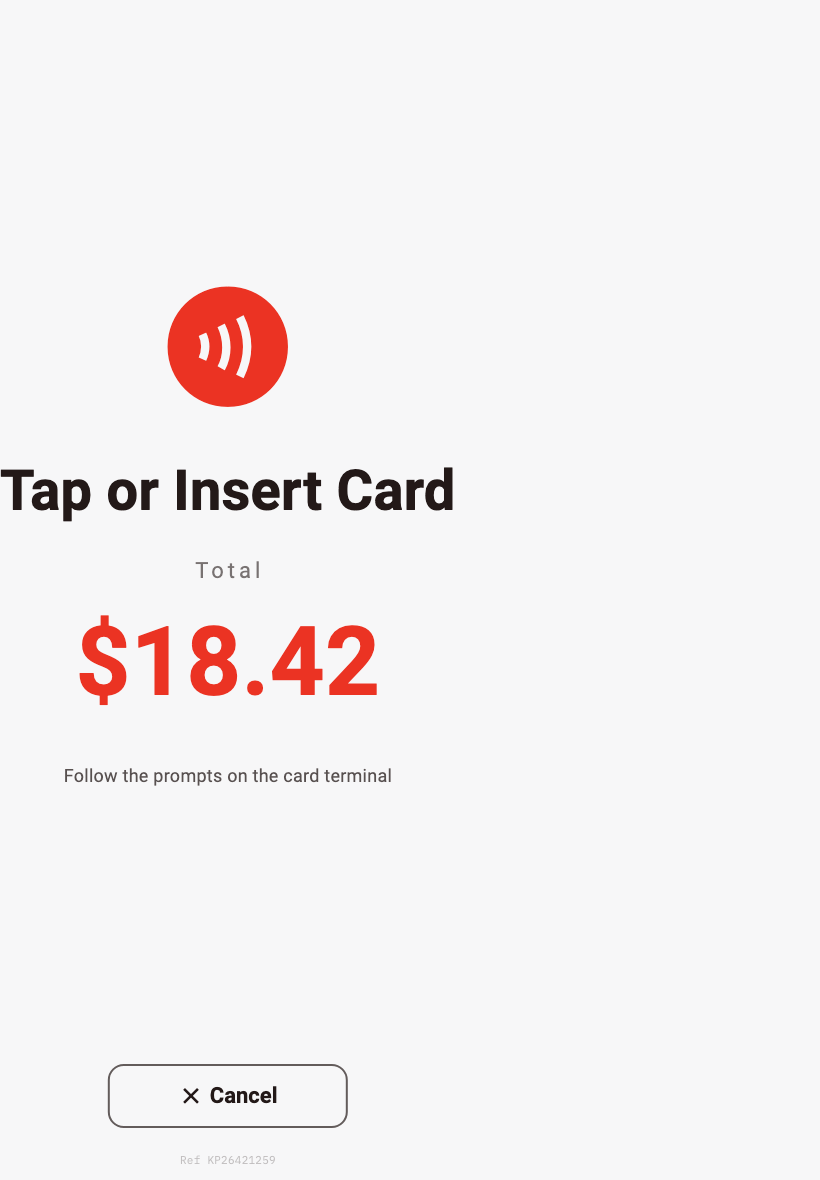
- The kiosk shows the total and Tap or Insert Card, then Follow the prompts on the card terminal.
- When the card is Approved, the kiosk shows Sending to kitchen…, then Thank you! with the order number. The receipt prints.
- If the card is declined, they see Card declined with Try another card and Back to cart.
- If the terminal stops responding, they can tap Card terminal not responding? Cancel. They are told their card will not be charged.
Tips#
- If the card terminal asks for the tip, the kiosk does not ask as well.
- Otherwise the review screen shows Add a tip with your preset percentages, No tip and Custom. Change the percentages under Tip presets in Kiosk Settings (default 15, 18, 20%).
- A very large custom tip asks the customer to confirm, and an amount far above the order is refused.
Good to know#
- Card terminal can only be picked after a terminal is configured, and only while Sync orders to POS is on (it is on by default). Card sales are recorded through that sync.
- If a card is charged but the order could not reach the kitchen, the kiosk shows Payment Received with a code to show staff.
- If the kiosk cannot tell whether a card went through (for example the terminal stopped answering), your registers show a red alert so someone checks the card terminal before the customer is charged again.
- EBT cards are not taken at the kiosk. Because EBT tax exemption only applies when EBT pays, items marked EBT-eligible are taxed at the kiosk, the same as a cash or card sale at the register.
- Cash cannot be taken at the kiosk. Use Pay at counter for customers who want to pay cash.
Was this helpful?
Thanks for letting us know.
Sorry it did not help. Tell us what was missing: open Help & Support in the app and choose Report a problem, or email support@builtsofthub.com.