
Take payment for a kiosk order at the register
When the kiosk is in Pay at counter mode, the customer brings a receipt to the register and the cashier scans it to collect payment.
In Pay at counter mode the kiosk takes no money. The customer gets a receipt that says UNPAID — pay at the cashier window with a barcode. The order goes to the kitchen straight away and shows UNPAID on the kitchen display. The sale is booked when the cashier takes payment.
There are two ways to take that payment at the register. Pick one for each register in Store Management → This Till → Terminal Settings → Kiosk Pay-at-Counter.
Way 1: ring it up like a normal sale (recommended)#
Use this for card or cash. The sale appears in BuiltOFFICE reports with every item.
- On the register, open Store Management → This Till → Terminal Settings.
- Under Kiosk Pay-at-Counter, turn on Scan kiosk receipt to ring up (it is off by default).
- When a customer brings a kiosk receipt, tap More → Kiosk Pay on the sale screen.
- Scan the barcode on the receipt, or type the number under Kiosk order number and tap Look up.
- The kiosk order's items load into the cart. If the cart already had items, you are asked Replace current cart? first.
- Take payment as usual. When the sale completes, the kitchen is told the order is paid.
If Carry the kiosk tip is on (the default), a tip the customer chose at the kiosk is added. You can change or remove it on the payment screen.
Way 2: Mark Kiosk Paid (cash only)#
Use this when the switch above is off.
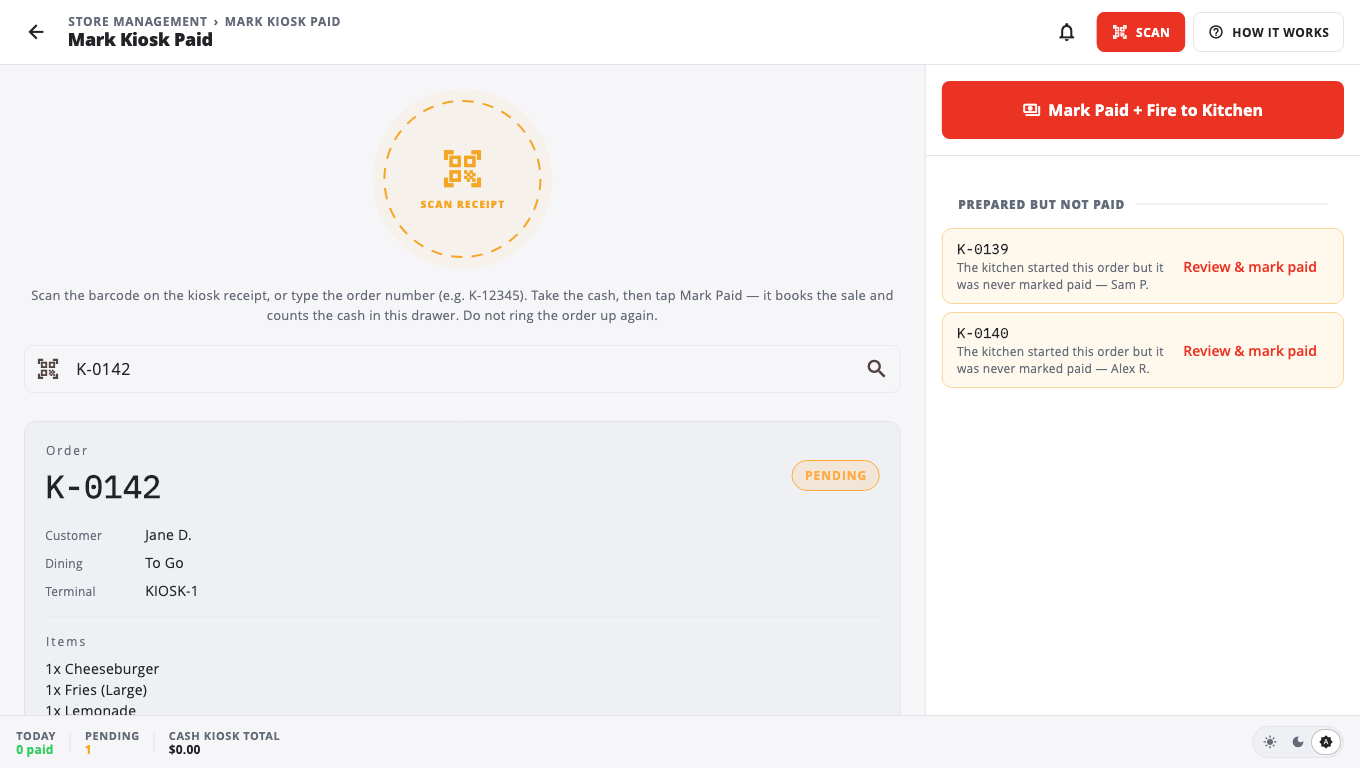
- Tap More → Kiosk Pay. The Mark Kiosk Paid screen opens.
- Scan the receipt or type the order number in Scan or type order number.
- Check the order and total, and take the cash.
- Tap Mark Paid + Fire to Kitchen. This books the sale as cash and counts it in this drawer.
Good to know#
- Do not use both ways for the same order — that books it twice. BuiltPOS refuses a receipt that is already paid: Order … is already paid / rung up.
- Mark Kiosk Paid also lists Prepared but not paid orders, so you can find a customer who lost their receipt.
- Kiosk Pay is in the More menu by default. Owners and managers can move it to the left panel with Customize. See Customize the sale screen.
- The kiosk add-on must be on for the store, or the register shows Kiosk module not enabled for this store.
- See also Ring a sale and Take a card payment.
Was this helpful?
Thanks for letting us know.
Sorry it did not help. Tell us what was missing: open Help & Support in the app and choose Report a problem, or email support@builtsofthub.com.