
Loyalty points at the kiosk
Let customers look up their loyalty account by phone, join the program, and redeem points after confirming a code sent by text.
On this page
Customers can earn and spend your store's loyalty points at the kiosk. The kiosk uses the same loyalty program and balances as your registers. It is off until you turn it on.
Turn it on#
- Make sure your store's loyalty program is set up in BuiltOFFICE. See Customers and loyalty.
- On the kiosk, press and hold the start screen, enter your admin PIN and tap Settings.
- Under Discounts & loyalty, turn on Loyalty enroll / redeem.
- (Optional) Turn on Promo codes at checkout if customers should be able to type a promo code.
What the customer does#
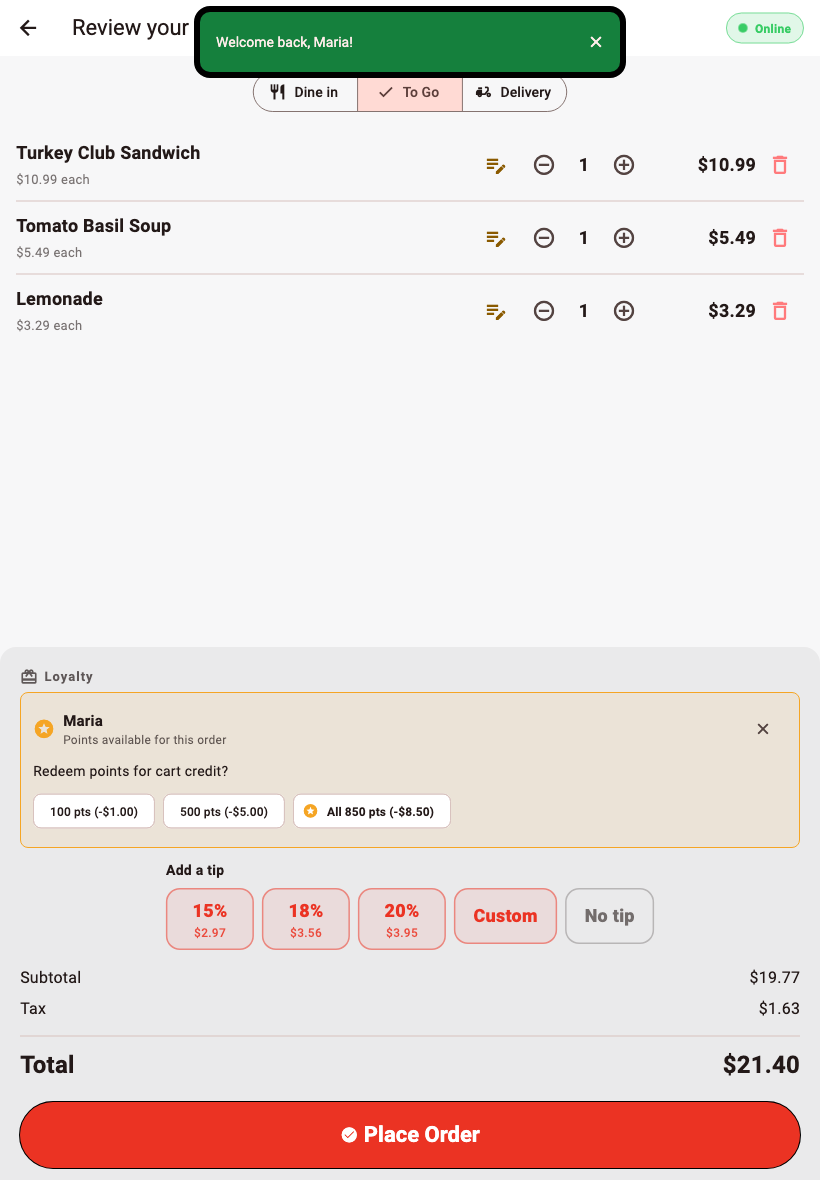
- On Review your order, they find the Loyalty section.
- They type their Phone number and tap Look Up.
- If they have an account, they see Welcome back, (name)! and how many points they can use.
- If no account is found, they can tap Sign up to join, or No thanks. A new member starts earning on this order.
- To spend points, they answer Redeem points for cart credit? by tapping one of the point amounts.
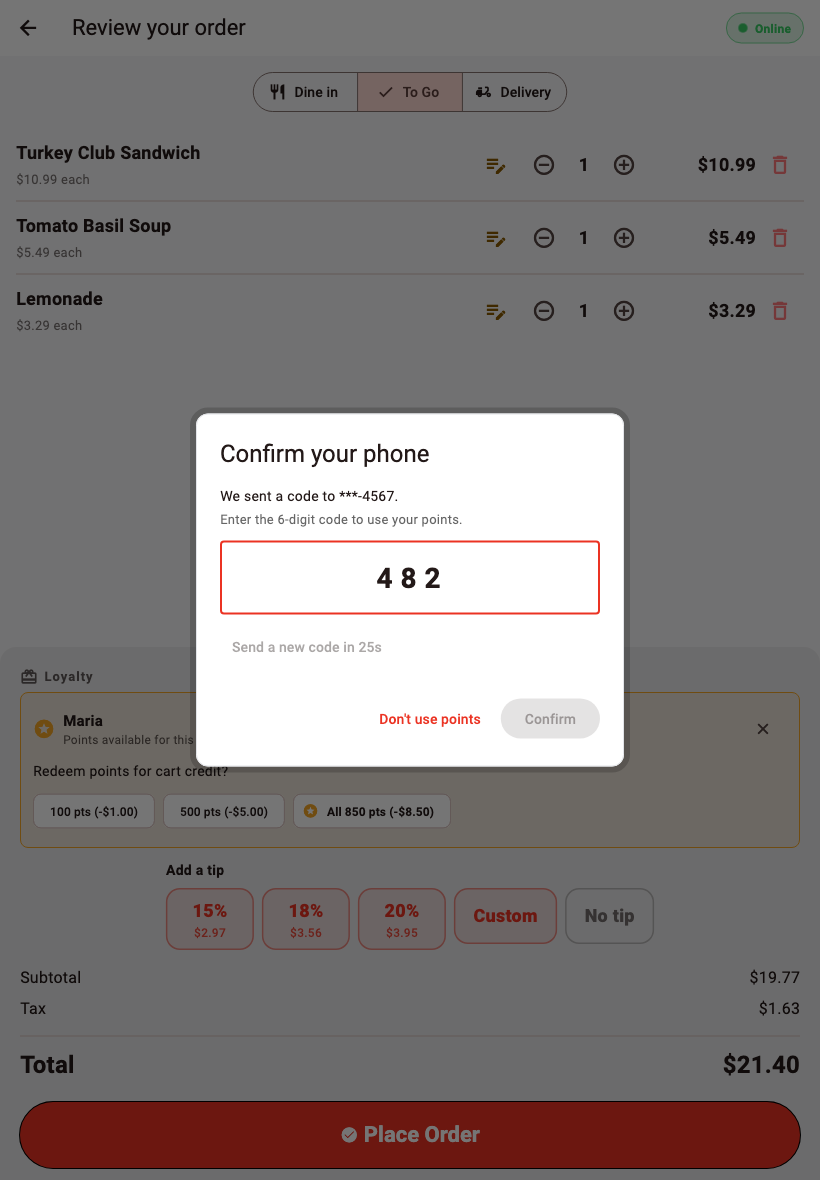
- The kiosk texts a 6-digit code to their phone. In Confirm your phone, they type the code and tap Confirm.
- The credit comes off the order total.
Good to know#
- The texted code protects the customer: nobody can spend someone else's points just by typing their phone number.
- If a code is wrong, the kiosk says how many tries are left. Send a new code becomes available after a short wait.
- If your store cannot send text messages right now, the kiosk says Points can't be redeemed here right now. The customer can still place the order and earn points, or redeem at the register.
- If the cart changes after points are applied, the kiosk adjusts or removes the redemption and tells the customer.
- The customer can tap Don't use points to continue without redeeming.
- In BuiltOFFICE (Kiosk Settings → Branding), Loyalty section min subtotal ($) hides the loyalty section on small orders.
Was this helpful?
Thanks for letting us know.
Sorry it did not help. Tell us what was missing: open Help & Support in the app and choose Report a problem, or email support@builtsofthub.com.