
Pair the kiosk with your store
Link a BuiltKIOSK tablet to your store with a 6-digit pairing code or your BuiltPOS admin sign-in.
Pairing tells the kiosk which store it belongs to. You do it once per tablet. There are two ways: a 6-digit code (easiest) or signing in with an admin account on the kiosk.
Option 1: pair with a 6-digit code#
First, get a code. You can make it on a BuiltPOS register or in BuiltOFFICE.
On a BuiltPOS register
- Sign in as an owner or manager.
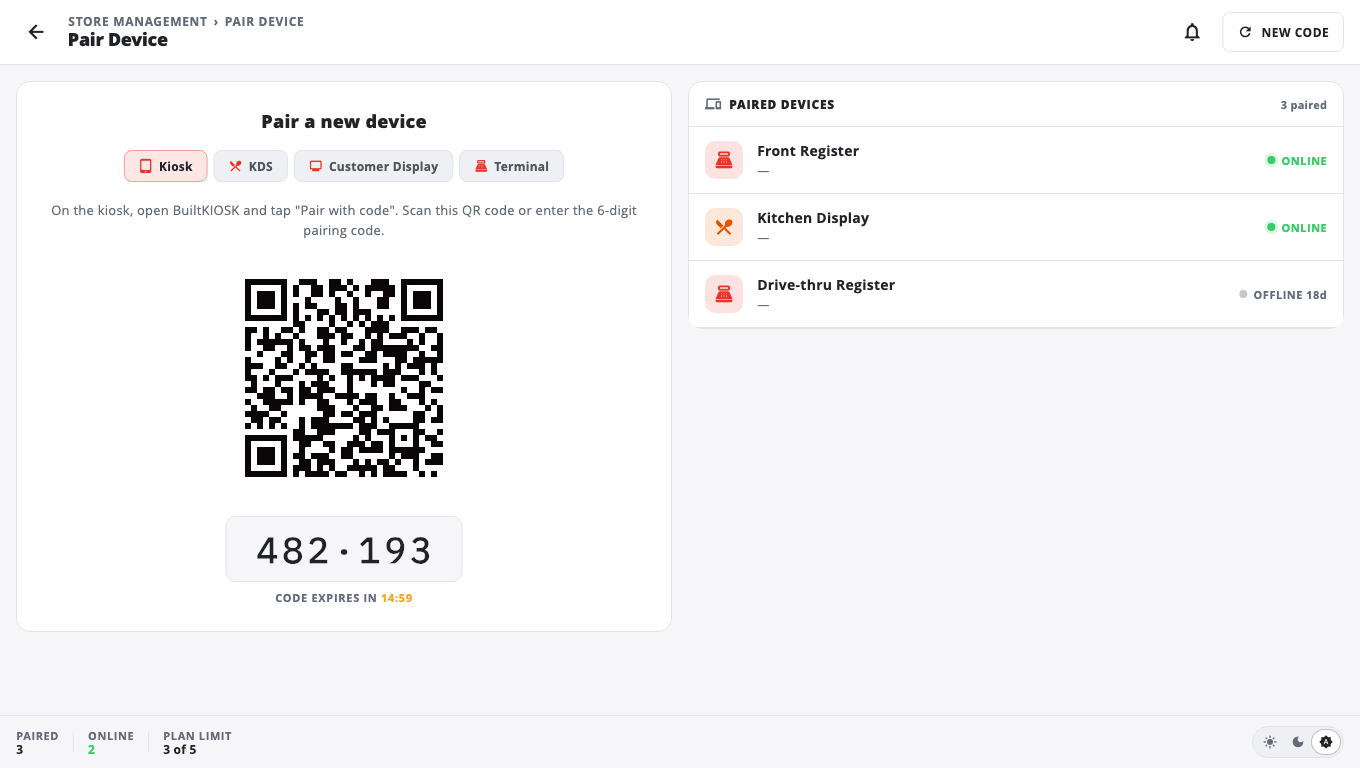
- Open Store Management and find Pair Device (type "pair" in the search box if you don't see it).
- Under Pair a new device, tap Kiosk.
- Tap Generate code. A 6-digit code and a QR code appear.
Or in BuiltOFFICE (owners and admins)
- Open Terminals and tap Pair Terminal.
- Type a Terminal name (for example "Front Kiosk").
- Set Role to Self-serve Kiosk and Platform to Android.
- Keep 6-digit code selected and tap Pair. The code shows under Type this code on the device.
Then, on the kiosk
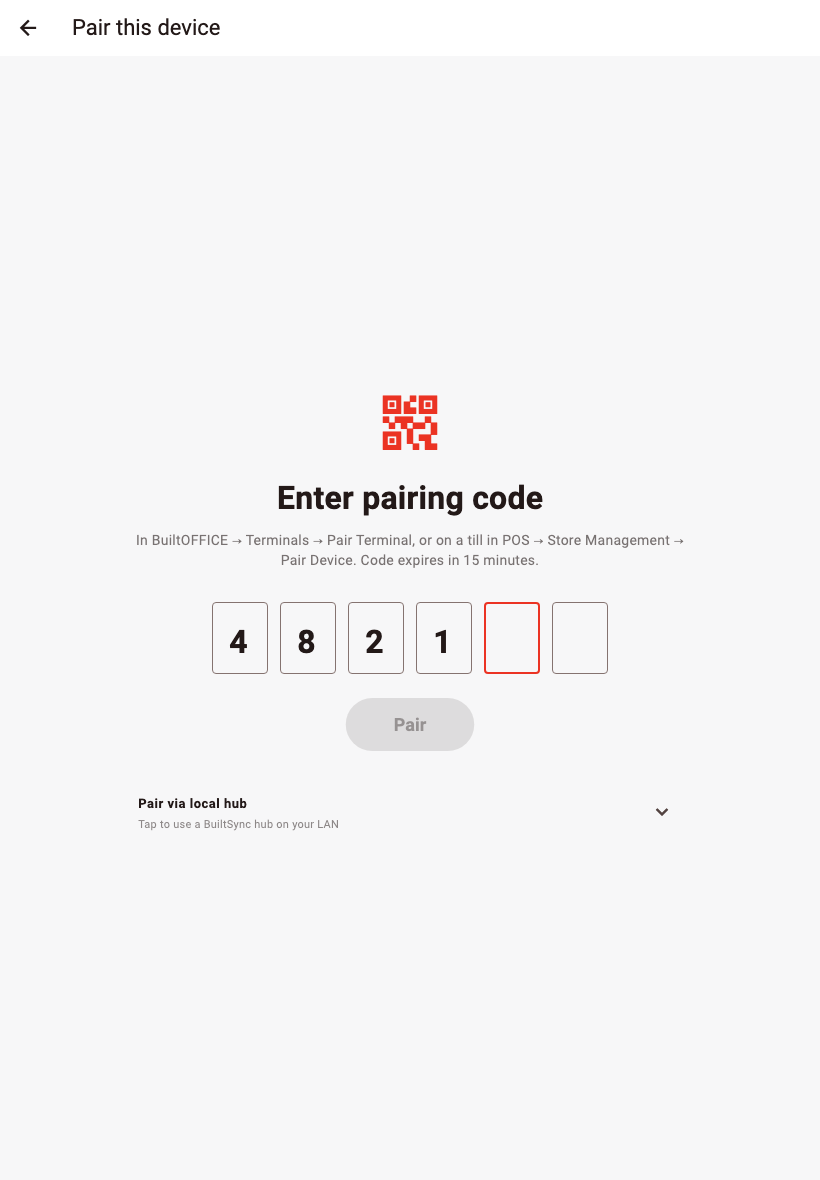
- Open BuiltKIOSK and tap Pair with code.
- Type the 6 digits under Enter pairing code.
- Tap Pair. After a moment the kiosk shows its start screen.
Option 2: sign in on the kiosk#
- On the welcome screen, tap Sign in to pair.
- Enter the Email and Password of a BuiltPOS admin account and tap Sign in.
- If you have more than one store, pick the Store this kiosk belongs to.
- Check the Device name and tap Pair this kiosk.
The kiosk does not keep your password. It gets its own device key, so the kiosk can only take orders — it cannot open your back office.
Good to know#
- A code expires after 15 minutes. If you see Code expired, generate a new one.
- If your plan has reached its device limit, BuiltPOS shows Terminal limit reached. Remove an old device or upgrade. See Plans and billing.
- To move a kiosk to another store, unpair it first (see Exit kiosk mode), then pair it again.
- If an owner removes the kiosk in BuiltOFFICE (Terminals → Revoke), the kiosk shows This kiosk is temporarily unavailable to customers and Pair this kiosk again for staff.
Was this helpful?
Thanks for letting us know.
Sorry it did not help. Tell us what was missing: open Help & Support in the app and choose Report a problem, or email support@builtsofthub.com.