
Add, edit and arrange tiles
Add an app to the BuiltLauncher grid, choose who may open it, set opening hours, and change the order of tiles.
Only apps you add here can be opened from the register. You need the admin PIN.
Open the tile list#
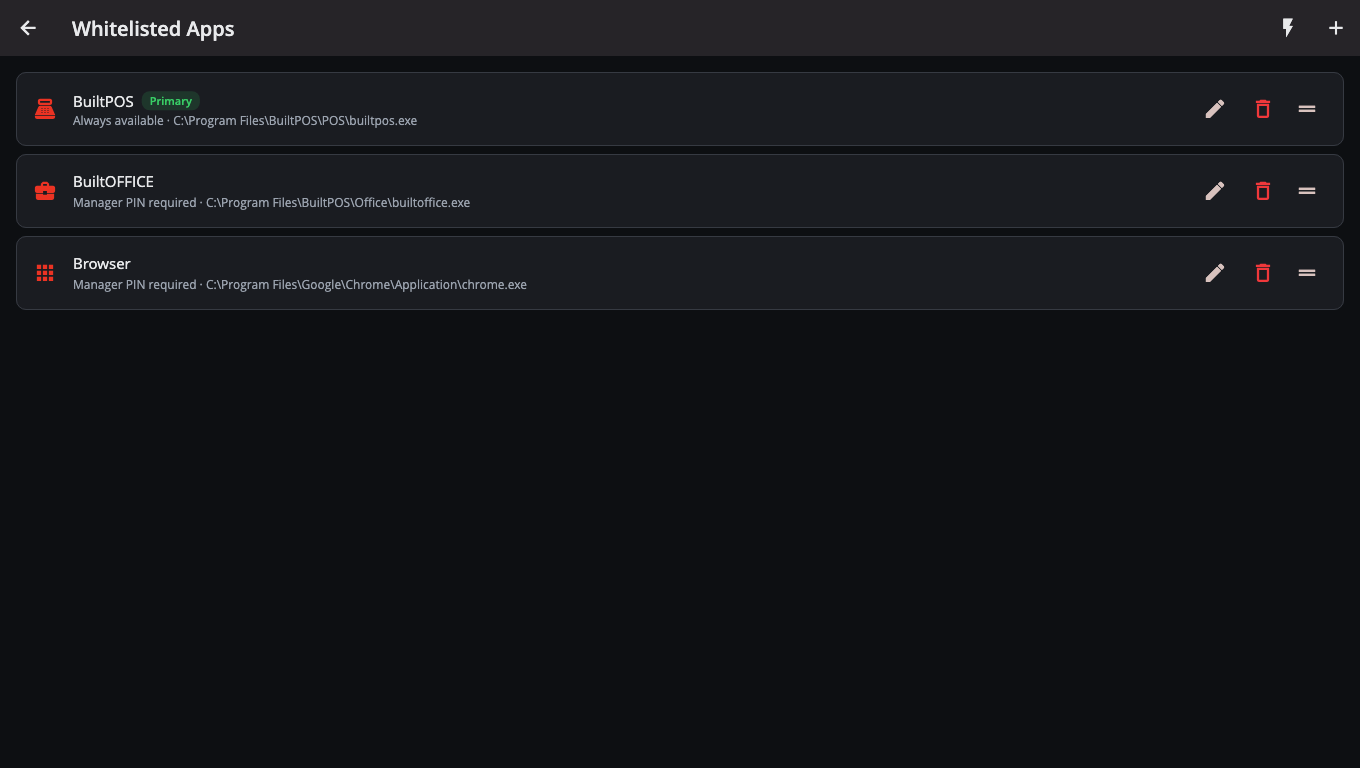
- On the tile grid, tap Admin Settings and enter the admin PIN.
- Tap Whitelisted Apps.
Add an app#
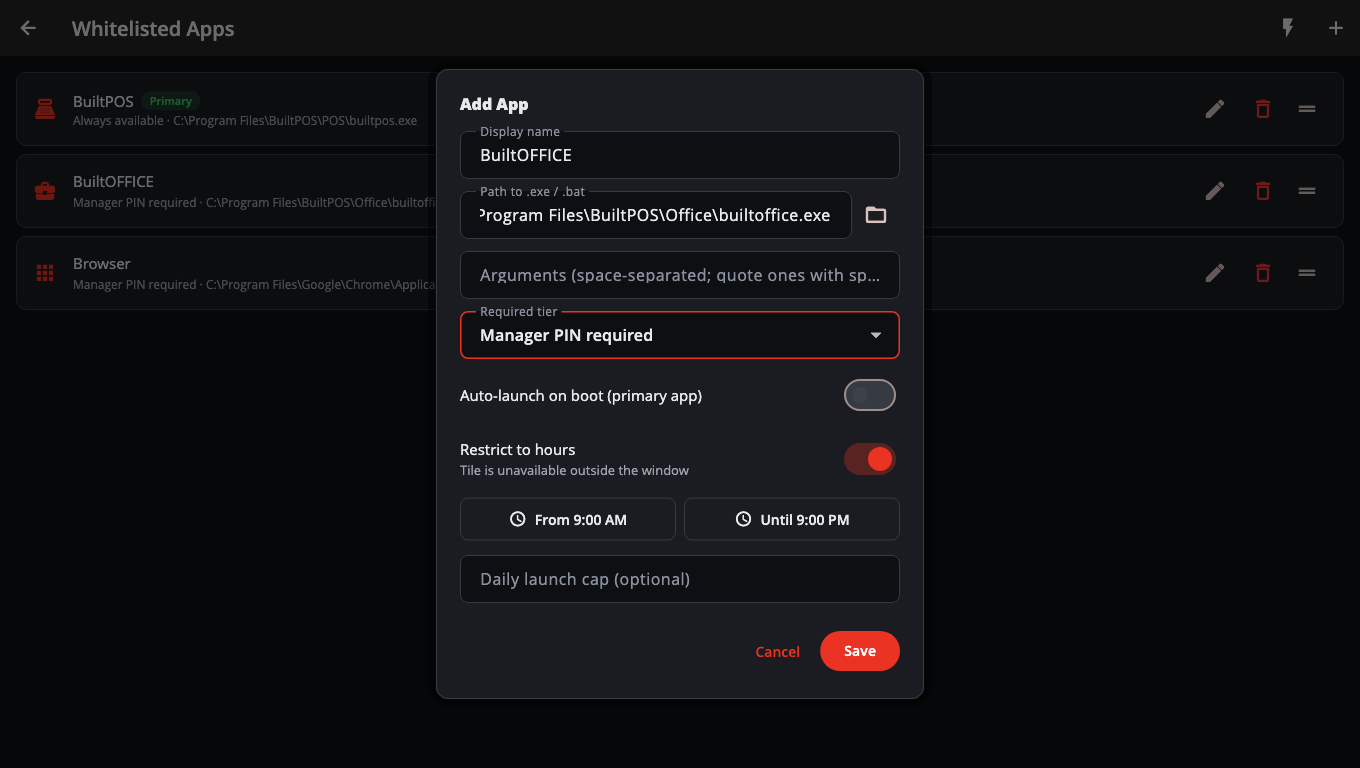
- Tap the + button at the top right (Add tile).
- Display name — the name on the tile, for example
BuiltOFFICE. - Path to .exe / .bat — tap the folder button to pick the program, or type its full path.
- Arguments — leave blank unless the app needs start options. Separate them with spaces; put quotes around one that has a space in it.
- Required tier — who may open it. The grid uses the same names:
- Always available — no PIN.
- Manager PIN required — manager or admin PIN.
- Admin PIN required — admin PIN only.
- Optional: turn on Restrict to hours and set From and Until. Outside those hours the tile says it is outside its scheduled hours.
- Optional: Daily launch cap — the most times a day it may be opened. Leave blank for unlimited.
- Tap Save. If Display name or the path is empty, the field turns red (Enter a name for the tile / Enter or browse to the program to open) and the dialog stays open.
Quick add a locked browser or a script#
Tap the lightning button (Quick add) at the top:
- Locked Chrome… — type a web address (for example your BuiltOFFICE address). This adds a Manager PIN required tile that opens Google Chrome full screen on that page only. If Chrome is not installed, edit the tile and set its path.
- .bat / .ps1 script… — type the script path and a display name. This adds an Admin PIN required tile. PowerShell (
.ps1) scripts are run through PowerShell for you.
Change the primary app#
The primary app opens when the register starts and is reopened if it closes.
- Tap the pencil on the tile you want.
- Turn on Auto-launch on boot (primary app) and tap Save.
Only one tile can be primary — the green Primary label moves to it. Turning the switch off on the current primary leaves the register with no app that opens by itself.
Reorder or remove#
- Reorder: drag a tile by its handle (the lines on the right). The grid follows this order.
- Edit: tap the pencil.
- Remove: tap the bin, then Delete.
Good to know#
- The four built-in tiles — Admin Settings, Lock Workstation, Reboot Terminal and Exit to Windows — are always added at the end of the grid. You can't move or delete them.
- Tapping a tile whose app is already open brings that app to the front instead of opening a second copy.
- Save does nothing if Display name or the path is empty — fill both in.
- If a save fails you'll see "Could not save the app — try again". Nothing was changed.
Was this helpful?
Thanks for letting us know.
Sorry it did not help. Tell us what was missing: open Help & Support in the app and choose Report a problem, or email support@builtsofthub.com.