
Change the manager or admin PIN
Change BuiltLauncher's manager PIN, admin PIN, or both from Admin Settings.
You need the current admin PIN.
- On the tile grid, tap Admin Settings and enter the admin PIN.
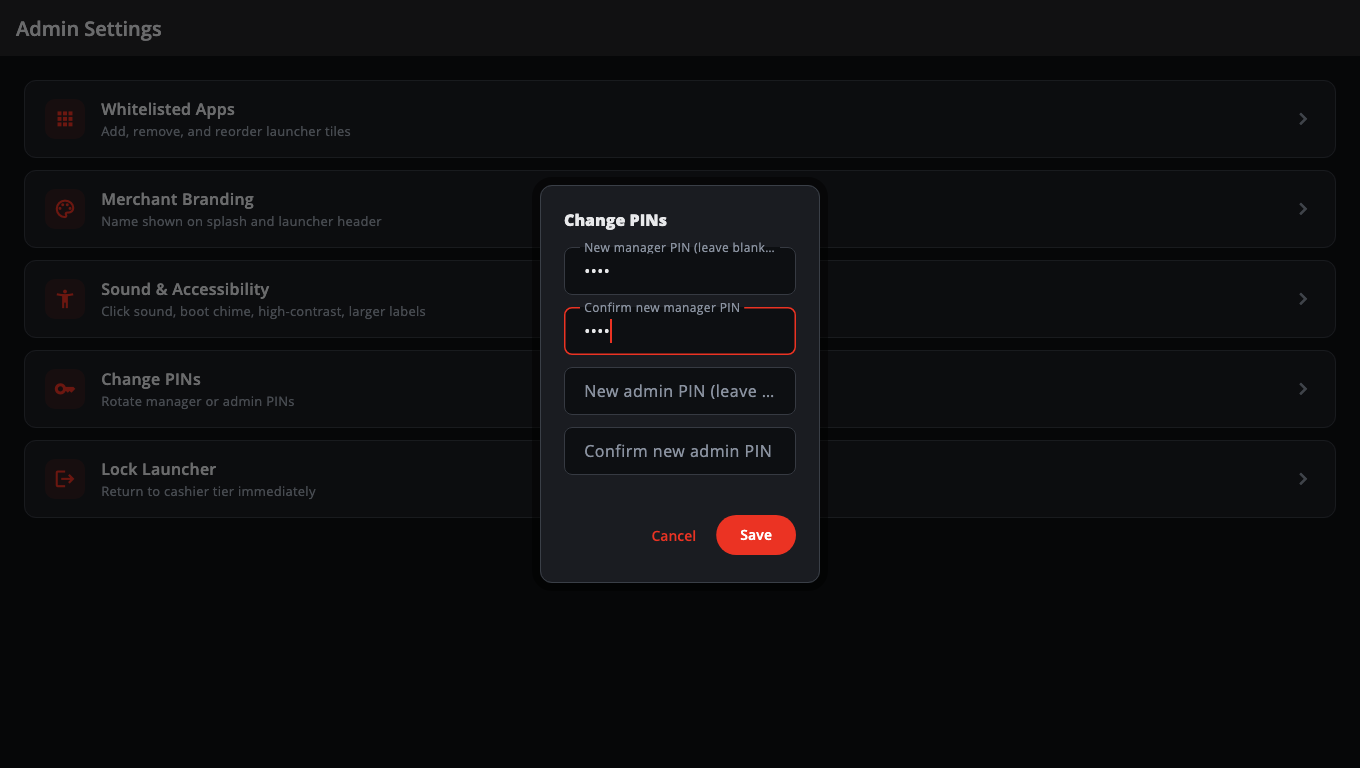
- Tap Change PINs — "Rotate manager or admin PINs".
- To change the manager PIN, fill in New manager PIN (leave blank to keep) and Confirm new manager PIN.
- To change the admin PIN, fill in New admin PIN (leave blank to keep) and Confirm new admin PIN.
- Leave both boxes of a PIN blank to keep that PIN as it is.
- Tap Save.
Rules for a PIN#
- Digits only, 4 to 8 digits.
- The two boxes must match, or you'll see "The manager PINs do not match." / "The admin PINs do not match."
If saving is slow or fails#
Saving can take up to about 45 seconds on some registers. If it fails, the dialog stays open and tells you exactly what happened — for example "Manager PIN saved. … for the admin PIN — try again." Only try again for the PIN it names.
Good to know#
- There is no manager PIN yet? Set one here — leave the admin boxes blank.
- These PINs only unlock BuiltLauncher. Staff PINs for BuiltPOS are set in BuiltPOS or BuiltOFFICE (see Employees and permissions on the till).
- Lost the admin PIN, so you can't open Admin Settings? See Troubleshooting.
Was this helpful?
Thanks for letting us know.
Sorry it did not help. Tell us what was missing: open Help & Support in the app and choose Report a problem, or email support@builtsofthub.com.