
Unlock and lock manager and admin tiles
Enter the manager or admin PIN to open a locked tile, and lock BuiltLauncher again when you are done.
A tile with a small padlock needs a PIN. The badge at the top right of the grid shows what is unlocked now: Locked, Manager or Admin.
Unlock a tile#
- Tap the locked tile.
- The Manager PIN or Admin PIN keypad opens.
- Tap your PIN on the keypad and tap OK. On a keyboard you can also type the digits (top row or number pad) and press Enter.
- The app opens. The badge changes to Manager or Admin.
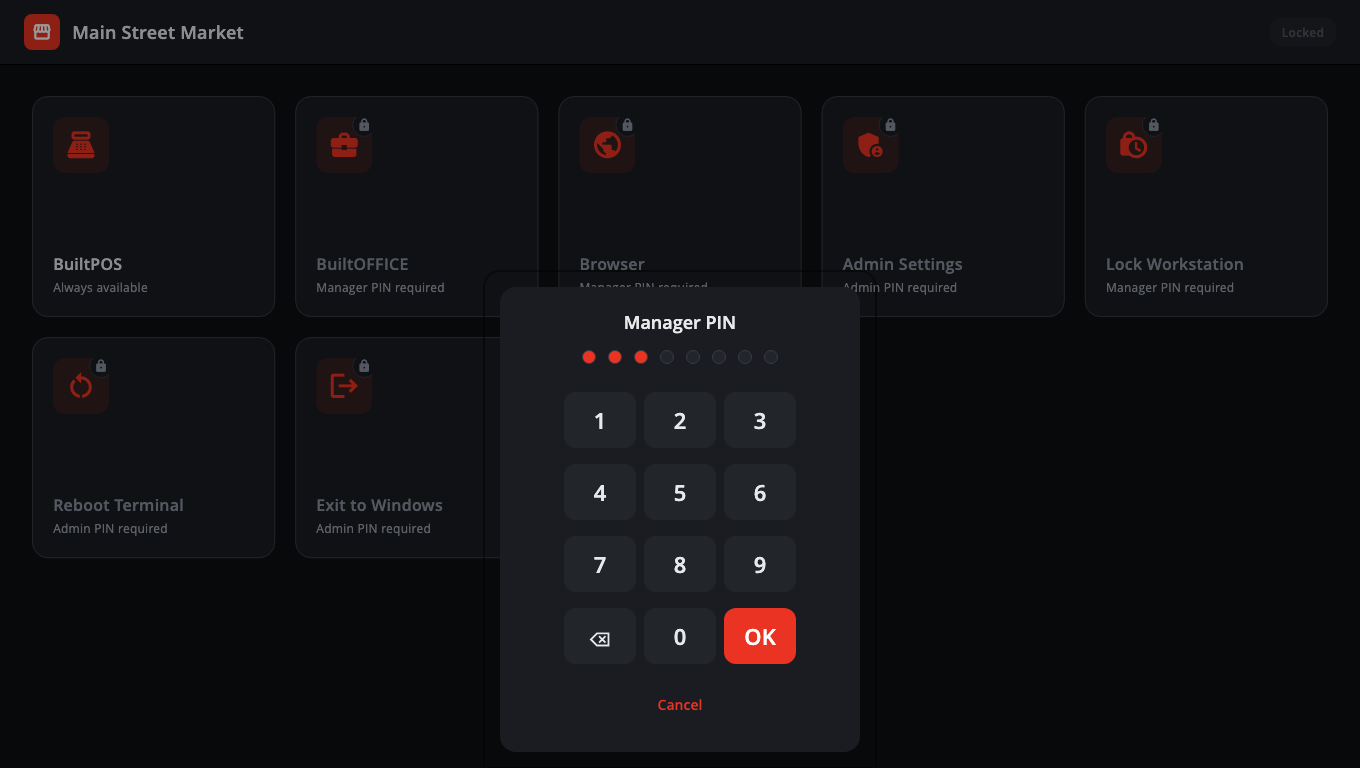
While unlocked, other tiles of the same level open without asking again.
- The admin PIN also works on a Manager PIN prompt. It unlocks the admin level.
- Use the on-screen keypad or the keyboard. Tap ⌫ (or press Backspace) to delete a digit; tap Cancel (or press Esc) to close.
Lock again#
BuiltLauncher locks by itself when nobody touches the register:
- Manager level: after 10 minutes without use.
- Admin level: after 5 minutes without use.
While a manager or admin app is open and someone is using it, the timer waits. When it locks, any manager or admin app that is still open is closed, so the next cashier can't use it.
To lock straight away, tap Lock at the top of the screen. It shows while Manager or Admin is unlocked and needs no PIN. At admin level you can also tap Admin Settings → Lock Launcher — "Return to cashier tier immediately".
Show the launcher over the primary app#
On a Windows register, the primary app (usually BuiltPOS) is reopened whenever it closes, which covers the tiles. To use the tiles instead:
- Tap Show launcher at the top of the screen.
- Enter the admin PIN.
- The primary app is not reopened while you work. The top of the screen shows … reopens when the launcher locks.
When the launcher locks again (the Lock button, or 5 minutes without use at admin level), the primary app reopens as usual. If you cancel the PIN, or don't finish it within a minute, nothing changes.
Too many wrong PINs#
After 5 wrong PINs in a row the keypad shows "Too many attempts — locked for …s". It starts at 30 seconds and gets 30 seconds longer with each further wrong PIN. A correct PIN resets the count.
Good to know#
- The Lock Workstation tile locks Windows itself (you return with the kiosk account's Windows password). It is hidden on registers where the kiosk lock-down has switched Windows locking off — which is the usual case.
- Forgot the admin PIN? See Troubleshooting.
- To change a PIN, see Change PINs.
Was this helpful?
Thanks for letting us know.
Sorry it did not help. Tell us what was missing: open Help & Support in the app and choose Report a problem, or email support@builtsofthub.com.