
Exit to Windows (and come back)
Leave the locked register to reach the Windows desktop for maintenance, then return to normal by restarting.
Use this when a technician needs the Windows desktop — for example to install a printer driver. You need the admin PIN and a Windows administrator account.
Exit#
- On the tile grid, tap Exit to Windows and enter the admin PIN.
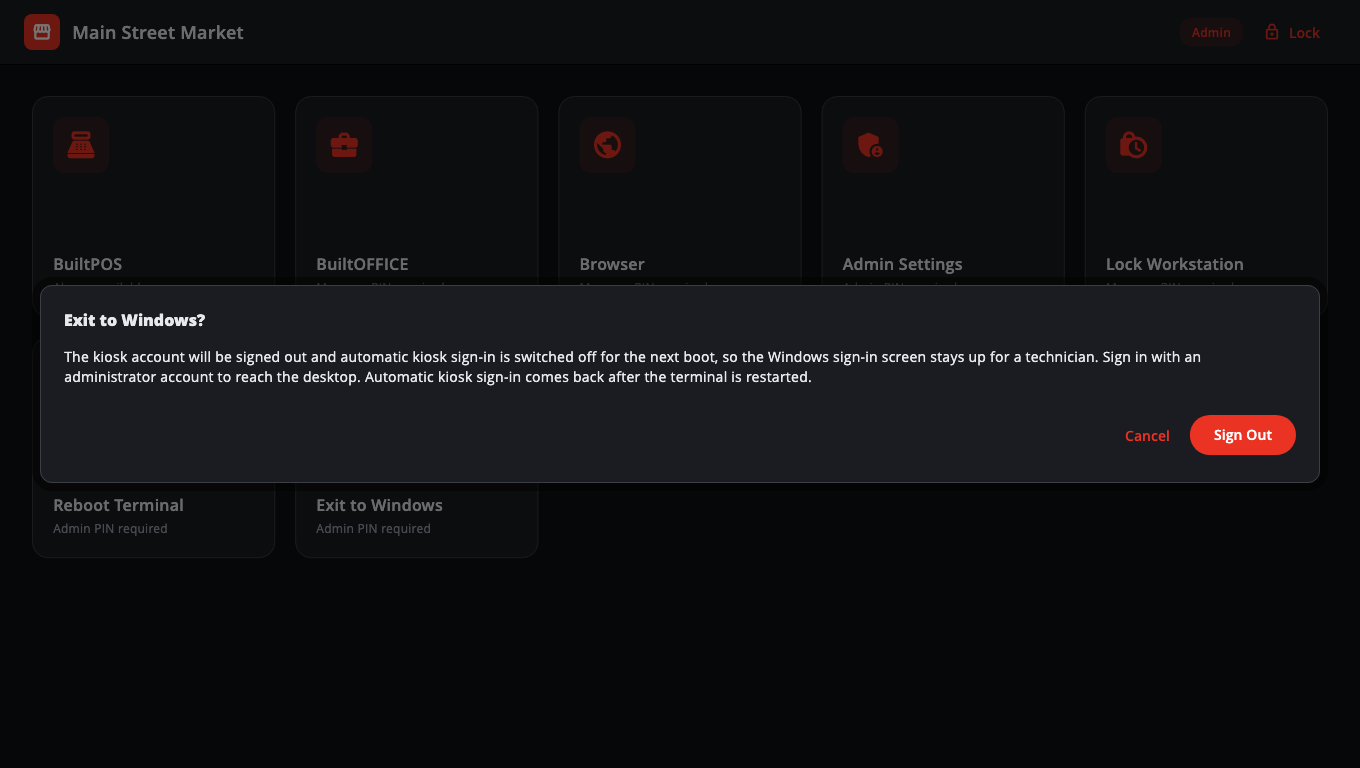
- Read the message and tap Sign Out.
- Wait while it shows "Switching off automatic kiosk sign-in…".
- The kiosk account signs out. The Windows sign-in screen stays up.
- Sign in with your Windows administrator account. You now have the normal desktop.
Come back to the locked register#
Restart the computer. Automatic kiosk sign-in switches back on after a restart, so the register signs in as the kiosk account and opens BuiltLauncher and BuiltPOS again.
Restart without leaving#
Tap Reboot Terminal, enter the admin PIN, and tap Reboot. Anything not saved in other apps is lost.
Good to know#
- Do this when there is no sale in progress.
- If you see Watchdog did not respond, the background service that switches off automatic sign-in didn't answer within 35 seconds. Signing out now would sign the kiosk account straight back in. Tap Cancel and ask a technician to check the BuiltLauncherWatchdog service, or tap Sign out anyway.
- Lost the admin PIN? Support can give you a one-time code that also exits to Windows — see Troubleshooting.
Was this helpful?
Thanks for letting us know.
Sorry it did not help. Tell us what was missing: open Help & Support in the app and choose Report a problem, or email support@builtsofthub.com.