
Show stock on your storefront
Decide whether customers see "Sold out", "Only N left" or the exact count, and whether orders are limited to stock.
Leave this off if you do not count stock in BuiltPOS. When it is off, nothing about stock is shown or checked.
- Open Design.
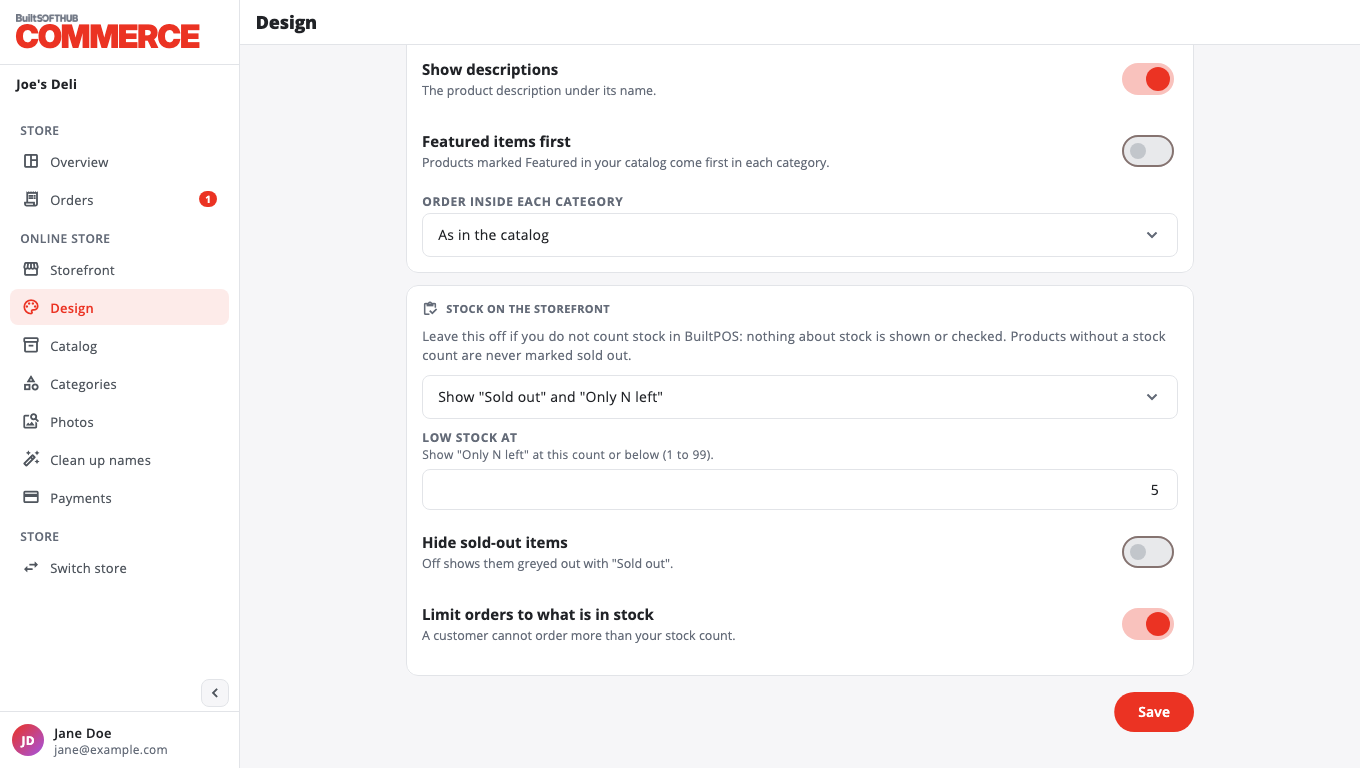
- Under Stock on the storefront, choose:
- Off: do not show stock
- Show "Sold out" only
- Show "Sold out" and "Only N left" (then set Low stock at, 1 to 99)
- Show the exact count ("12 in stock")
- Choose the extra options:
- Hide sold-out items: off shows them greyed out with "Sold out".
- Limit orders to what is in stock: a customer cannot order more than your stock count.
- Press Save.
Products without a stock count are never marked sold out. Stock comes from BuiltPOS, so receive and count stock there as usual.
Was this helpful?
Thanks for letting us know.
Sorry it did not help. Tell us what was missing: open Help & Support in the app and choose Report a problem, or email support@builtsofthub.com.