
Find photos for your products
Search for photos for products that have none, automatically or one product at a time.
On this page
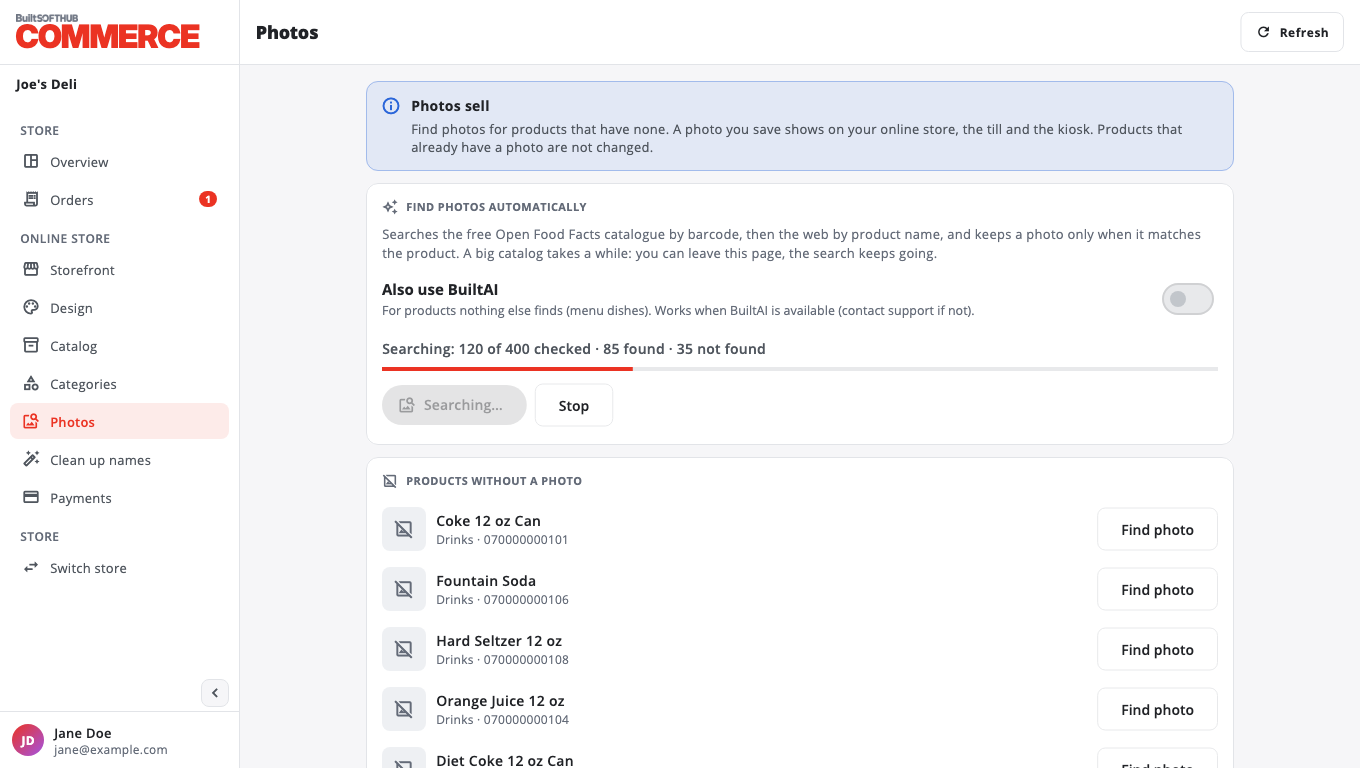
A photo you save shows on your online store, the till and the kiosk. Products that already have a photo are not changed.
Find photos automatically#
- Open Photos.
- Press Find missing photos.
- The search checks the free Open Food Facts catalogue by barcode, then the web by product name, and keeps a photo only when it matches the product.
- A big catalog takes a while. You can leave the page; the search keeps going. Press Stop to end it.
Also use BuiltAI helps with products nothing else finds, such as menu dishes. It is only available when AI is set up for your account.
If you see Paused for a moment, the photo sources asked us to slow down. It continues on its own.
One product#
- Under Products without a photo, find the product.
- Press Find photo.
- Pick a photo from Choose a photo for …, or press Cancel.
Tills show new photos on their next sync.
Tip: if no photo is found, clean up the product's name and try again.
Was this helpful?
Thanks for letting us know.
Sorry it did not help. Tell us what was missing: open Help & Support in the app and choose Report a problem, or email support@builtsofthub.com.