
Import contacts
Bring customers in from a CSV file or straight from your BuiltPOS stores.
On this page
From a CSV file#
- Open your file in a spreadsheet and make sure the first row is a header row.
- Copy the whole sheet (including the header).
- In BuiltCRM go to Contacts → Import CSV.
- Select Paste from clipboard (or paste into the box).
- Check the Preview. Rows with a problem (for example No first name) are marked and will not import.
- Select Import (the button shows how many rows are ready, for example Import 42).
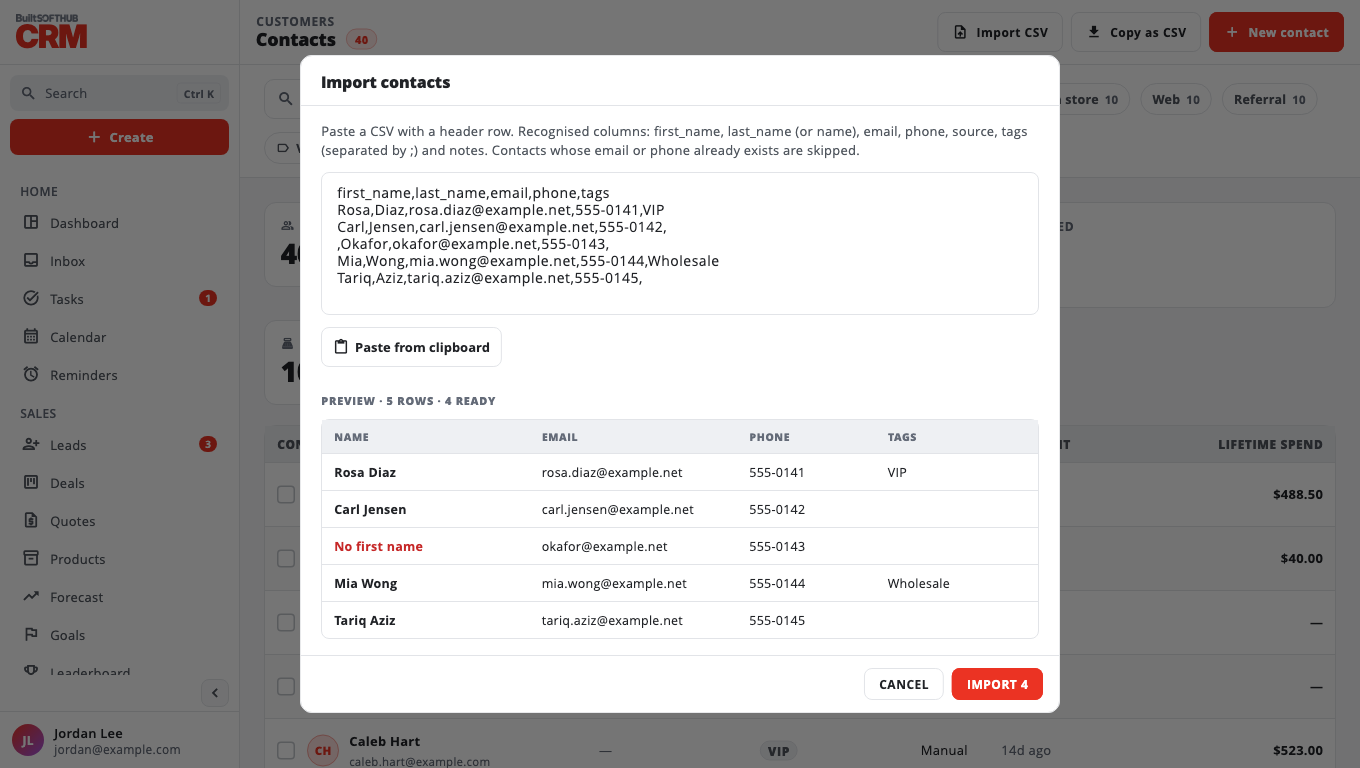
Columns BuiltCRM reads: first_name, last_name (or name), email, phone, source, tags (separate several with ;) and notes.
Contacts whose email or phone already exists are skipped, so it is safe to import the same file twice. When it finishes you see Created · skipped · failed. If some rows failed (for example a lost connection), select Retry … failed.
From your BuiltPOS stores#
- Go to Contacts → Import store customers.
- Pick a store… from the list.
- Select Import. You can Stop at any time.
It copies each store customer's name, phone and email. Customers already in BuiltCRM with the same email or phone are skipped, so you can run it again later to pick up new ones.
Having trouble? See Imports not working.
Was this helpful?
Thanks for letting us know.
Sorry it did not help. Tell us what was missing: open Help & Support in the app and choose Report a problem, or email support@builtsofthub.com.