
Add and edit a contact
Create a customer record, edit it, and see their deals and activity in one place.
Add a contact#
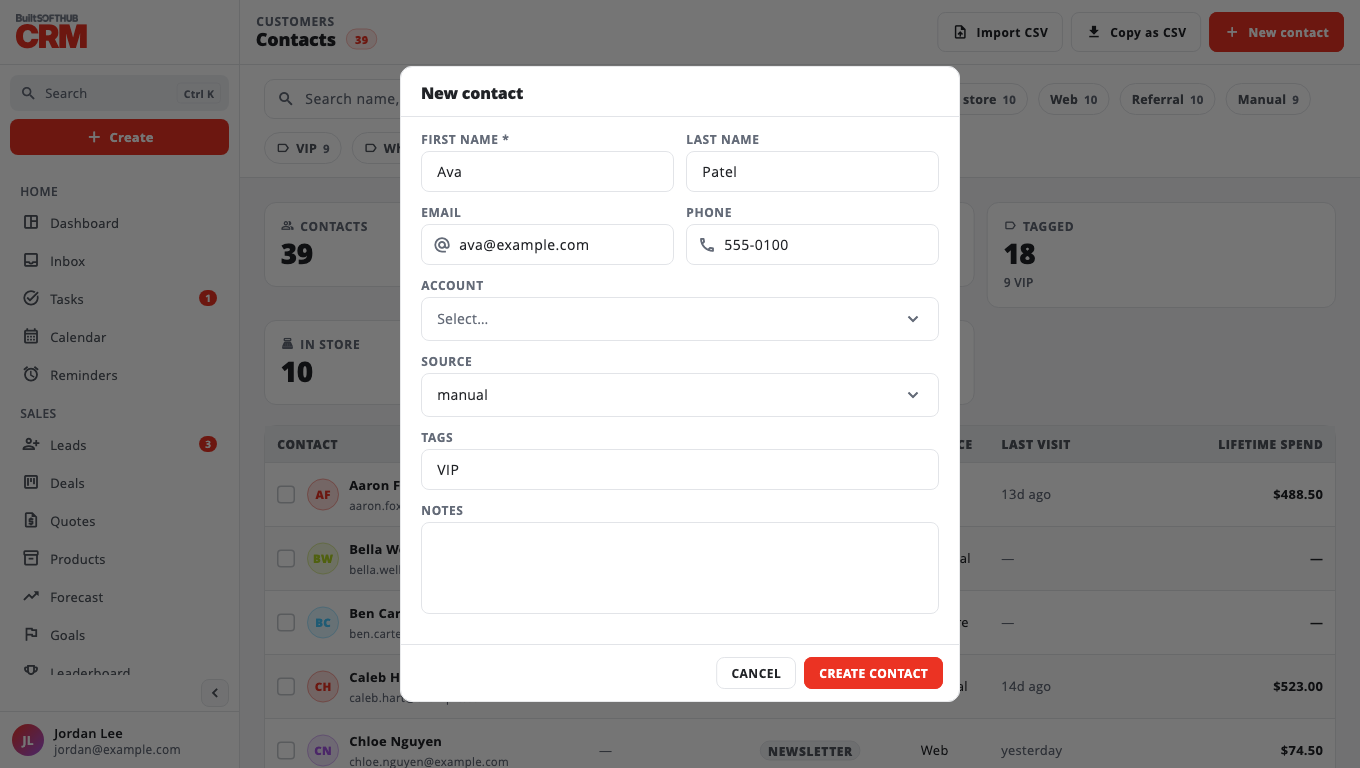
- Go to Contacts.
- Select New contact.
- Enter First name (required), Last name, Email, Phone, Source, Tags and Notes.
- Select Create contact.
Find a contact#
Type in Search name, email, phone or tag…, or tap a tag or source chip above the list. Switch between Table and Cards with the toggle.
The In store count above the list, and the In store chip, include every store customer: those that came from the till and those added with Import store customers.
The contact page#
Open a contact to see Overview, Deals and Activity. From here you can:
- Log call, Add note or New task — see Log activities and tasks.
- New deal for this contact.
- Edit the details, then Save changes.
- Copy an email or phone with Copy.
Contacts imported from your BuiltPOS stores show In store, Lifetime spend, Last visit and Loyalty ID.
Delete a contact#
Owners and admins can select Delete on the contact page. The contact is removed for everyone in the business; their deals and activities stay.
Was this helpful?
Thanks for letting us know.
Sorry it did not help. Tell us what was missing: open Help & Support in the app and choose Report a problem, or email support@builtsofthub.com.