
Capture leads and convert them to contacts
Keep prospects as leads until they are real customers, then convert them in one tap.
On this page
Add a lead#
- Go to Leads → New lead.
- Fill in First name, Last name, Company, Email, Phone, Source (for example Walk-in, Website, Referral) and Status.
- Select Create lead.
Leads also arrive on their own from your web forms.
Move a lead along#
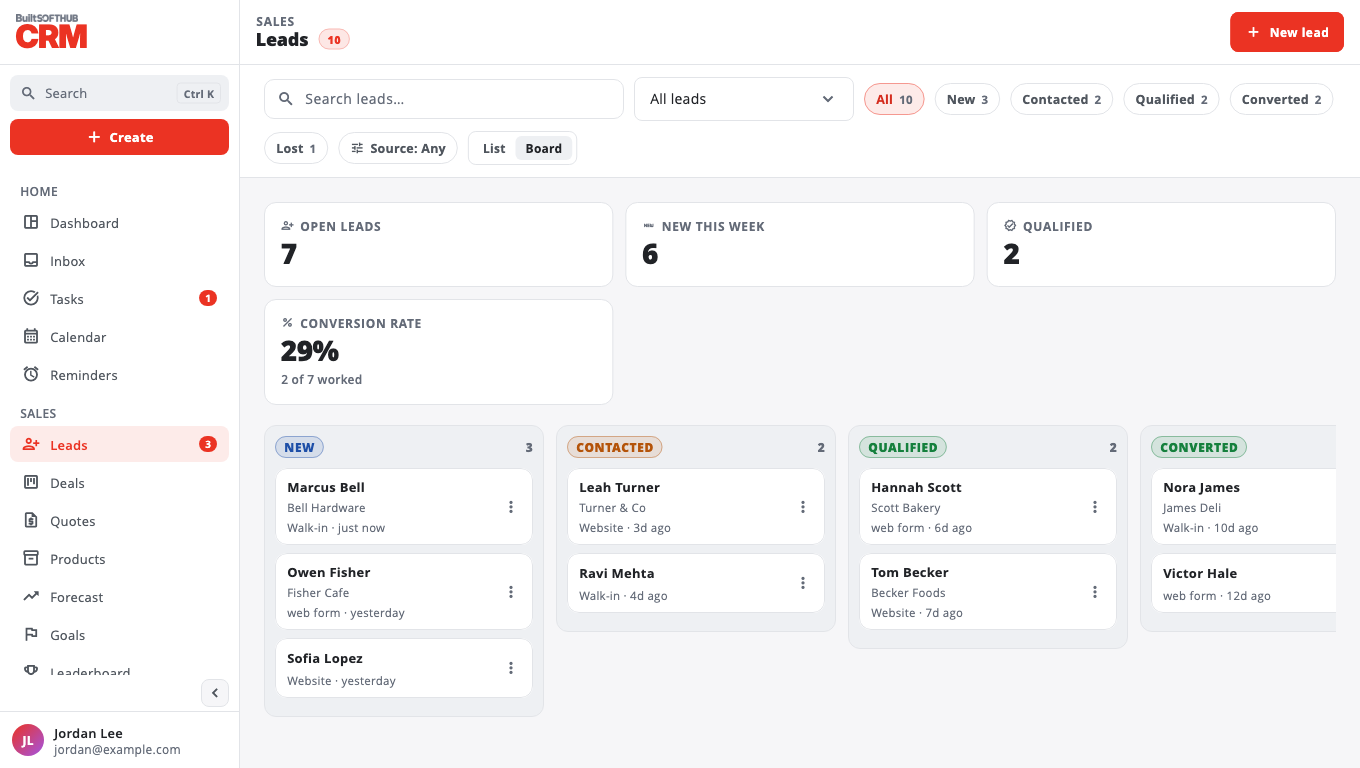
Lead statuses are New, Contacted, Qualified, Converted and Lost. Open the lead's Lead actions menu and pick Mark as …. Use the List or Board view to see leads by status.
Convert a lead#
- Open the lead.
- Select Convert to contact, then Convert.
- A contact is created. The lead is kept and marked converted, so your conversion numbers stay right. Select Open contact to go to it.
Was this helpful?
Thanks for letting us know.
Sorry it did not help. Tell us what was missing: open Help & Support in the app and choose Report a problem, or email support@builtsofthub.com.