
Save items and tax rates
Save the things you sell and your tax rates so invoices fill themselves in.
On this page
Save an item#
- Open Items and choose New item.
- Choose Product or Service.
- Enter the Name and an optional SKU (optional).
- Under Sold by, choose the unit (piece, hour, kg and so on). Choose Another unit… to type your own, such as "visit".
- Enter the Rate and choose the tax.
- Choose Save item.
When you type on an invoice line, your saved items show up. You can also tick Save to items on a new line in the invoice editor.
Add tax rates#
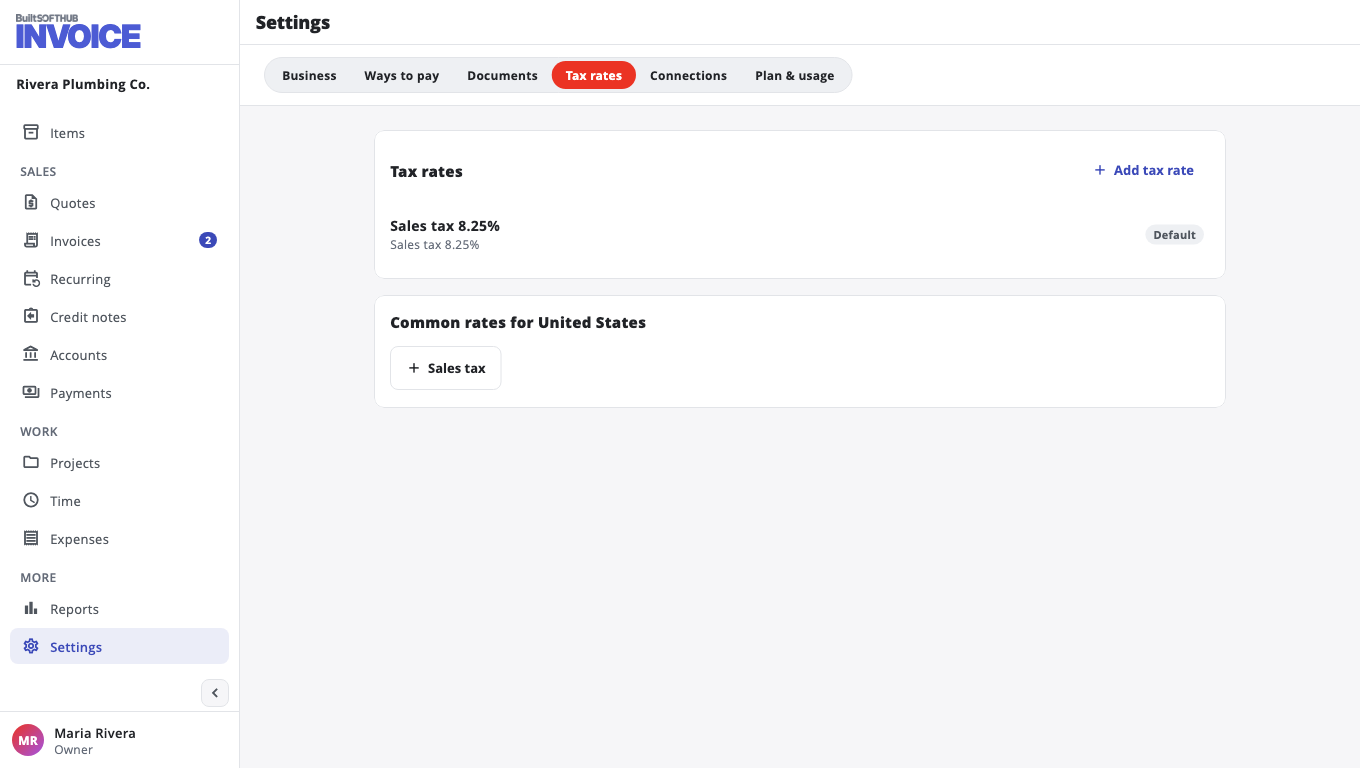
- Go to Settings and open Tax rates.
- Choose Add tax rate, or pick one of the Common rates for your country (for example GST in India, VAT in the UK).
- Save it.
If the prices you type already include tax (common for VAT and GST), turn on Prices include tax in Settings, Documents.
To print your own tax numbers (for example GSTIN, EIN or VAT number) on invoices, add them under Tax numbers in Settings, Business.
Was this helpful?
Thanks for letting us know.
Sorry it did not help. Tell us what was missing: open Help & Support in the app and choose Report a problem, or email support@builtsofthub.com.