
Add a customer
Add the people and companies you bill, with their own currency, language and terms.
On this page
- Open Customers and choose New customer.
- Under Contact, enter the Name (who you bill). Add Company (optional), Email, Phone and WhatsApp number if you have them.
- Add a Billing address and, if it is different, a Shipping address.
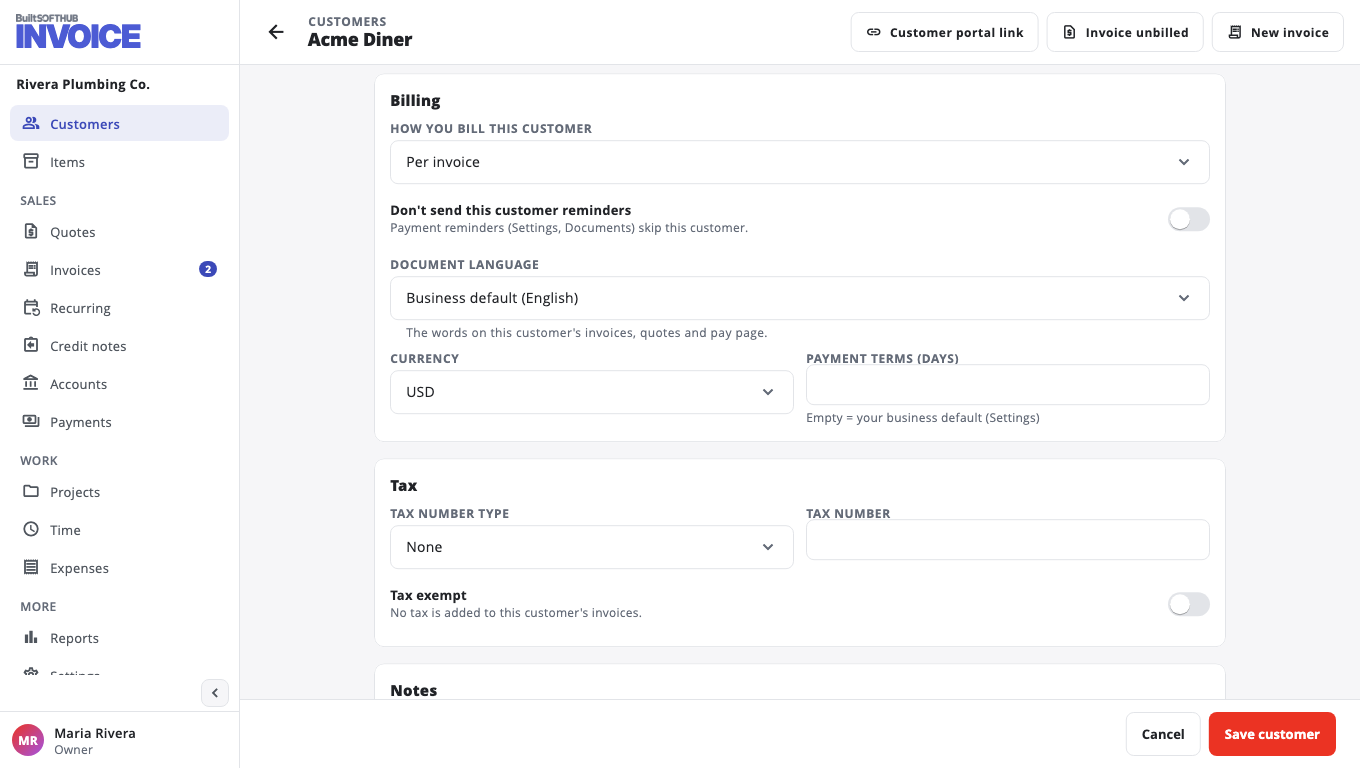
- Under Billing, choose How you bill this customer:
- Per invoice — each invoice is paid on its own (most businesses).
- On account — bills pile up and are settled together. See Bill a customer on account.
- Change anything that is different for this customer: Document language, Currency, Payment terms (days), Tax exempt, or Don't send this customer reminders.
- Choose Save customer.
Good to know#
- Also email (optional) sends a copy of every document to a second address, such as their accounts team.
- Notes are private. Only you and your team see them.
- Turn off Active to hide a customer from lists and pickers without deleting them. Use Show inactive on the Customers page to find them again.
- Already have your customers in BuiltPOS or BuiltCRM? Bring them in.
Give a customer their own page#
Choose Customer portal link on the customer. They can open that page to see and pay every invoice, quote and statement from you. Choose Copy, or tick Email, SMS or WhatsApp and choose Send link.
If a link was shared with the wrong person, choose Make a new link. The old link stops working at once.
Was this helpful?
Thanks for letting us know.
Sorry it did not help. Tell us what was missing: open Help & Support in the app and choose Report a problem, or email support@builtsofthub.com.