
Send by email, SMS or WhatsApp
Choose how each document reaches your customer, and send reminders again.
On this page
When you choose Send on a quote or invoice, you can tick one or more ways:
- Email (with the PDF attached) — to Email to, with an optional Cc (optional).
- SMS (with a link) — to SMS to.
- WhatsApp (with a link) — to WhatsApp to. Use the country code, for example +1 512 555 0100.
Add a short Message (optional) and choose Send.
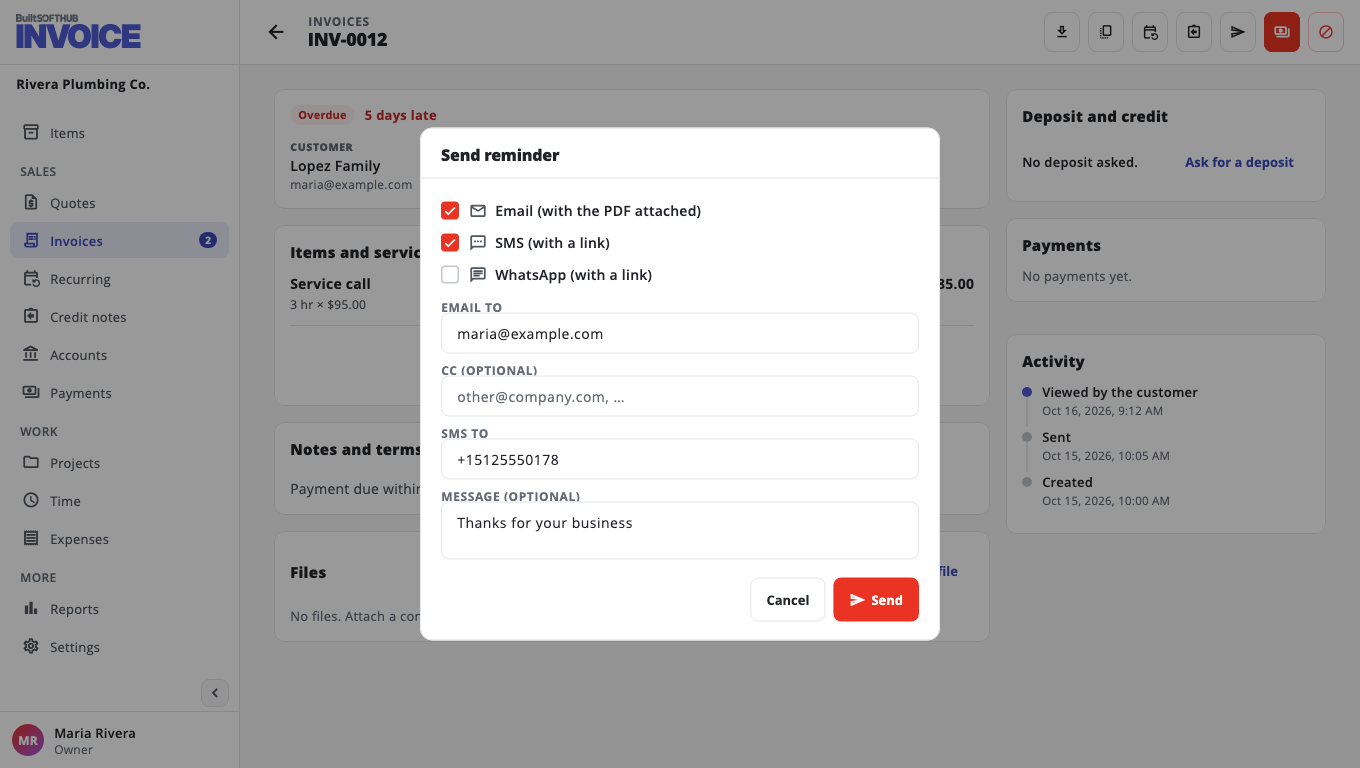
After sending, BuiltINVOICE shows what happened on each way. If nothing was delivered, the document stays a draft.
WhatsApp#
If WhatsApp sending is not set up for your account, BuiltINVOICE opens WhatsApp for you with the message ready. Send it, then choose I sent it so the invoice is marked as sent.
SMS allowance#
Email and WhatsApp links are free. SMS counts against your plan's monthly SMS allowance. See Plans and billing.
Send again or remind#
Open a sent invoice and choose Send reminder (or Send again on a quote).
To choose which ways are ticked by default, go to Settings, Documents, Send by default.
Was this helpful?
Thanks for letting us know.
Sorry it did not help. Tell us what was missing: open Help & Support in the app and choose Report a problem, or email support@builtsofthub.com.