
Record a payment or refund
Mark money you received by cash, check, UPI or transfer, and give money back.
On this page
Payments made online through Stripe are recorded for you. Record any other payment yourself.
Record a payment#
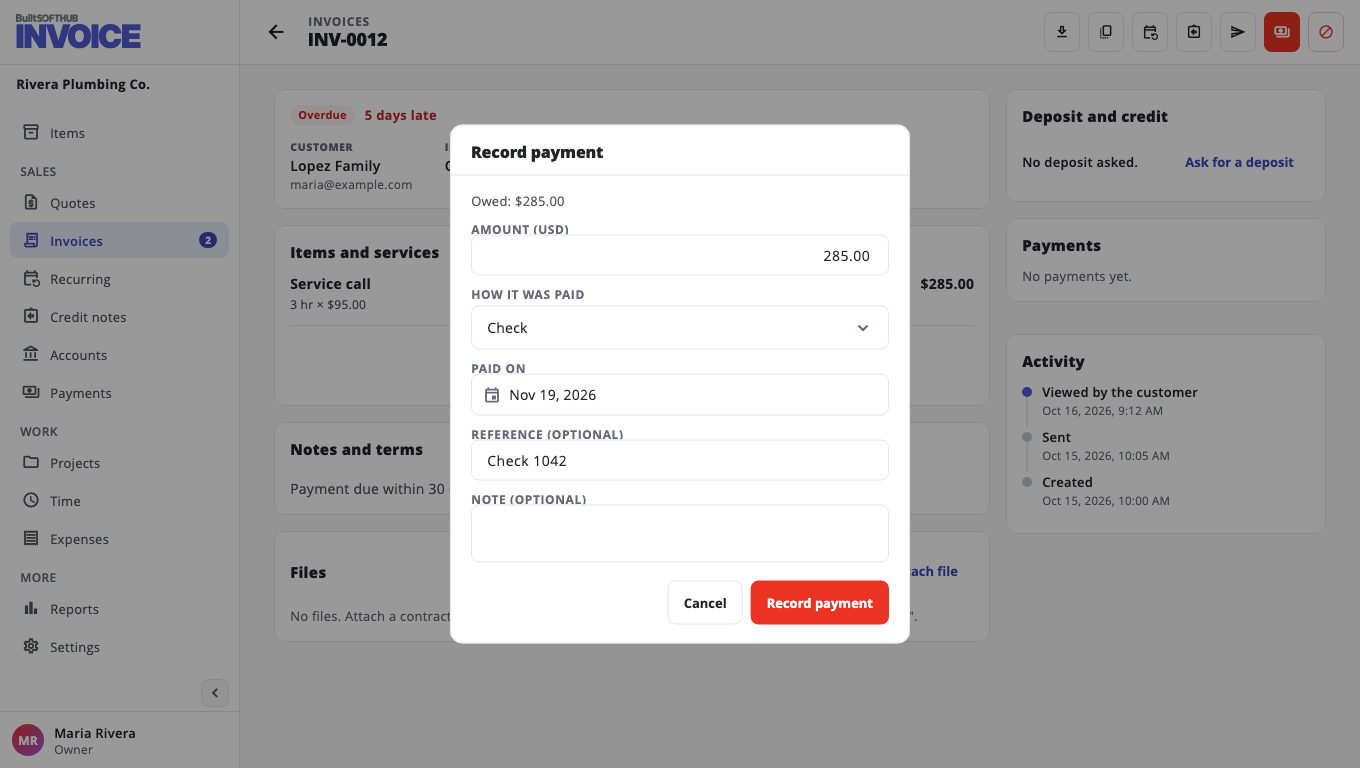
- Open the invoice and choose Record payment.
- Enter the Amount. It shows what is still Owed. You can record less for a part payment.
- Choose How it was paid and the Paid on date.
- Add a Reference (optional), such as a check number or UPI reference.
- Choose Record payment.
The invoice shows Part paid or Paid. If you turned on payment receipts, the customer gets a "Payment received" message. See Payment reminders and receipts.
Give money back#
- On the invoice, under Payments, choose Refund on the payment.
- Enter the amount and an optional Reason (optional).
- Choose Refund.
If the payment was made online, the money goes back to the customer's card or bank through Stripe. Otherwise this only records the refund — give the money back yourself.
Fix a mistake#
Recorded the wrong payment? Choose Remove payment on it. All payments are listed on the Payments page.
Was this helpful?
Thanks for letting us know.
Sorry it did not help. Tell us what was missing: open Help & Support in the app and choose Report a problem, or email support@builtsofthub.com.