
Send a quote and turn it into an invoice
Send a quote the customer can accept or decline online, then convert it to an invoice.
- Open Quotes and choose New quote.
- Choose the customer and add the lines, just like an invoice.
- Check Valid until. It comes from your quote settings, and you can change it.
- Choose Send quote, pick how to send it, and choose Send.
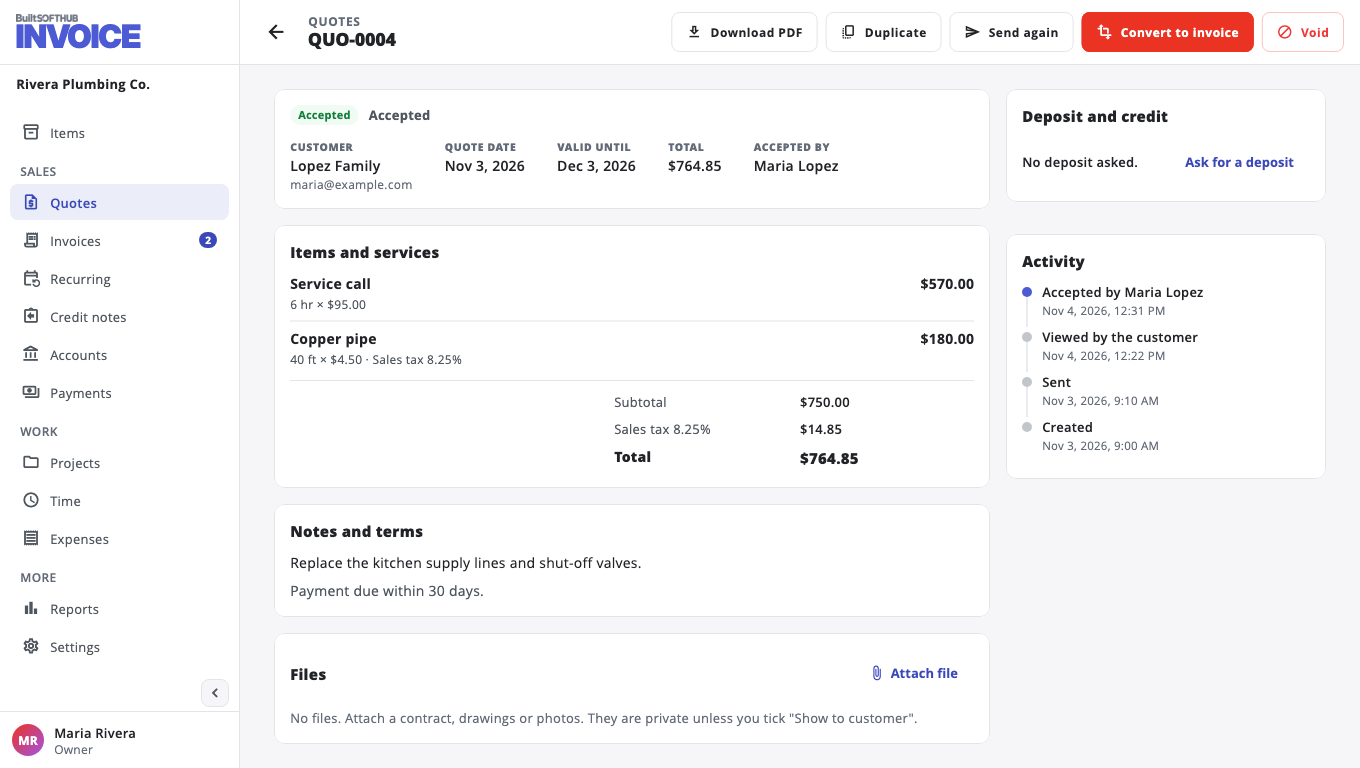
The customer opens the quote's page, types their full name and chooses Accept quote. The quote then shows as Accepted, with who accepted it and when.
The customer can also choose Decline quote. They are asked Decline this quote?, can type a Reason (optional), and choose Yes, decline (or Keep the quote). The quote then shows as Declined, the reason is kept on its history, and the owner and admins get an email (turn it off under Settings → Email me when). If the customer rejects a quote you sent for signature through BuiltSIGN, it is marked Declined in the same way.
Turn it into an invoice#
- Open the quote.
- Choose Convert to invoice.
- Check the new invoice and send it.
You can convert a quote that is sent, viewed, accepted or expired.
Want a signature instead of a typed name? See Send a quote or invoice for signature.
To change how long quotes stay valid, go to Settings, Documents, Quotes are valid for (days).
Was this helpful?
Thanks for letting us know.
Sorry it did not help. Tell us what was missing: open Help & Support in the app and choose Report a problem, or email support@builtsofthub.com.