
Bump, recall and undo tickets
Move tickets forward, bring a ticket back, undo a mistake, and reopen a ticket that was cleared.
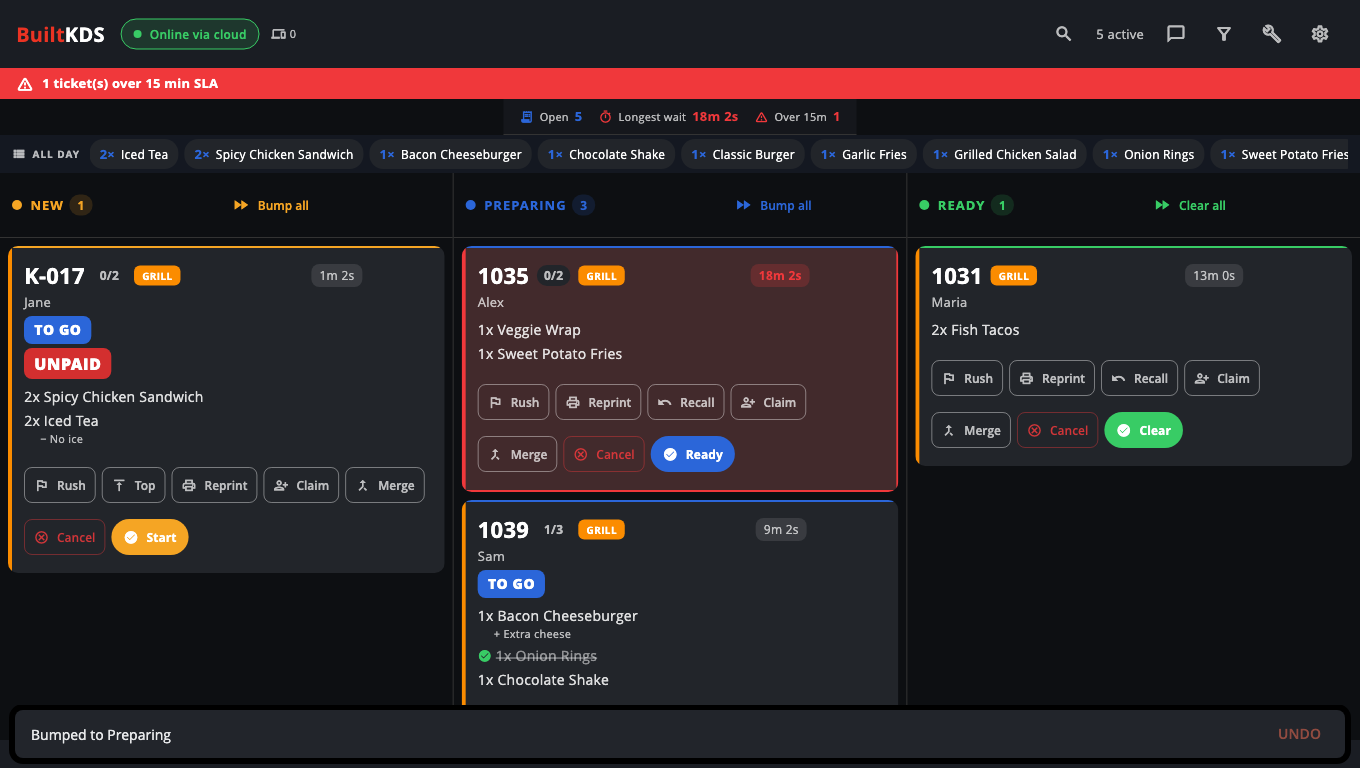
"Bumping" a ticket moves it to the next column: New → Preparing → Ready → cleared.
Bump a ticket#
- Tap the button on the ticket: Start (New), Ready (Preparing) or Clear (Ready).
- Or turn on Settings → Tap a ticket to bump it and tap anywhere on the ticket.
- With a keyboard or bump bar, pick the column (1, 2, 3), move with the arrows and press Enter.
To skip the Preparing column, turn on Settings → Bump straight to Ready ("One tap moves a new ticket to Ready").
Undo the last bump#
- Right after a bump, tap UNDO at the bottom of the screen (or press U).
- The ticket goes back where it was.
If the ticket has already moved on (another screen or the register changed it), you see Ticket moved on — undo not possible.
Recall a ready ticket#
Bring a ticket in Ready back to Preparing — for example when a dish was sent back.
- On the ticket in Ready, tap Recall (on compact tickets it's in the ⋮ menu).
- Or press R to recall the last ticket bumped to Ready.
- To bring all of them back, open Tools → Recall all ready and confirm.
Bump a whole column#
Tap Bump all at the top of the column (on the Ready column it says Clear all). You are asked to confirm first. Tickets that are held for a course, or that need an ID check, are skipped and the screen tells you why.
Reopen a cleared ticket#
- Open Settings.
- Under Reopen cleared (last 2h), tap the Reopen (restore) icon next to the ticket.
Good to know#
- Clearing a kiosk order with 21+ items asks you to Check ID first. Tap Verified to hand it over or Refused to keep it in Ready. Stores with ID scanning can tap Scan ID.
- Settings → Clear Ready tickets after removes Ready tickets automatically after 15, 30 or 60 minutes. It is set to Never by default.
- Bumping on one screen updates every other screen showing the same ticket, and the customer pickup display.
Was this helpful?
Thanks for letting us know.
Sorry it did not help. Tell us what was missing: open Help & Support in the app and choose Report a problem, or email support@builtsofthub.com.