
Expo and customer pickup screens
Use the Expo screen at the pass to check every order before it goes out, and show customers an order-ready board on a TV.
Customer pickup display#
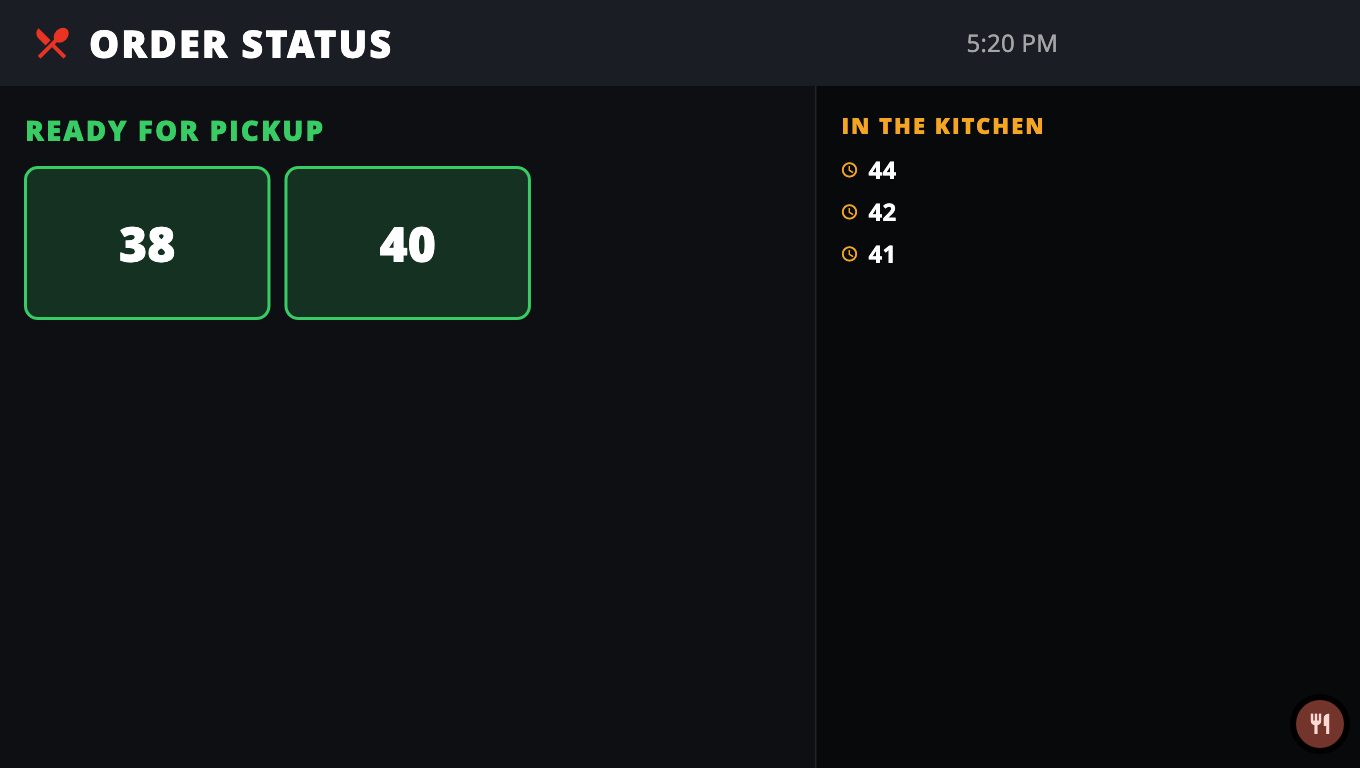
A pickup display shows customers which orders are IN THE KITCHEN and which are READY FOR PICKUP, with "Please wait — we'll call your number here". It follows the kitchen board: when a cook marks a ticket ready, the number moves to the ready side.
On a BuiltKDS screen (for example a TV over the counter)
- On the kitchen board, open Tools → Switch to pickup display.
- Confirm Switch to the pickup display?.
- To go back to the kitchen board, press and hold the round button in the bottom-right corner. (A short tap only shows a reminder, so customers can't switch it by accident.)
From a kitchen screen, on the same device
- Open Settings on the kitchen board.
- Tap Open Customer Pickup Display.
- Use Leave (Leave the pickup display? → Leave) to return.
Expo screen (at the pass)#
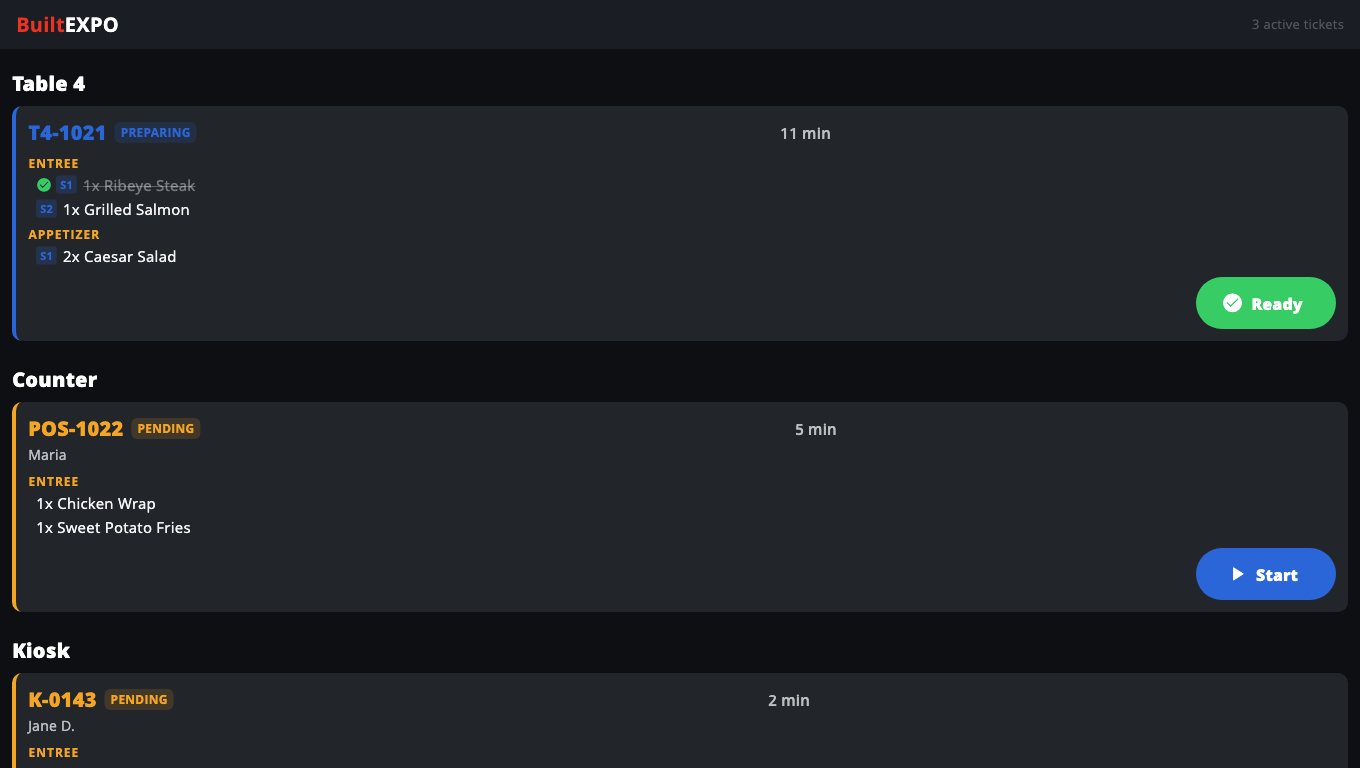
Expo is for the person who checks each order before it goes to the table or the customer. It is part of BuiltPOS on a register in restaurant mode.
- On the register, tap Expo on the left panel (or under More).
- Orders are grouped by table, with each item's seat and course. Counter, kiosk and online orders are listed too.
- Tap an item to mark it plated.
- Tap the order's Start button when it is being made, and Ready when everything is on the plate. Tap UNDO straight away if you made a mistake.
- If the order is not paid yet (for example a pay-at-counter kiosk order), you are asked Order not paid. Tap Mark ready only if you want to hand it over anyway.
- To leave Expo, tap the Built EXPO logo at the top 5 times quickly and enter a manager PIN.
Good to know#
- Settings → Clear Ready tickets after also clears the ready numbers from this screen's pickup display.
- On Windows, the pickup display can run full screen: switch to it, then press F11.
- See also Restaurant tables and kitchen.
Was this helpful?
Thanks for letting us know.
Sorry it did not help. Tell us what was missing: open Help & Support in the app and choose Report a problem, or email support@builtsofthub.com.