
Customers, loyalty points and house accounts
Add and look up customers, set up the loyalty program and its rules, and manage house accounts, store credit and gift cards.
Add a customer#
- Go to Customers & employees → Customers & Loyalty.
- On the Customers tab, tap Add.
- Enter the Name, Contact No, and if you like Birthday (optional) and Remarks.
- Tap Add.
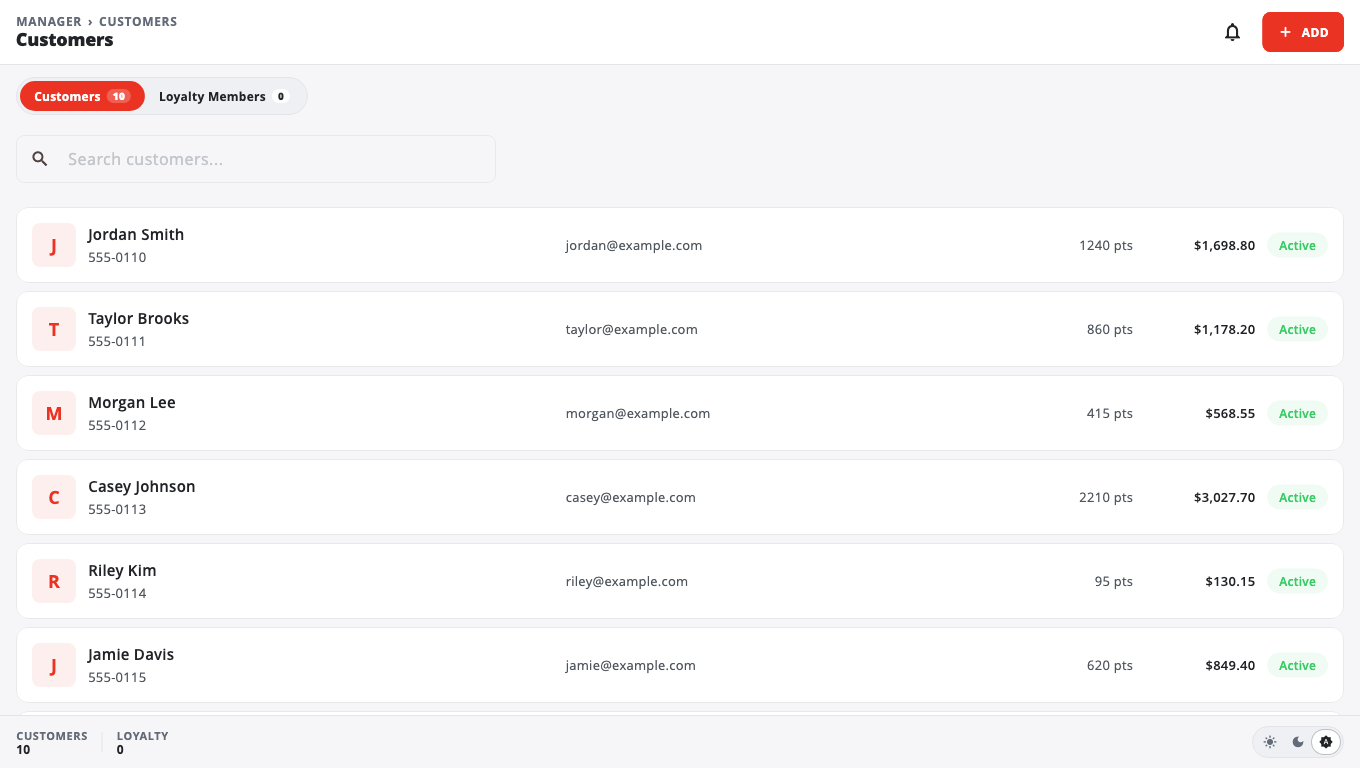
Tap a customer to see their total spent, visits, average ticket, last visit and top categories. Tap the pencil to open Edit Customer. Turn Active off there to hide a customer.
Customers can also be added at the till during a sale.
Turn on and set up loyalty#
Loyalty needs the Loyalty Program module. If it is not on, tapping Settings opens a sheet that shows how to turn it on.
- Open the Loyalty Members tab and tap Settings. The Loyalty Program page opens.
- On the Settings tab, set:
- Points per $1 spent (starts at 1).
- Redemption rate ($ per point) (starts at 0.01, so 100 points = $1).
- Minimum points to redeem (starts at 100).
- Redeem in steps of (points): 1 means any number of points; 100 means 100, 200, 300 and so on.
- Tap Save Settings.
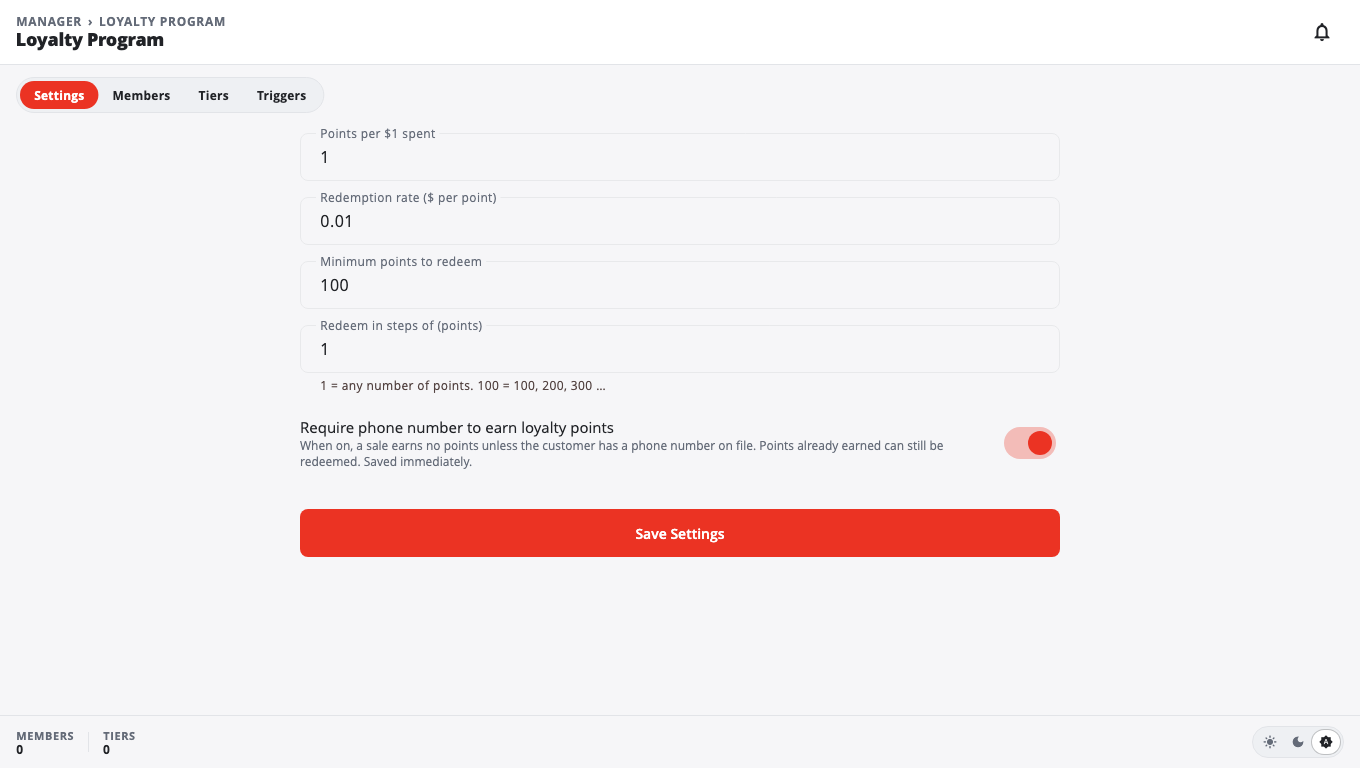
Require phone number to earn loyalty points is on by default. A sale earns no points unless the customer has a phone number on file. Points already earned can still be redeemed. This switch saves as soon as you flip it.
Tiers and automatic rewards#
- Tiers: add tiers such as Silver and Gold with a Min spend ($), a Point multiplier, a Discount % and Birthday bonus pts. Tap Save Tiers.
- Triggers: give members points on their birthday, and send a text (and optionally an email) to customers who haven't visited in a while. Tap Save automatic settings.
Add a loyalty member#
On the Loyalty Members tab, tap Add. Find an existing customer by name or phone, or type a new one, and add a Loyalty card no (optional). Tap Add.
Points are earned and redeemed at the till. In BuiltOFFICE you can see a member's Points Balance and Points History, but you can't change points by hand.
House accounts and store credit#
Go to Customers & employees → Customer Balances:
- House Accounts (customer owes): customers who buy on account. Tap Pay to record a payment, enter the Payment Amount and tap Accept Payment. Needs the house accounts module.
- Store Credit (store owes): credit from refunds. Look a customer up by phone. Tap Adjust to add or take off credit (type a minus sign to take off), add Remarks, and tap Adjust.
Gift cards#
Go to Transactions → Gift Cards. Search by the last 4 digits, the full code or the invoice number. You can Adjust balance or Deactivate a card; both need a reason. The Liability tab shows what all active cards are worth. Needs the Gift Cards module.
Good to know#
- Customer marketing (SMS and email campaigns) is under Customers & employees → SMS Marketing and Email Marketing, as add-ons.
- To export or erase one customer's data, use Privacy Requests.
- On legacy Windows POS stores, loyalty tiers and triggers, store credit and gift cards are not available.
Was this helpful?
Thanks for letting us know.
Sorry it did not help. Tell us what was missing: open Help & Support in the app and choose Report a problem, or email support@builtsofthub.com.