
Employees, PINs and permissions on the till
Add an employee and their sign-in PIN at the till, understand what each role can do, and change role permissions.
You can manage staff from the till or from BuiltOFFICE. Both stay in step. For bigger changes (payroll, schedules, custom roles) use Employees and roles in BuiltOFFICE.
Roles at a glance#
| Role | What they can do on the till |
|---|---|
| Owner / Admin | Everything, including Store Management. |
| Manager / Shift Lead | Sales plus Manager's Functions, reports, Close Day, stock counts, stock and price changes, modifiers and receiving. Other Store Management pages need an Owner or Admin PIN. Shift Lead has the same rights as Manager. |
| Cashier / Kitchen | Sales. Anything protected asks for a manager PIN. |
When someone needs approval (a void, a price override, closing a shift), the till shows an Owner / Manager PIN box, with the action underneath. A manager types their PIN on the same screen. If an Owner or Admin is the one signed in, they are not asked again.
Add an employee#
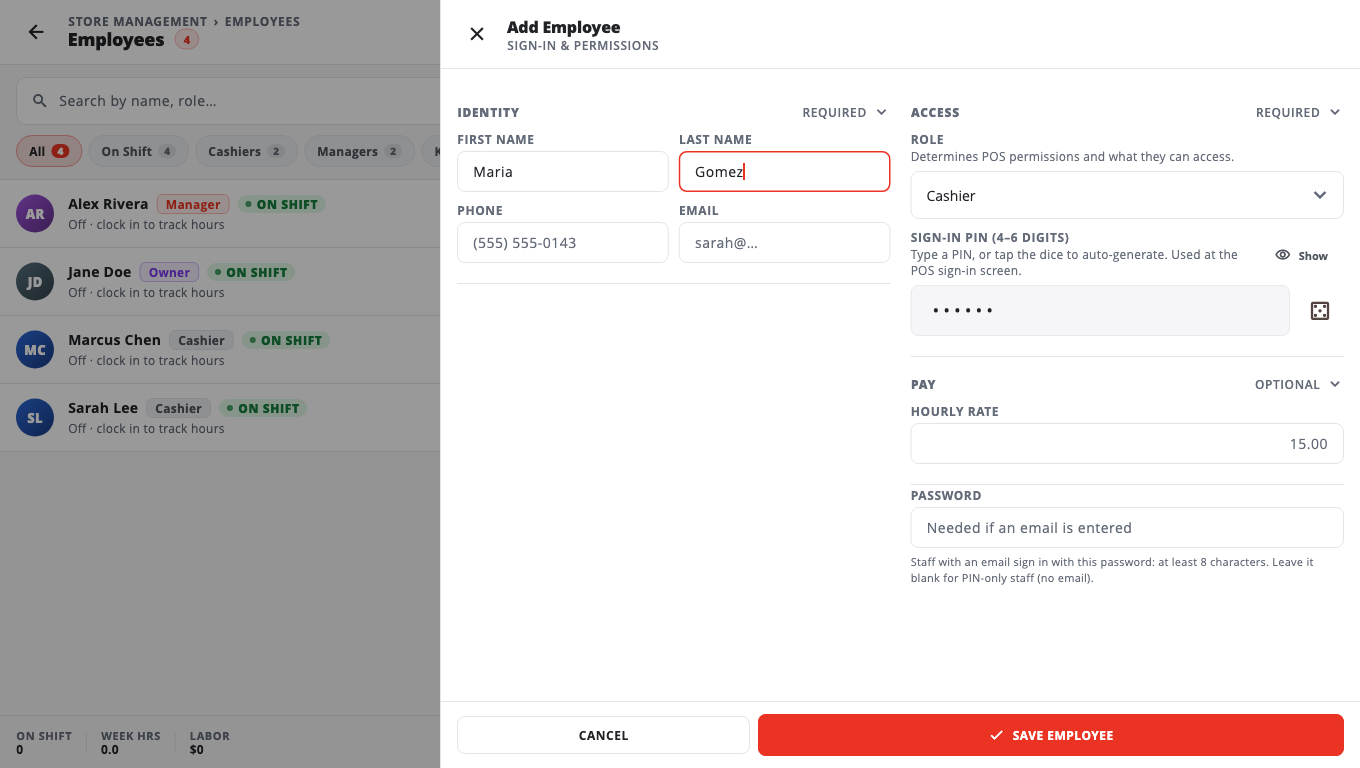
- Open Store Management → Staff → Employees.
- Tap Add Employee.
- Under Identity, enter First Name and Last Name, and Phone or Email if you have them.
- Under Access, pick the Role.
- Enter a Sign-in PIN (4–6 digits), or tap the dice to make one. Each employee needs a different PIN.
- Add an Hourly Rate under Pay if you use payroll.
- If you entered an Email, type a Password of at least 8 characters. Staff with an email sign in with it. Leave it blank for PIN-only staff (no email).
- Tap Save Employee.
Change or remove an employee#
- Tap the employee, change what you need and tap Save.
- Tap Deactivate to stop someone signing in but keep their history. Only an Owner or Admin can deactivate a Manager.
- Delete removes the record. If they have sales, BuiltPOS warns you first. Deactivate is usually the better choice.
- Only an Owner or Admin can give someone the Owner or Admin role.
Change what a role can do#
- Open Store Management → Staff → Role Permissions.
- Each row is a feature, each column a role (Cashier, Manager, Owner).
- Tap a cell and tick View, Add / Create, Edit / Update or Delete / Archive.
- Tap Save. An Owner or Admin PIN is needed.
The Owner column is locked: Owners always have full access. Custom roles are made in BuiltOFFICE.
Switch user and sign out#
- Switch User (on the left panel) signs the current person out without clocking them out, so the next person signs in with their PIN. Finish or hold the sale first.
- Sign out is in the MANAGER section of the More menu.
Good to know#
- New employees and PIN changes reach other tills at the next sync. Sign-in works offline once a till has them.
- A role you set on this till (Owner, Shift Lead, Kitchen) stays as set after a sync. BuiltOFFICE stores only the permission level, so other tills show the matching level (Admin, Manager or Cashier). If BuiltOFFICE moves the person to a different level, that change wins.
- On Role Permissions, the Cashier column also counts Kitchen staff, and Manager counts Shift Lead.
- The Manager Audit Log under Staff shows who approved what.
- Forgotten PIN: an Owner or Admin sets a new one on the employee. See Sign in and PINs.
Was this helpful?
Thanks for letting us know.
Sorry it did not help. Tell us what was missing: open Help & Support in the app and choose Report a problem, or email support@builtsofthub.com.