
Settle the drawer
Enter the terminal report totals and the cash counted, then save the settlement.
After you end the shift, the app may ask Who is closing this shift? if your store has clerk names. Then the Sales Summary screen opens.
- Print the sales report from your lottery terminal.
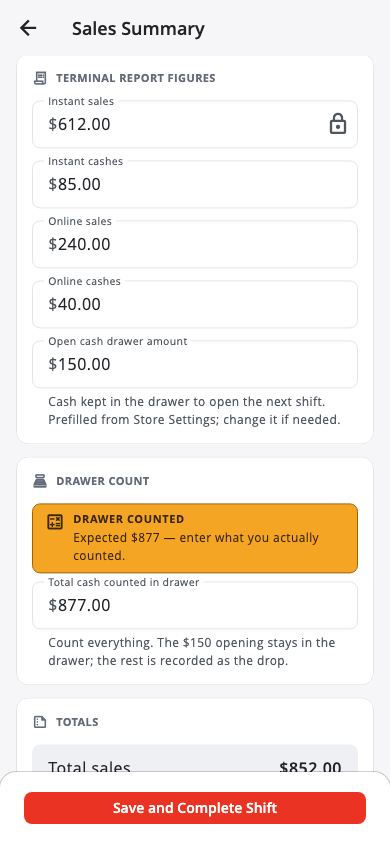
- Under Terminal report figures, tap Scan report or Take a photo and the app reads the totals for you — or type them in: Instant sales, Instant cashes, Online sales, Online cashes. Check every number.
- Count all the cash in the drawer and enter it under Drawer count. Count everything — the opening amount stays in the drawer and the rest is recorded as the drop.
- Check Short / Over under Totals.
- Add Notes (optional) and tap Save settlement. Settled by shows who closed the shift.
How the drawer math works#
Expected in drawer = float + sales (instant + online) − cashes (prizes paid out). Your count is then compared with that: more is OVER, less is SHORT.
If the difference is bigger than your store's limit, the app asks Recount before saving? Tap Recount to count again, or Record it.
The app saves the settlement, builds the PDF and, with Premium, emails it if you set that up. See View and fix a settlement.
Was this helpful?
Thanks for letting us know.
Sorry it did not help. Tell us what was missing: open Help & Support in the app and choose Report a problem, or email support@builtsofthub.com.