
Start and run a shift
Start a shift, and what to do when a pack sells out or packs move during the day.
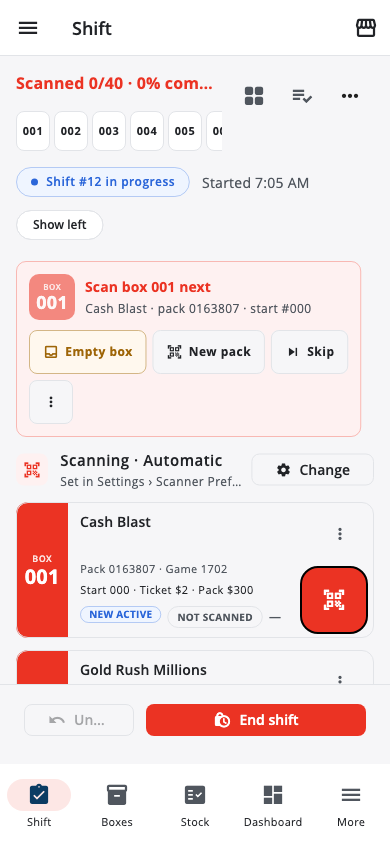
- Open Shift and tap Start shift when the counter opens.
- The header shows the shift number and when it started. Shift numbers count up for the life of the store.
- During the shift clerks sell tickets as usual. Come back to the app only when something changes on the wall, and at close.
A pack sold its last ticket#
If the box stays empty, tap the box and choose Mark pack sold out. The app books every remaining ticket automatically. Nothing to scan.
A new pack went into a box#
Just scan the new pack when you close. The app sees the same game with a new pack number, asks you to confirm, books the old pack as sold out and starts the new one from 000. Both sales land in the same shift.
A different game went into the box#
Scan it at close and the app asks which box it filled. The old game's remaining tickets are booked sold out and the new game starts from 000.
Two packs swapped boxes#
Scans follow the pack, not the box label, so the money is never wrong. Tap a box and choose Swap boxes so the app's wall matches the real one.
Start the next shift automatically#
Turn on Auto-start next shift in Settings › Store Settings to begin a new shift as soon as the last one is settled.
Next: Close a shift
Was this helpful?
Thanks for letting us know.
Sorry it did not help. Tell us what was missing: open Help & Support in the app and choose Report a problem, or email support@builtsofthub.com.