
Add employees and give them a role
Add staff with a role and a till PIN, invite managers to BuiltOFFICE, deactivate people who leave, and fix time punches.
Add an employee#
- Go to Customers & employees → Employees.
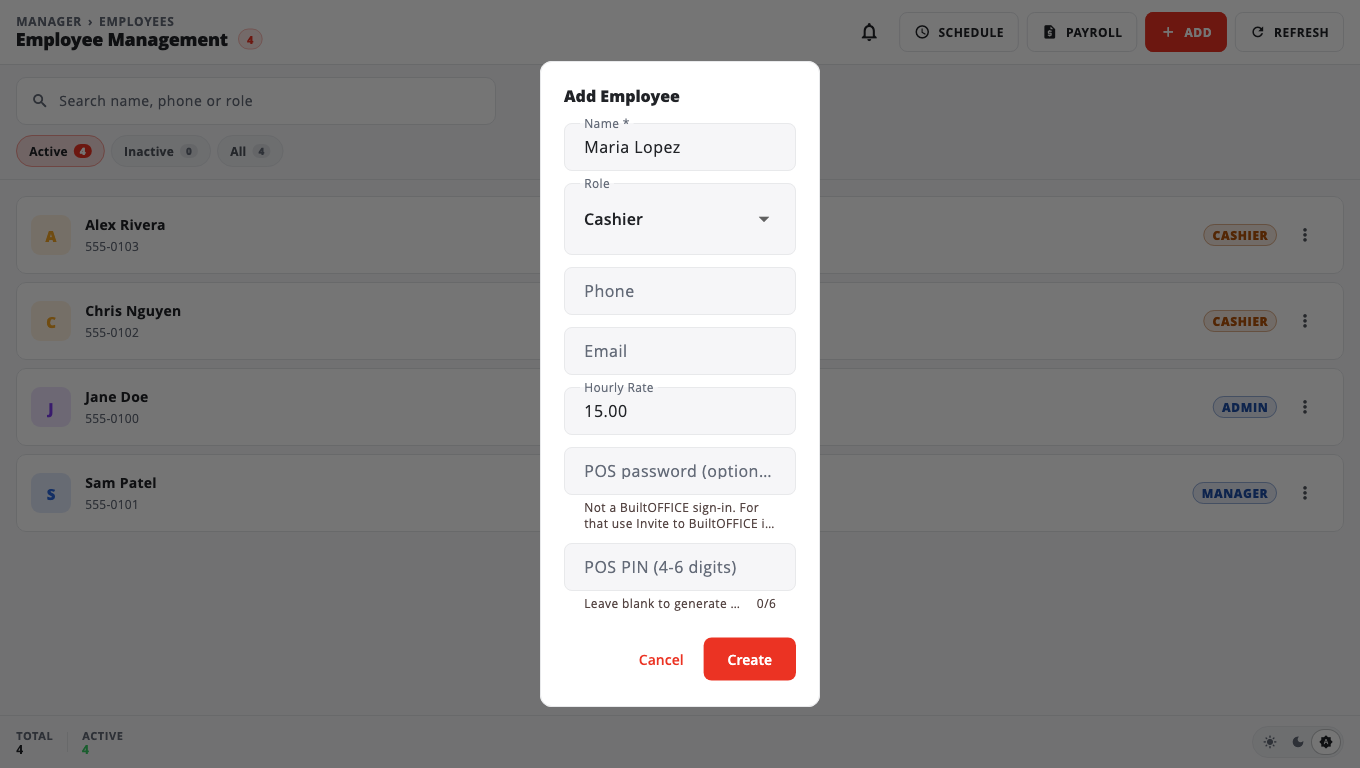
- Tap Add. The Add Employee window opens.
- Enter the Name.
- Choose a Role: Admin, Manager or Cashier. New employees start as Cashier.
- Add Phone, Email and Hourly Rate if you want.
- Type a POS PIN (4-6 digits), or leave it blank and BuiltOFFICE makes one for you.
- Tap Create.
- If a PIN was made for you, the PIN Generated window shows it. Copy it and give it to the employee, then tap Done.
The employee can now sign in to any till of this store with their PIN, after the till syncs.
What each role can do#
- Cashier: sells, takes payments and does what the till allows a cashier.
- Manager: everything a cashier can do, plus manager approvals on the till and most of BuiltOFFICE.
- Admin: everything, including store settings and billing.
You can fine-tune what managers and cashiers can do. See Role permissions.
Give someone a BuiltOFFICE sign-in#
The PIN is only for the till. To let a manager sign in to BuiltOFFICE:
- Open the employee's More menu (⋮) and tap Invite to BuiltOFFICE.
- Enter their Email and tap Send invite.
They get an email with a temporary password and choose their own when they first sign in. A cashier who is invited sees only their own schedule, time off and paystubs, and only when the store uses Payroll or Scheduling.
Change a PIN#
- Tap the employee to open Edit Employee.
- Type the new number in the PIN field. Leave it blank to keep the current PIN.
- Tap Save.
When someone leaves#
- Open the employee's More menu (⋮).
- Tap Deactivate, then Deactivate again.
They can no longer sign in, and their sales and hours stay in your reports. Use Activate to bring them back. Use Delete only for someone added by mistake. BuiltOFFICE warns you if they already have sales.
Fix a missed or wrong time punch#
- Go to POS → Time Clock.
- Tap Edit punches.
- Tap Add missed punch, or edit or void a punch.
- Enter a Reason (required) and save.
Good to know#
- Your plan sets how many employees you can have. At the limit the button reads Add (plan limit).
- A manager can't deactivate another manager or an admin. Ask the store owner or an admin.
- Nobody can change their own pay rate, or delete their own account.
- A store must always have at least one active admin.
- On legacy Windows POS stores, inviting employees to BuiltOFFICE and editing punches are not available.
Was this helpful?
Thanks for letting us know.
Sorry it did not help. Tell us what was missing: open Help & Support in the app and choose Report a problem, or email support@builtsofthub.com.