
Import products from a CSV file
Load your product list (or customers, suppliers, employees and more) from a spreadsheet in three steps — upload, map columns, review and import.
You can save a spreadsheet from Excel or Google Sheets as a CSV file and import it into BuiltOFFICE.
Import products#
- Go to Inventory → Products and tap Import. You can also go to Reports → Import / Export → CSV Import and pick Products.
- Upload: tap Download Template if you want a file with the right columns. Fill it in. Then drop your file on the page or tap Choose CSV.
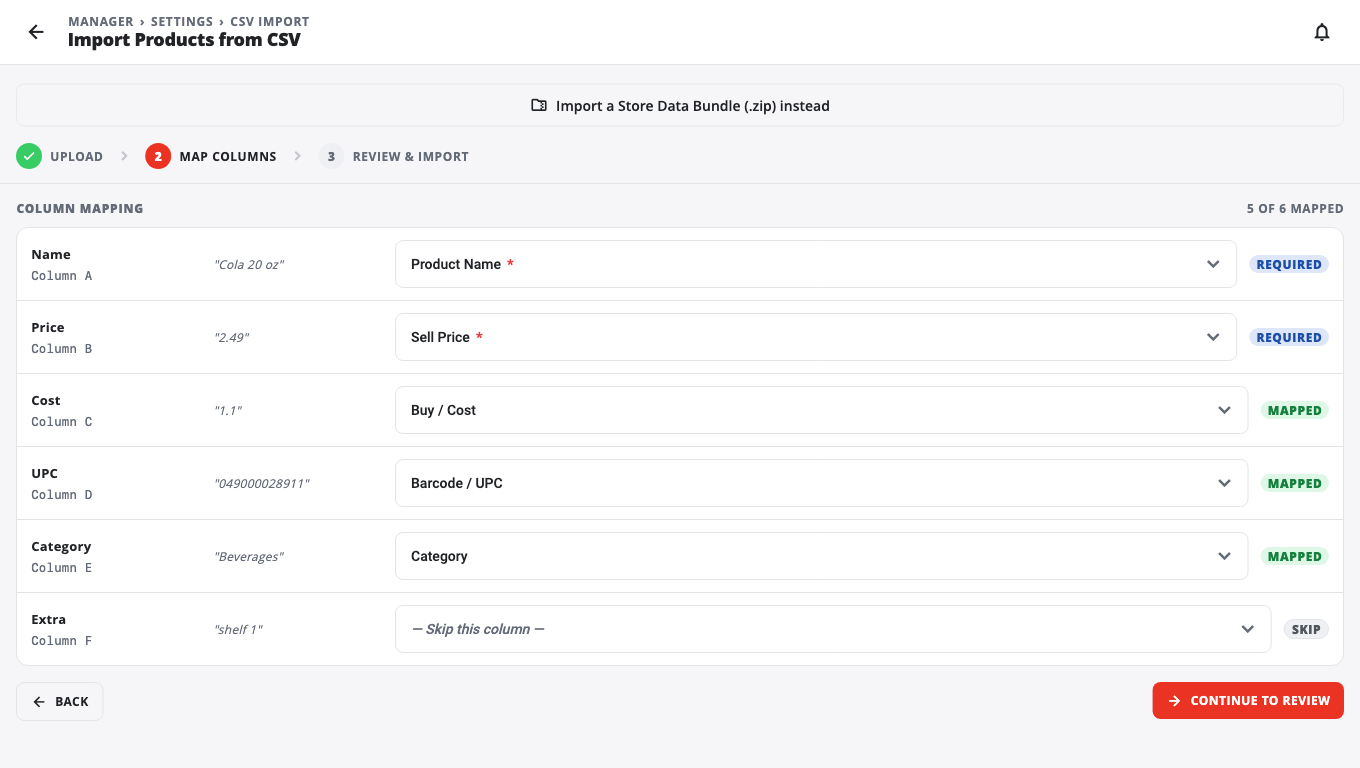
- Map Columns: BuiltOFFICE matches your columns to its fields. Check each one. Set a column you don't need to — Skip this column —. Product Name and Sell Price are required.
- Tap Continue to Review.
- Review & Import: check Total rows, Will import and Blocked. Blocked rows have a problem, such as a missing price.
- Tap Import N rows.
What else you can import#
On Reports → Import / Export → CSV Import, pick what to import:
- Products
- Customers
- Suppliers
- Employees
- Categories
- Inventory Adjustments (stock changes)
- Price List
- Serialized Inventory
The same list also has:
- Taxes — tax rates, matched by tax name.
- Product Groups — groups and the products in them.
- Promotions — matched by promotion name.
- Loyalty Tiers — matched by tier name.
- Store Settings — settings exported from another store.
- Quick Buttons — these belong to each register, so import this file on the till instead (Store Management → CSV Import). In BuiltOFFICE every row is skipped with that message.
Rows that update an existing record count as imported. If the server refuses a batch for one of these six, the reason is shown (for example, an entity that works on BuiltPOS cloud stores only).
Export your data#
- For customers, suppliers, employees and categories, tap Export current … to CSV on the import page.
- For products, use Export on the Products list.
- The Data Export & Bundles tab can export the whole store, or import a Store Data Bundle (.zip) made by another BuiltPOS store.
Good to know#
- Files can be .csv, .txt or .tsv.
- Only the store owner and admins can import. Managers see the Import button but can't use the import page.
- Always check the Review & Import step before you tap import. It shows exactly how many rows will go in.
- On a legacy Windows POS store, only the product import works. Every other import and export is refused.
- To change many existing products at once (prices, categories, suppliers), use Stock and price changes instead.
Was this helpful?
Thanks for letting us know.
Sorry it did not help. Tell us what was missing: open Help & Support in the app and choose Report a problem, or email support@builtsofthub.com.