
Run, save, email and schedule reports
Find the sales reports, pick a date range, export a PDF or email it, and set up reports that arrive in your inbox automatically.
Run a sales report#
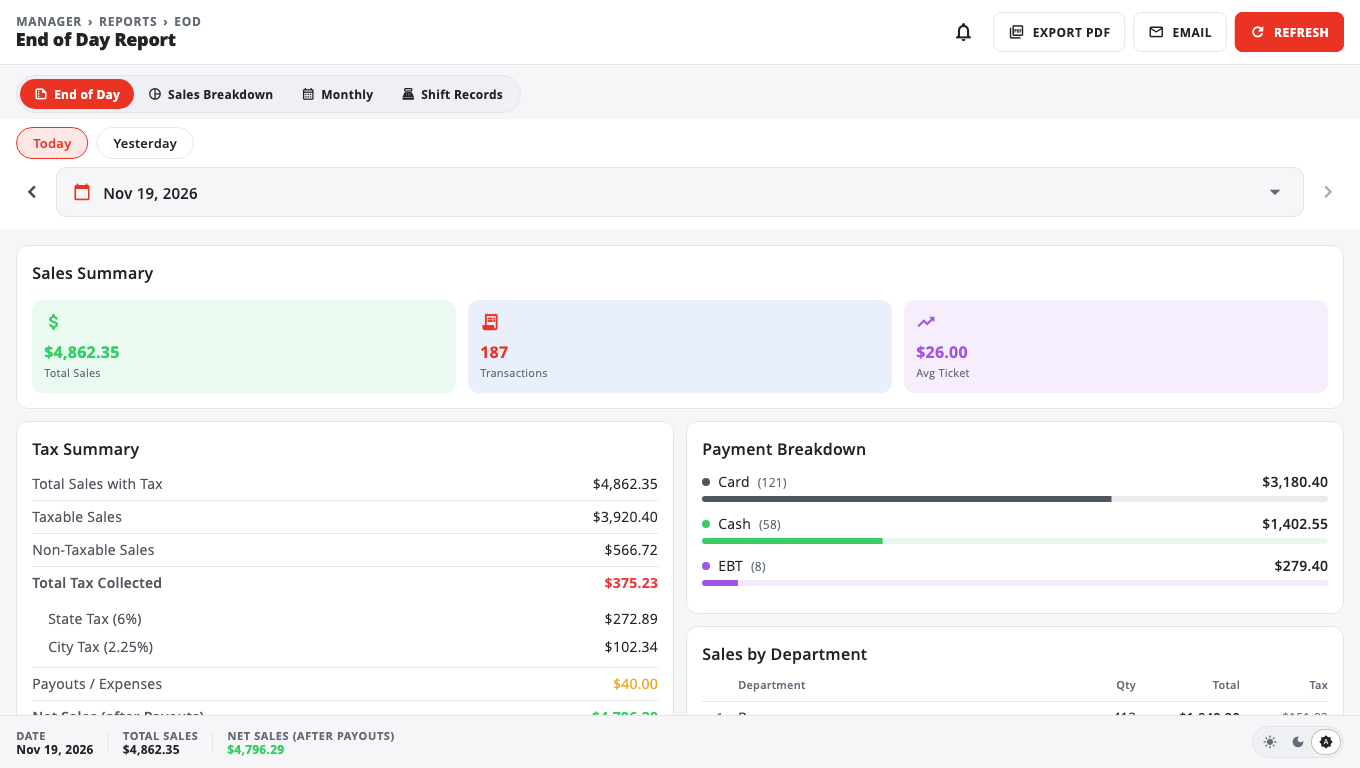
- Go to Reports → Sales Report.
- Pick a tab:
- End of Day: one day's sales, tax, payouts, payments, voids and the cash drawer.
- Sales Breakdown: a breakdown of sales for any date range.
- Monthly: one month, with a daily trend and top products.
- Shift Records: each till shift and its closeout.
- Choose the date. On End of Day, use Today, Yesterday, the arrows or the date picker. On other reports, pick a range such as This Month or Last Quarter, or Custom.
Save or email a report#
- Tap Export PDF to open the report as a PDF. From there you can Print, Save or download it.
- Tap Email, type an address in Send to, and tap Send. The PDF of what you see (same dates and filters) is attached.
You can email up to 10 reports an hour.
Find more reports#
The Reports hub shows the most-used reports first. Tap … more reports hidden — Show all to see them all, for example:
- Employee Performance: sales by cashier, with voids and returns.
- Audit Center: voids, cash drawer opens, removed items, price overrides and more.
- Tax Buckets: tax by category.
- Accounting Export: a file for QuickBooks, Xero or your accountant.
- Scheduled & Saved Reports: reports that run in the background (below).
Make a report in the background#
Large reports can take a while. Let BuiltOFFICE make them for you:
- Go to Reports → Scheduled & Saved Reports → Generated.
- Tap New Report.
- Pick the Report Type and the Date Range.
- Tap Generate. The list updates by itself.
- When it's ready, tap the PDF icon to preview or download it.
Get a report by email every day, week or month#
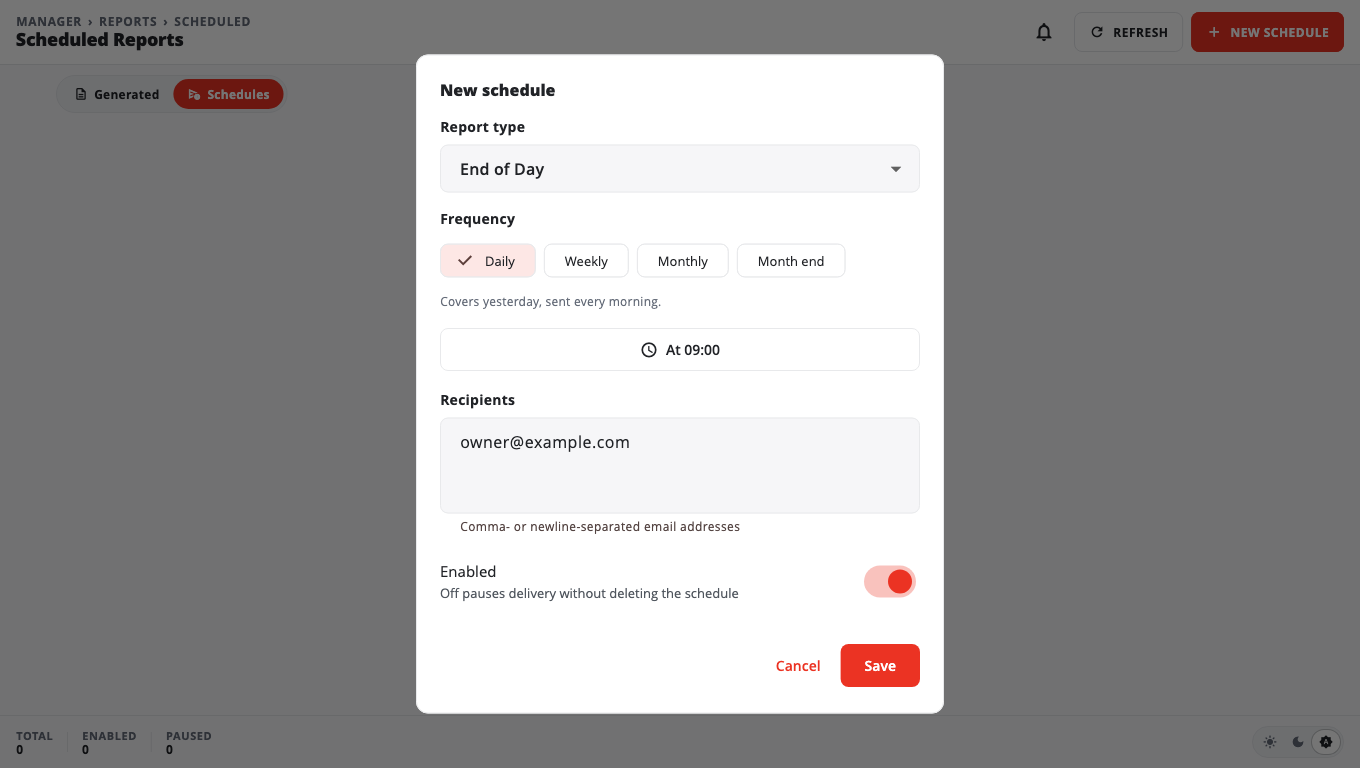
- Go to Reports → Scheduled & Saved Reports → Schedules.
- Tap New schedule.
- Pick the Report type.
- Choose the Frequency: Daily, Weekly, Monthly or Month end. The line under it says what each email covers, for example "Covers yesterday, sent every morning."
- Set the time, and the day for weekly or monthly reports.
- Enter the Recipients, separated by commas.
- Leave Enabled on and tap Save.
Tap Send test now on a schedule to try it straight away. Turn Enabled off to pause a schedule without deleting it.
Advanced Analytics#
Advanced Analytics (profit, trends, customers, cost of goods and refunds) is an add-on. Until it is turned on, the page shows Advanced Analytics is an add-on and an Unlock Advanced Analytics button. Your Dashboard, Sales Breakdown and End of Day reports stay free. See Subscription and billing.
Good to know#
- Reports use the store timezone in Settings → Store Timezone.
- Whether a person sees a report depends on their role. Shift leads may not see the End of Day report; see Role permissions.
- Fuel, payroll, labor and some kitchen reports are not available on legacy Windows POS stores.
Was this helpful?
Thanks for letting us know.
Sorry it did not help. Tell us what was missing: open Help & Support in the app and choose Report a problem, or email support@builtsofthub.com.