
Set up sales tax
Add tax rates, give products more than one tax, set prices that include tax, and run tax reports.
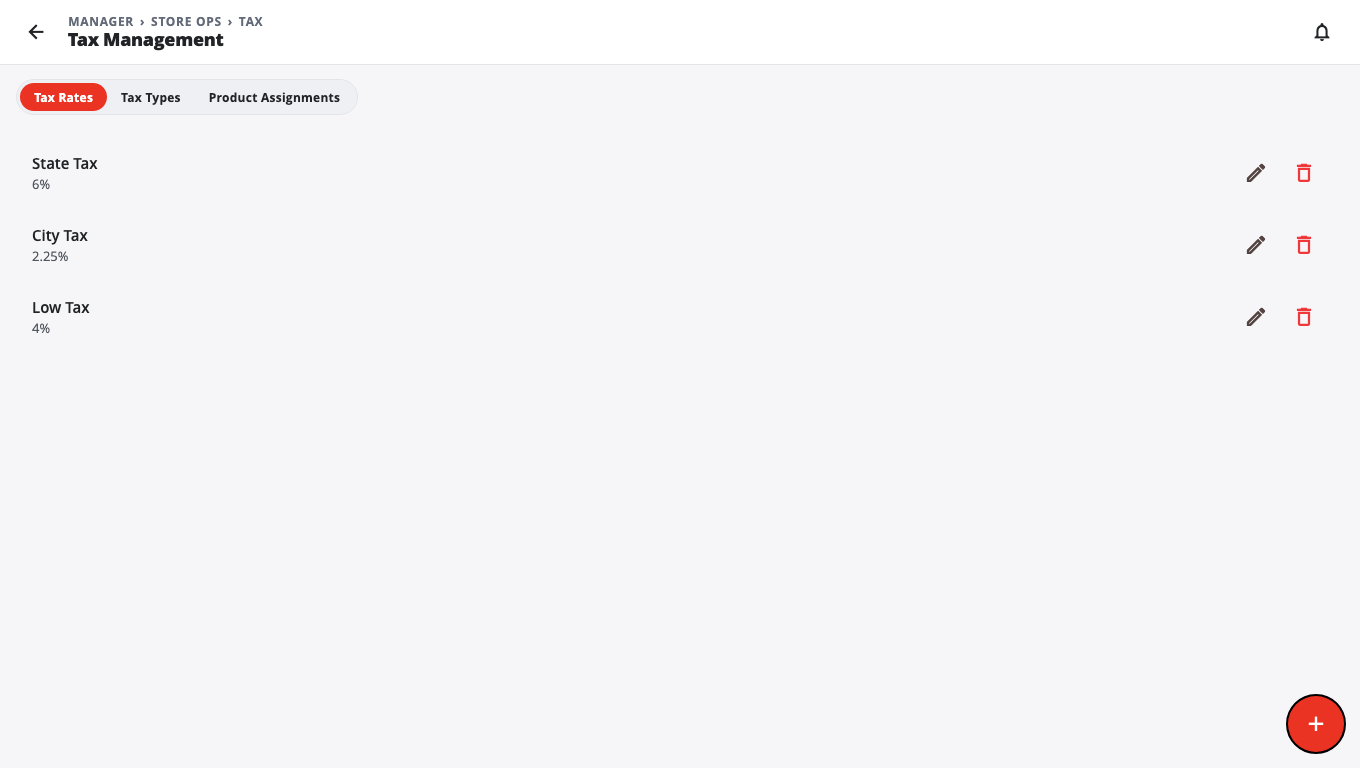
Add a tax rate#
- Go to Inventory → Tax Rates.
- On the Tax Rates tab, tap +.
- Fill in Tax Name, Tax Type and Percentage (for example 8.25).
- If an extra surtax is charged on top, enter it in Additional (surtax) %. The till charges the two added together.
- Tap Save.
You can't rename a tax. To rename it, delete it and add it again.
Give a product its taxes#
The easiest way is to set the tax on the category. Every product in that category gets it. See Products and categories.
To set taxes on one product:
- Go to Inventory → Tax Rates → Product Assignments.
- Search for the product and tap it.
- Tick every tax that applies. The Combined rate shows the total.
You can also pick taxes on the product's own page (Tax Rates chips).
Prices that already include tax#
If the price on your shelf already includes tax:
- Go to POS → POS Settings → Store Policy.
- Under Tax, turn on Shelf prices include tax. It is off unless you turn it on.
- Tap Save for all tills.
- Ring a test sale on a till and check the total.
Tax reports#
- Reports → Tax Buckets: tax and sales by category.
- Inventory → Tax Filing: a sales-tax report per tax area for filing.
Both are on the … more hidden — Show all list if you don't see them.
Good to know#
- Only owners and admins can change POS Settings.
- Tax-exempt sales (for example a tax-exempt customer) are handled on the till.
- Tax Filing and Shelf prices include tax are not available on legacy Windows POS stores. Those stores keep one tax per product.
Was this helpful?
Thanks for letting us know.
Sorry it did not help. Tell us what was missing: open Help & Support in the app and choose Report a problem, or email support@builtsofthub.com.