
For employees: sign in and see your pay
How employees get into BuiltPAYROLL, and what they see on My pay.
Get in#
- Your employer sends you an invite to the employee portal. It comes by email, or your manager gives you a temporary password.
- Go to payroll.builtsofthub.com/app and sign in with your email and password.
- Change your password any time with Forgot password? on the sign-in page. See Reset your password.
What you see on My pay#
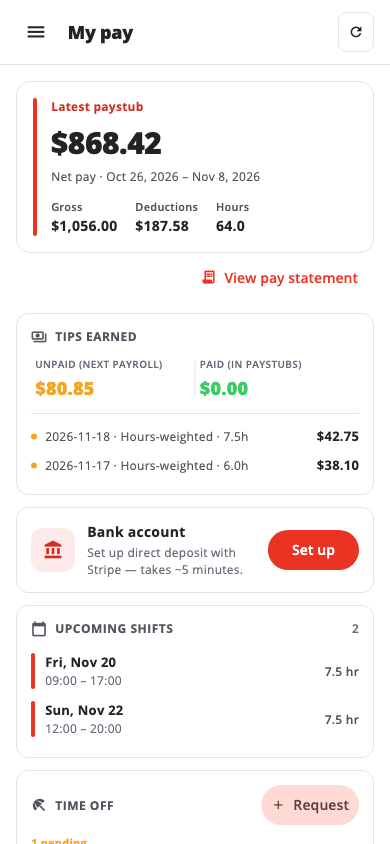
- Latest paystub, with your net pay for the period. Choose View pay statement for the full detail.
- Paystub history: every paystub you have been paid.
- Upcoming shifts for the next 14 days.
- Time off: your requests. Choose Request to ask for time off.
- Tips earned: unpaid (next payroll) and paid (in paystubs).
- Bank account: if your employer pays by bank deposit, choose Set up to connect your bank with Stripe.
Ask for time off#
- In Time off, choose Request.
- Pick the Start and end dates, enter the Hours, and add a Reason (optional).
- Choose Submit. Your manager approves or denies it.
Clock in#
If your company uses the web time clock, open Time clock. See Use the web time clock. Otherwise, clock in on the till at work.
Was this helpful?
Thanks for letting us know.
Sorry it did not help. Tell us what was missing: open Help & Support in the app and choose Report a problem, or email support@builtsofthub.com.